Assets
The Assets window holds everything you own across your characters and corporations. It has five tabs along the top: Inventory, Abyssals, Stockpiles, Values, and Tracker. Each tab carries a count badge. Inventory shows the total item count in scope, Abyssals shows the number of mutated modules, Stockpiles shows how many stockpiles you have defined, and Values shows the number of owners in scope. Tracker carries no badge.
Inventory
The Inventory tab pairs a location tree on the left with a filterable, sortable item table on the right.
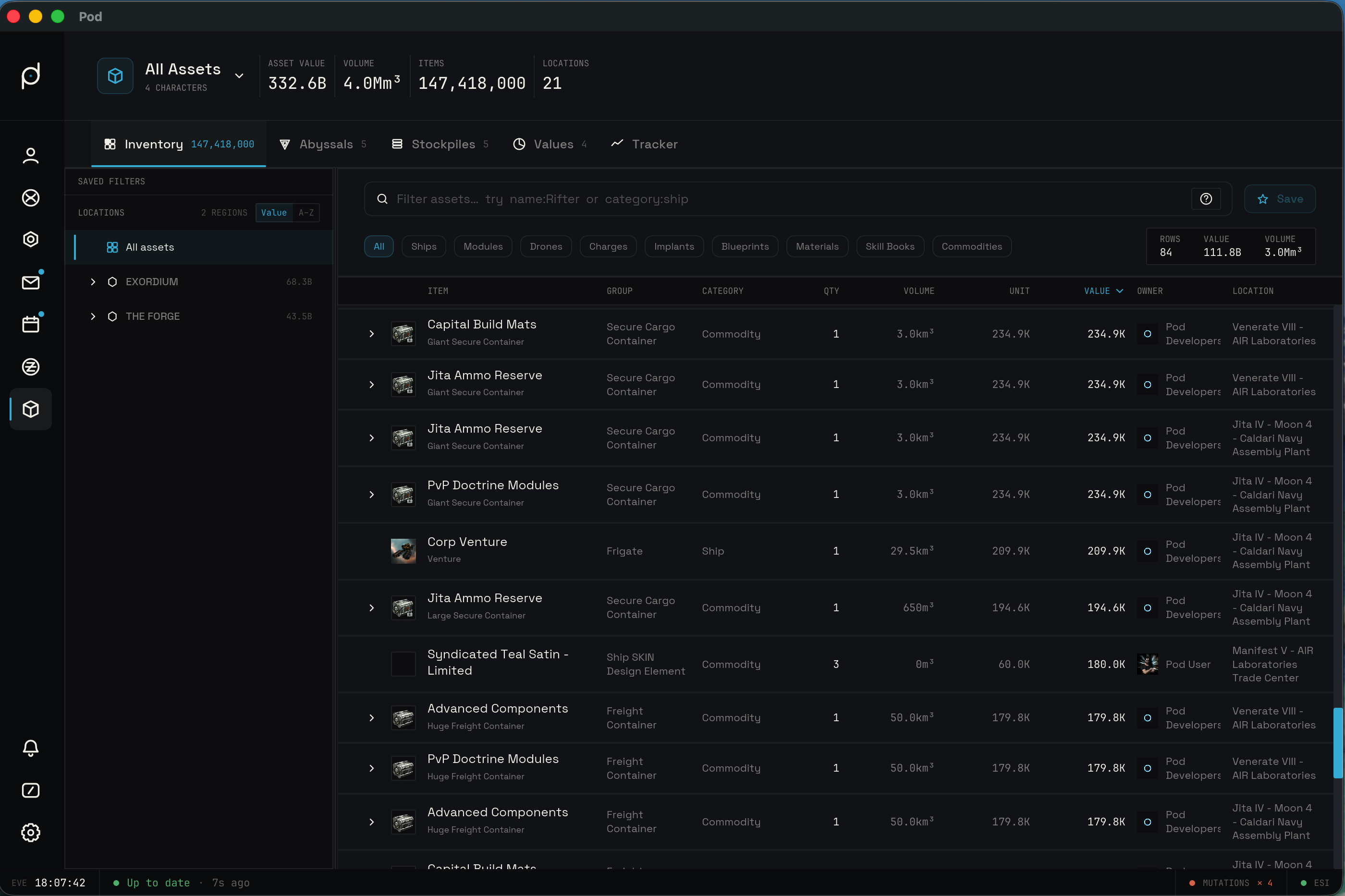
Category pills and the search box
Above the table sits a row of ten category pills: All, Ships, Modules, Drones, Charges,
Implants, Blueprints, Materials, Skill Books, and Commodities. All is selected by default
and shows every item. Picking any other pill narrows the table to that one category. The
pills map directly onto the category: query token, so the Ships pill is the same as typing
category:ship.
The search box sits next to the pills. Its placeholder reads
Filter assets… try name:Rifter or category:ship. Typing filters the table as you go.
Type a plain word to search loosely, or use a prefix token to target one field. The three
summary badges below the table, Rows, Value, and Volume, reflect the rows currently loaded
into the page.
The filter query language
The filter box understands a small token language. You can mix any number of tokens in one query, separated by spaces. Tokens are combined with AND, so every token must match for a row to appear.
A token is either a bare word or a key:value pair. Keys are case-insensitive. Wrap a value
in double quotes to keep spaces inside it, for example region:"The Forge". Put a comma
between values to match any of them, so category:drone,ship returns drones or ships. Put a
- in front of a token to exclude its matches, so -category:ship hides all ships.
These are the recognized keys:
name:(aliasn:) matches the item type name loosely.name:rifterfinds anything whose name contains "rifter".group:(aliasg:) matches the item group name loosely.group:frigatecovers every frigate group.category:(aliascat:) matches the category exactly and ignores case. Valid values areship,module,drone,charge,implant,blueprint,material,book, andcommodity.region:(aliasr:) matches the region name exactly and ignores case. Quote multi-word region names.constellation:(aliasc:) matches the constellation name exactly and ignores case.system:(aliass:) matches the solar system name loosely.system:jitacovers Jita and any name that contains it.location:(aliasloc:) matches the station or structure name loosely.owner:accepts the single valueme.owner:mekeeps only items owned by your active character. Any other value matches nothing.type:acceptsbpcfor blueprint copies,bpofor blueprint originals,singletonfor unstacked single items, andstackfor stacked quantities.tag:matches an asset tag by name, exactly and ignoring case.tag:Sellkeeps only stacks that carry a tag namedSell. There is no alias and no partial match, so the name has to be the whole tag. Comma-separate values to match any of them, sotag:Sell,Junkkeeps stacks tagged either way, and negate with a-prefix, so-tag:Junkhides anything taggedJunk.
Loose keys match a value anywhere inside the field, so the value is treated as a substring.
Exact keys (category, region, constellation, tag) require the full name. A bare word with
no prefix searches four fields at once: item name, type name, group name, and location name. So
typing tritanium finds it whether that text lands in the item name or the location. An
unknown key like clone: matches no rows rather than falling back to free text.
Sorting
Click a column header to sort by it. The sortable columns are Item, Group, Category, Qty, Volume, Unit, Value, and Owner. The table opens sorted by Value, highest first. Click the same header again to flip the direction. The Location column is fixed and does not sort.
Tagging items
You can tag individual stacks the same way you tag characters. A tagged stack shows its tags as chips beneath the item name. Each chip has an "x" that unassigns just that tag from that stack; clicking the "x" removes the tag and does not select the row. Hover over a row and a "+ Tag" control appears at the end of the chip strip. It shows only while the pointer is over the row. Clicking it opens the same "Add tag" modal that the character tags use, where you search existing tags, assign one, or create a new one. The asset tag list starts empty, so the tags you see are the ones you have made. Asset tags and character tags are separate sets; you manage the asset set from the Tags tab in Settings.
You can also act on several stacks at once. Click a row to select it, shift-click another row to select the range between them, and hold cmd or ctrl while clicking to toggle a single row in or out of the selection. While a selection is active, the summary badge above the table switches from "Rows" to "Selected" and reports the count, value, and volume of the selected stacks rather than the whole loaded page.
Right-click a row to open its context menu. The menu is titled with the number of selected stacks, for example "3 stacks", not the item name. Its one entry, "Edit Tags", opens the "Add tag" modal over the whole selection. There, the current tags section shows only the tags shared by every selected stack, the intersection, so it reflects what they all have in common. Assigning a tag adds it to every selected stack, and removing one takes it off all of them.
Worth-reprocessing badge
Some stacks are worth more refined into minerals than sold whole. Pod marks those with a warning "Reprocess" badge next to the item name, a warning-colored marker down the row's left edge, and a second warning-colored value line under the stack's sell value in the Value column. Hover the badge or that second line for a tooltip that gives the per-unit reprocess price, how far that sits above the per-unit sell price as a percentage, and the per-unit sell price itself.
The reprocess figure is an estimate. Pod takes the materials each item reprocesses into from the
static data export, prices them at market, and scales the result by a flat reprocessing yield
applied to full reprocessing portions. The yield defaults to about 50 percent. It is a flat number
that ignores your reprocessing skills, the station's efficiency, and any rigs, so treat the badge
as a rough signal rather than an exact payout. The yield is a value in the config file
(reprocessing_yield), not a control in the Settings window.
The location tree
The left tree groups your assets by where they sit in space. It nests from region down to constellation, then solar system, then the individual station or structure. System rows show their security status. Every node rolls up the item count and the total ISK value of everything beneath it, so a region row sums its constellations and a constellation row sums its systems.
Click a node to filter the table to that location. Locations that cannot be resolved to a system, such as a structure you can no longer dock at, collect under an orphan group at the bottom of the tree.
A "Value" / "A-Z" segmented toggle sits in the tree's header. "Value" is the default and orders each level by its rolled-up ISK, highest first. "A-Z" orders by name instead. The choice sorts the left location tree only and is separate from the column sort on the item table. Pod remembers which mode you picked across restarts.
When you type a filter, Pod auto-expands the containers along the path to each match, so a matching item nested inside a container is revealed rather than hidden. Clearing the filter collapses those containers again.
Abyssals
The Abyssals tab lists your mutated modules. Mutated modules roll random stats within a band, so they each carry their own values rather than a fixed type price.
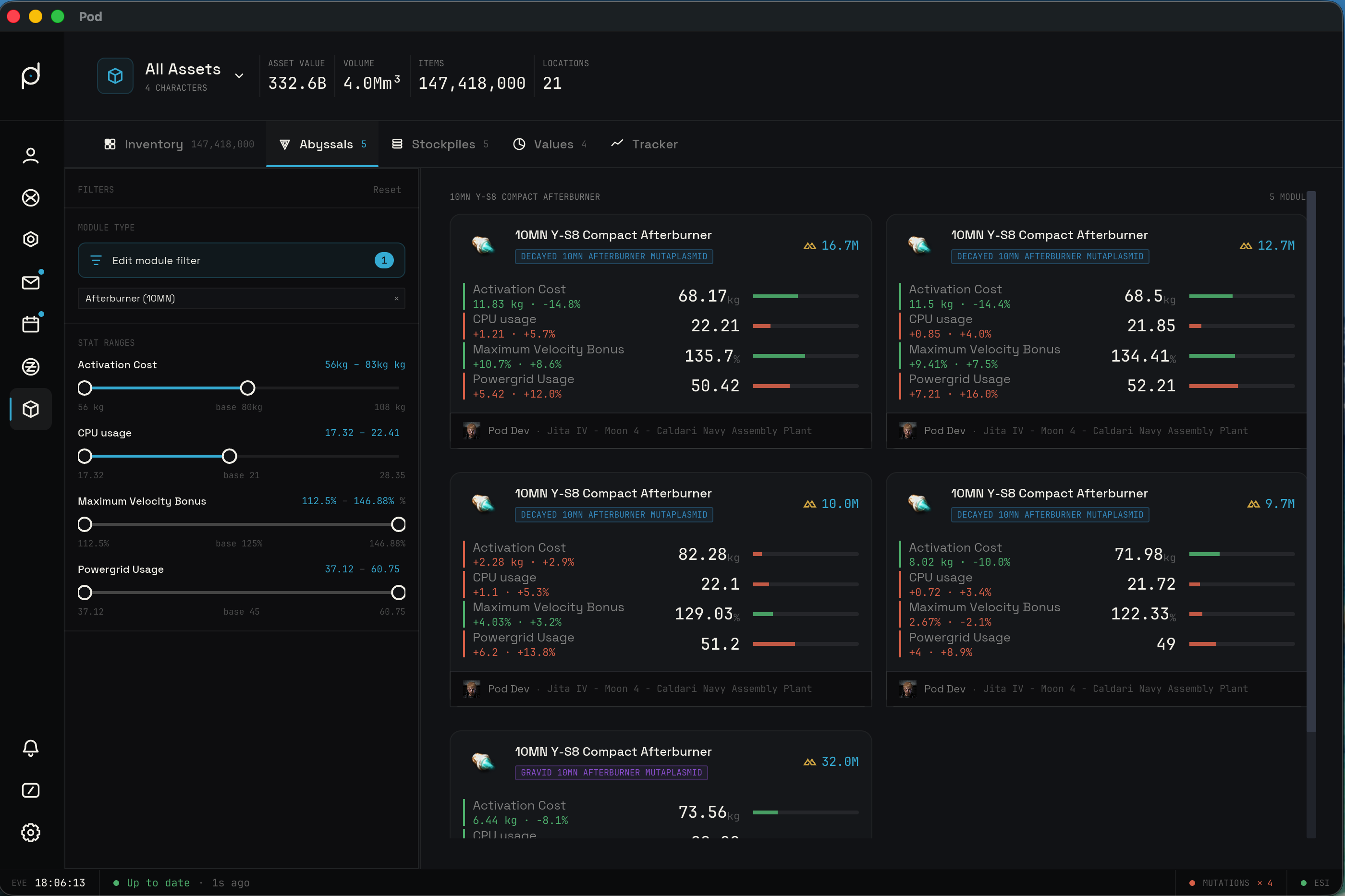
Each module appears as a card with its icon, name, owner, location, and an estimated value. A colored tier badge marks the mutation grade: Unstable, Gravid, and Decayed, plus the Glorified variants. The badge color encodes the tier, which makes the grades easy to scan.
The sidebar holds a range filter, one slider per rolled stat for the selected module type. Each slider has a low handle and a high handle. Drag them to keep only the modules whose stat falls inside the band you set. A slider you have narrowed off its full range is highlighted so you can see which stats are active. Cards load in pages as you scroll.
Stockpiles
A stockpile is a named target list of items you want on hand at a location. The Stockpiles tab shows each one as a card with a fill bar. Two buttons sit in the tab's header: "+ New stockpile" opens an empty stockpile editor, and "Import multibuy" opens the import window covered below.
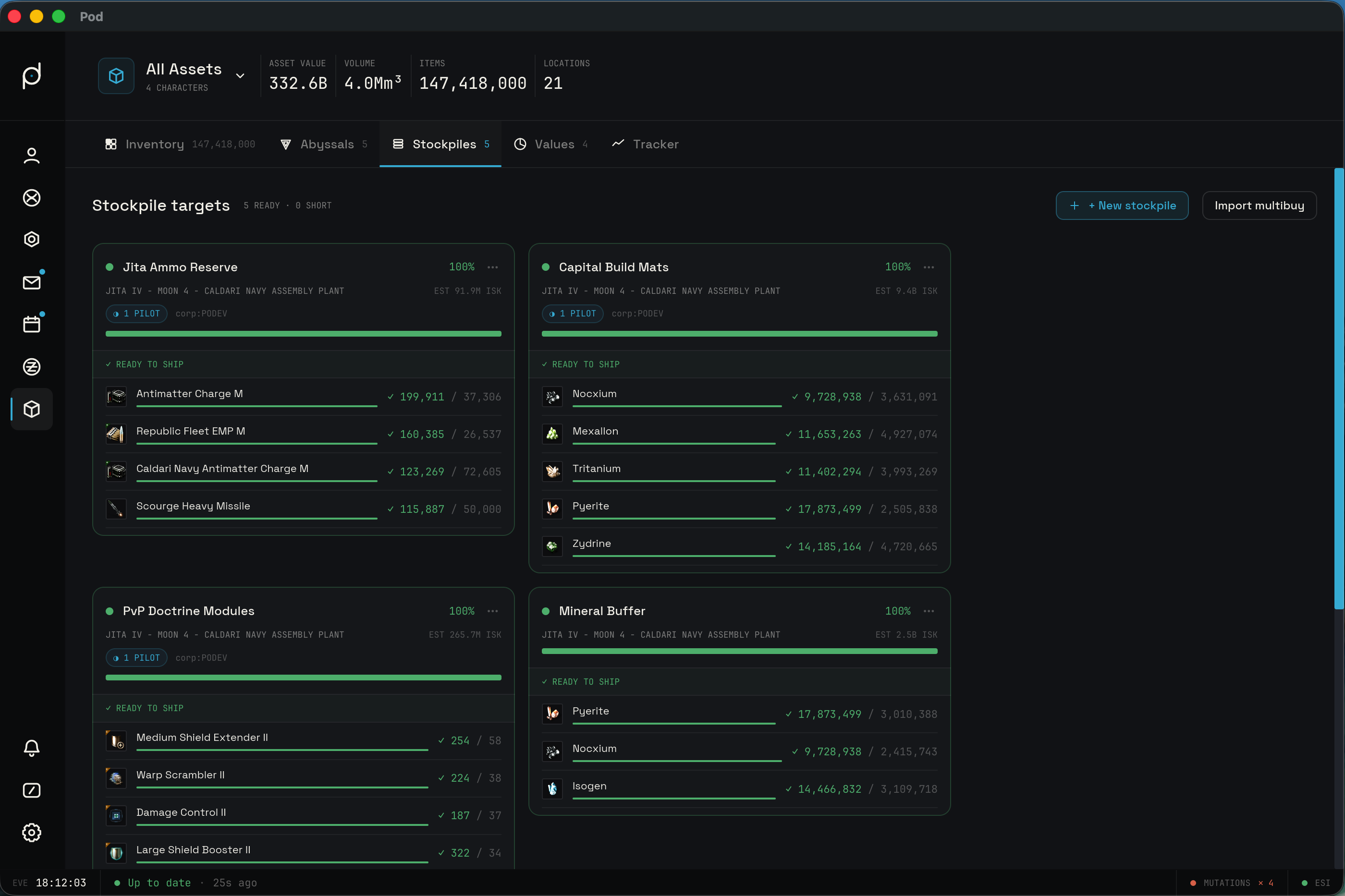
Every item line in a stockpile shows three numbers: have, target, and the deficit. Have is how many you currently own across the characters in scope, target is how many you want, and the deficit is the shortfall, which is target minus have when have falls short. A per-item progress bar shows the fill as have over target. The card also rolls up an overall fill percentage and the ISK cost to close the gap.
Right-click a stockpile card to open its context menu. It has three actions: Edit opens the stockpile editor, Export to Multibuy copies the contents in EVE multibuy format, and Delete removes the stockpile. When you export to multibuy, a Target / Remaining toggle controls whether the list contains the full target quantities or only the remaining deficit.
The stockpile editor
The editor opens in its own detached window, separate from the main Pod window, where you set the name, the scope, the location, and the item targets. You can move and resize the window, and you can open more than one editor at once.
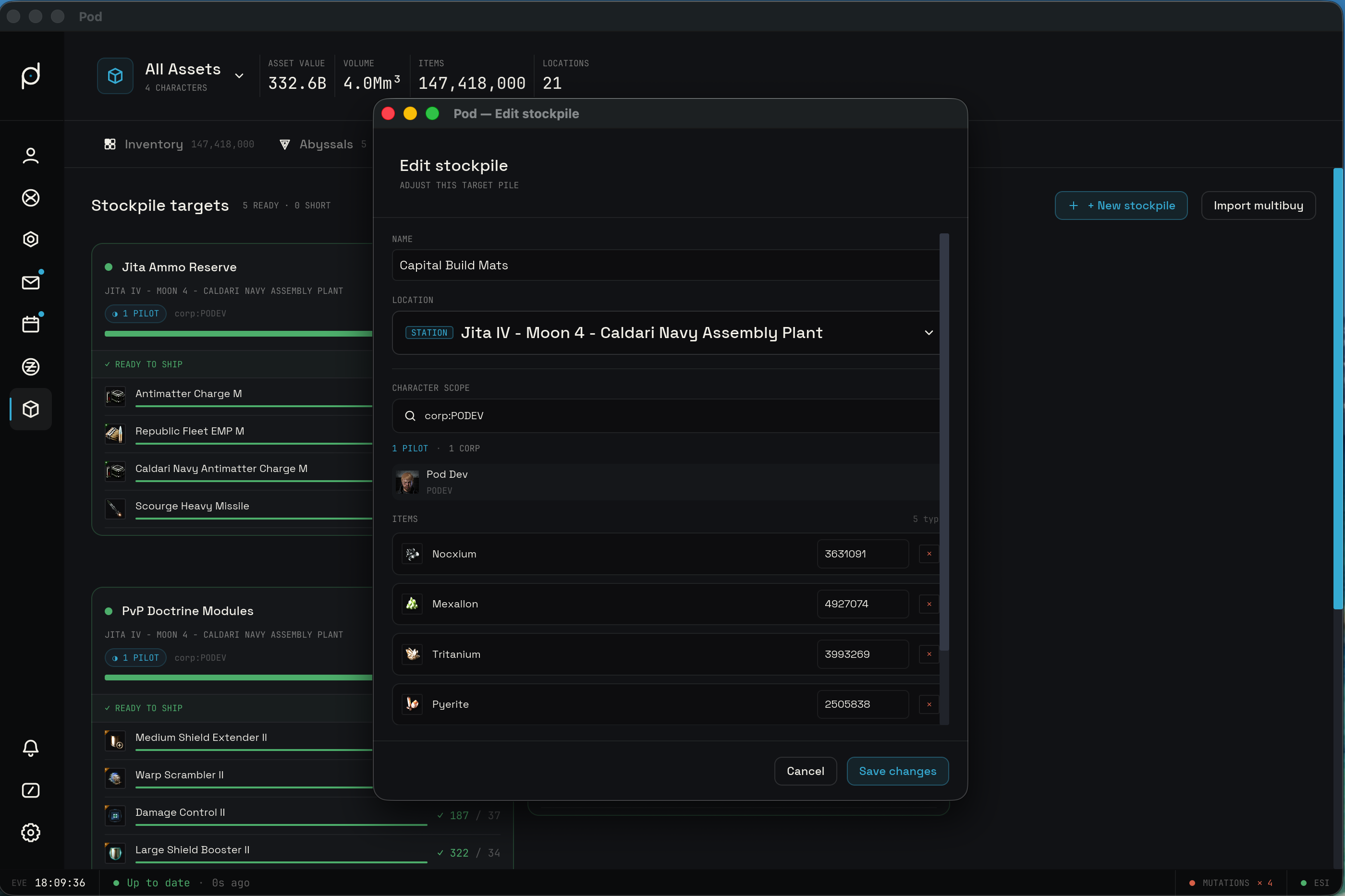
Scope is a set of characters. Picking which characters count toward the stockpile updates the have figures live, so you can preview which pilots' assets the stockpile pools as you change the selection.
The location field is a combobox with live search. Type part of a station or structure name and it queries your reachable locations, both from a search and from the offline cache, then lists the matches with their security status. Pick one to anchor the stockpile there.
To add items, type a name into the item search and pick a match from the suggestions. Each item row gets a target quantity field you can edit, plus a control to remove the row.
Importing a multibuy list
Instead of adding items one at a time, you can import an EVE multibuy list. The "Import multibuy" button in the Stockpiles header opens an "Import multibuy" window of its own, separate from the main Pod window. Paste your list into it and click Resolve.
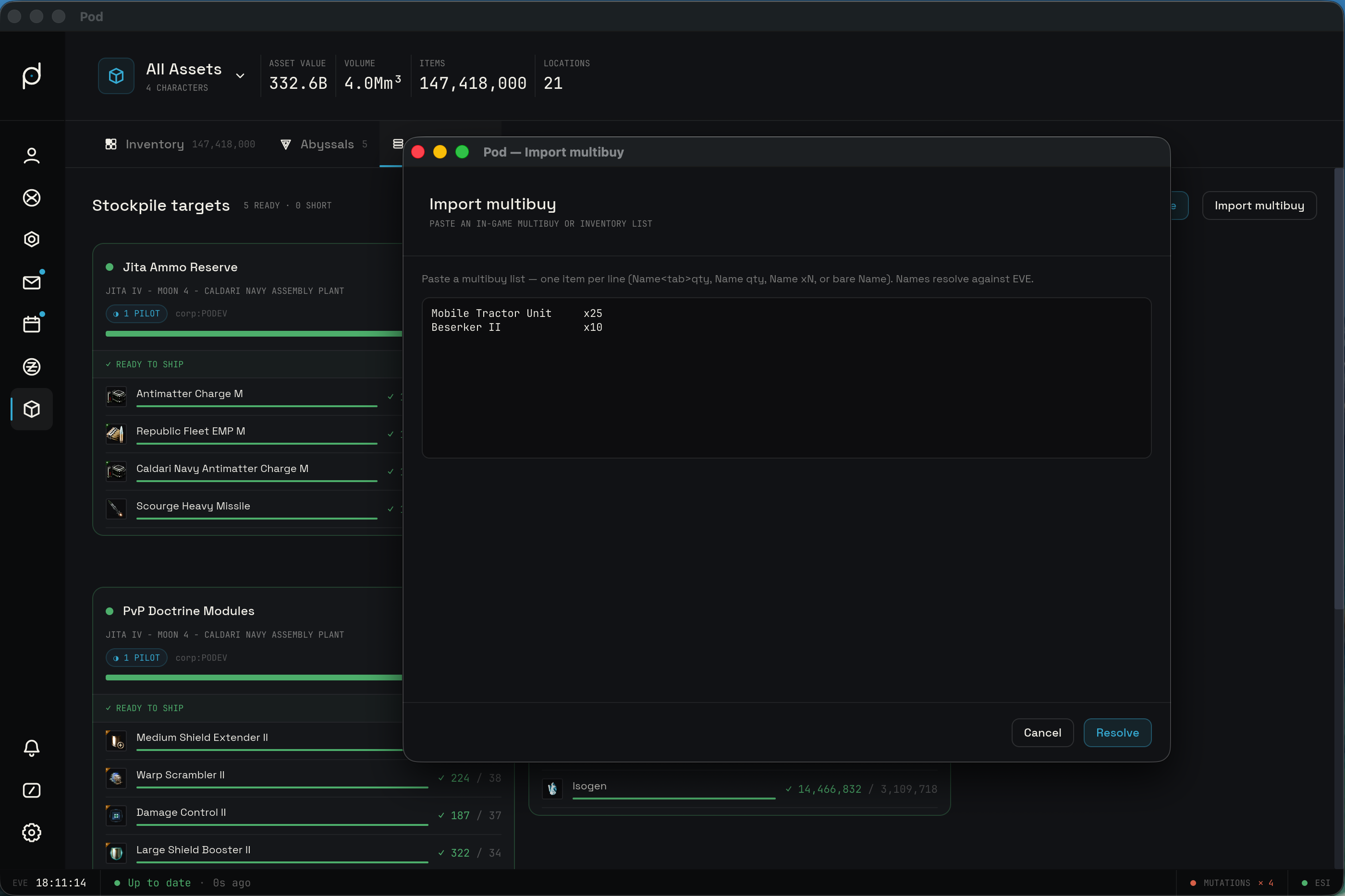
The parser reads the formats EVE produces. It accepts a name followed by a quantity, a quantity
followed by a name, and the x1000 and 1000x shorthands. It reads grouped digits whether the
separator is a comma, a period, an apostrophe, an underscore, or a space, so 1,000 and 1 000
both read as one thousand. A bare name with no quantity counts as one. Duplicate names are summed.
Resolving shows a review step that lists the matched items and any lines it could not match. Confirming the import opens a Stockpile Editor window prefilled with the matched items, where you set the name, scope, and location before saving. Nothing is saved until you fill in the editor and hit Save.
Values
The Values tab breaks your net worth down by who owns what and where it sits.
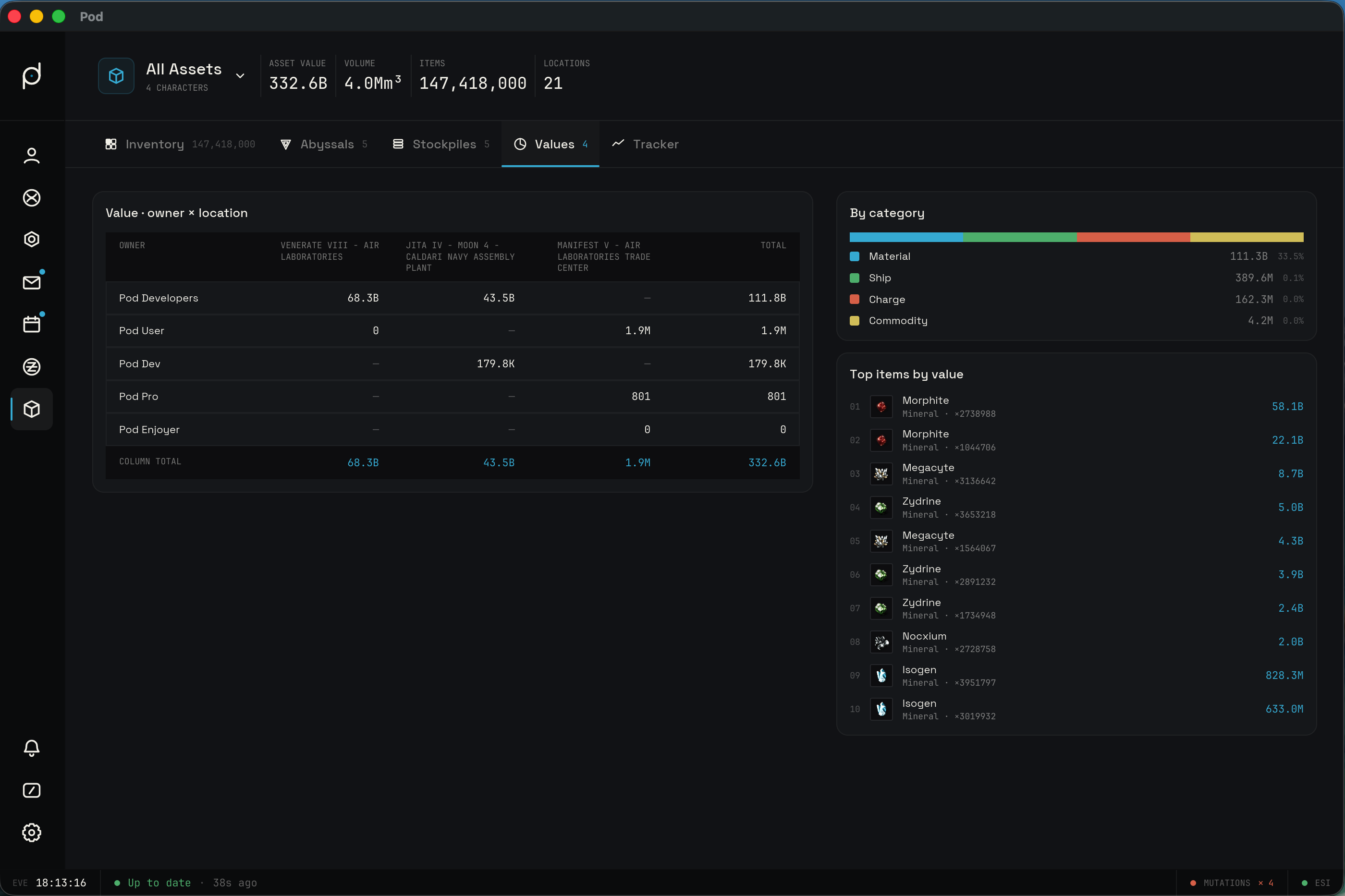
The main view is a matrix. Rows are owners, your characters and corporations, and columns are locations. The leftmost column header reads Owner. Each cell holds the ISK value that owner holds at that location, and the row and column totals give you the per-owner and per-location sums. The tab also lists the top ten items by value under "Top items by value" and breaks the total down by category under "By category". The grand total is your net worth across everything in scope.
Tracker
The Tracker tab charts your net asset value over time.
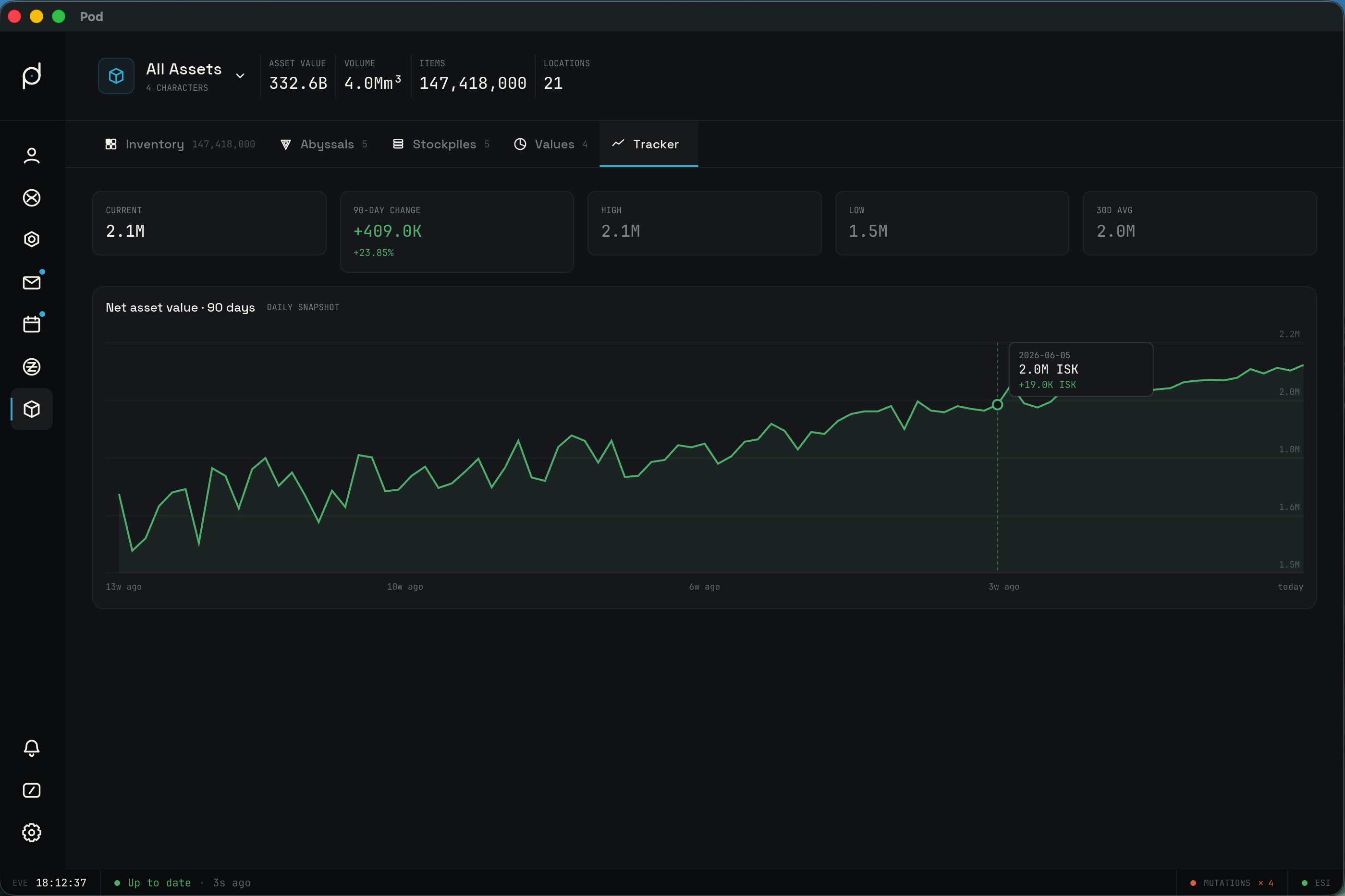
The chart covers the last 90 days. Net asset value is your total holdings recorded as a daily snapshot, so the line shows how your wealth has moved day to day. Above the chart sit five tiles: Current is the latest value, 90-day change is the difference across the window with its percentage and a color for the direction, High and Low are the peak and trough inside the window, and 30d avg is the average of the most recent 30 days.