Calendar
The Calendar feature shows EVE Online calendar events for every pilot you have added, alongside synthetic events that Pod derives from your own data. Fleet ops, corporation meetings, and faction events arrive from ESI. Skill completions, market order expiries, contract lapses, industry job finishes, and moon extraction timers are added by Pod so that everything with a deadline lands on one grid.
You reach the Calendar from the left rail. The feature has its own scope selector, five views, event windows with RSVP controls, and a color legend.
Views
Five views share one header. A segmented control at the top right switches between Agenda, Day, Week, Month, and Year. The button for the current view is highlighted. Agenda is the default when you first open the Calendar.
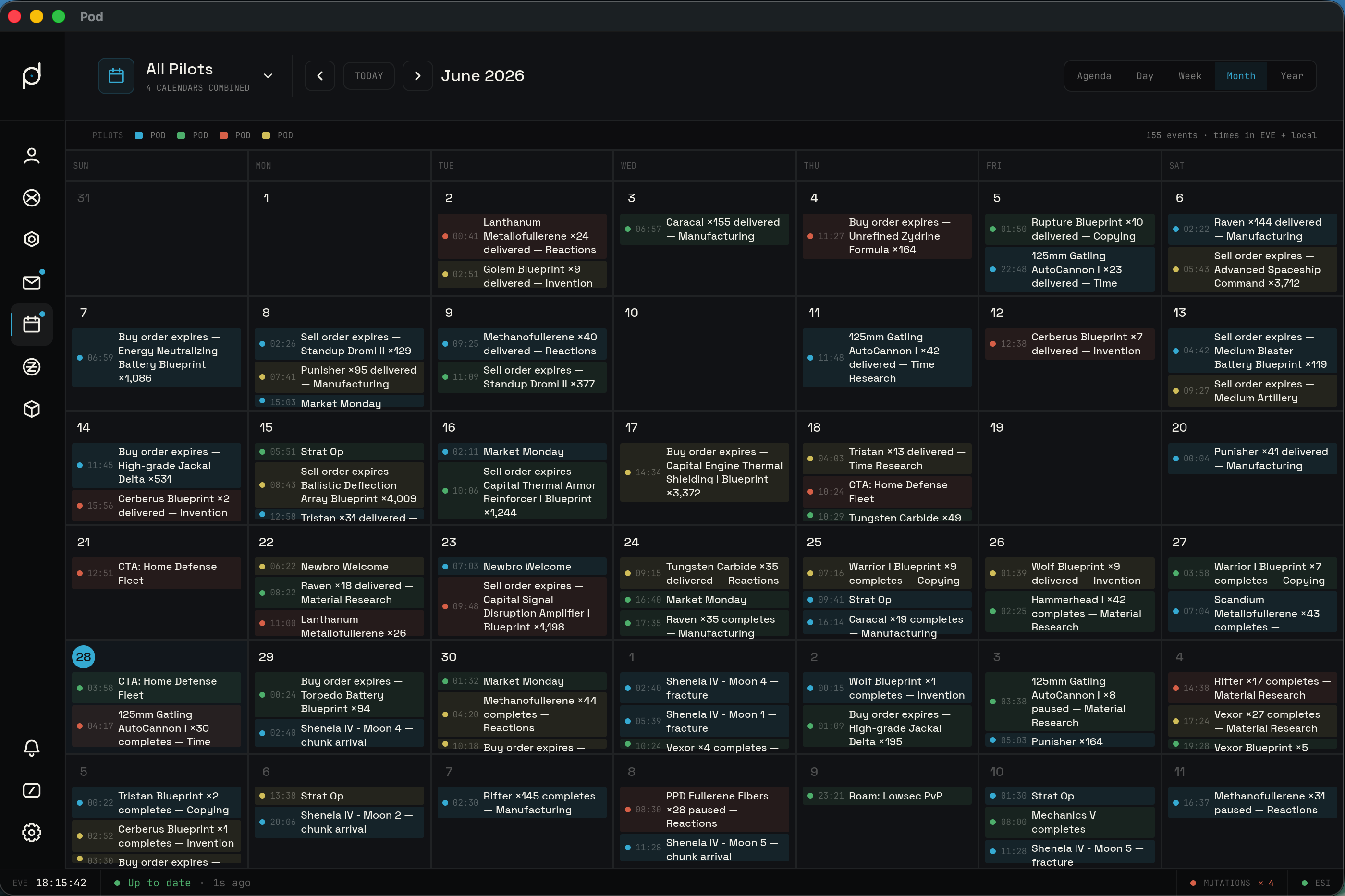
The Month view fills a grid of day cells under a row of weekday labels. Each cell carries its date and the events that fall on it. Today's cell is highlighted, and days that belong to the previous or next month are dimmed. By default each cell shows colored event chips with the start time and title, and a "more" count appears when a day holds more events than the cell can fit. You can switch the cells to plain colored dots instead of chips through the calendar settings described below. Clicking a day cell opens the Day view for that date.
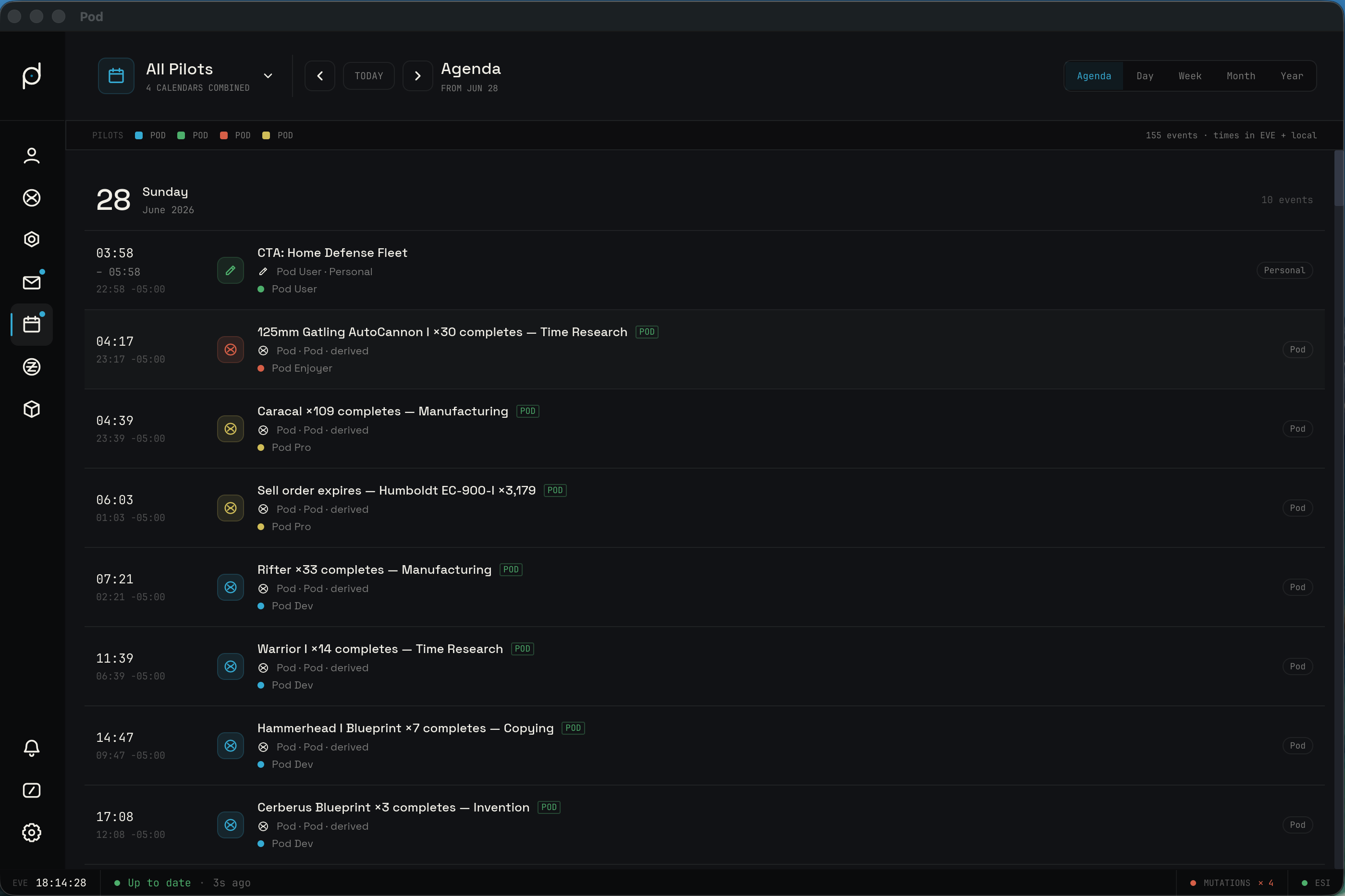
The Agenda view is a single vertical list of upcoming events grouped under sticky day headers. Each row shows the time, a color spine for the owner type, the title, the owning entity, and the pilot it belongs to, along with a response pill and a short attendee tally. When the selected scope has nothing ahead, the list says there are no upcoming events for that pilot.
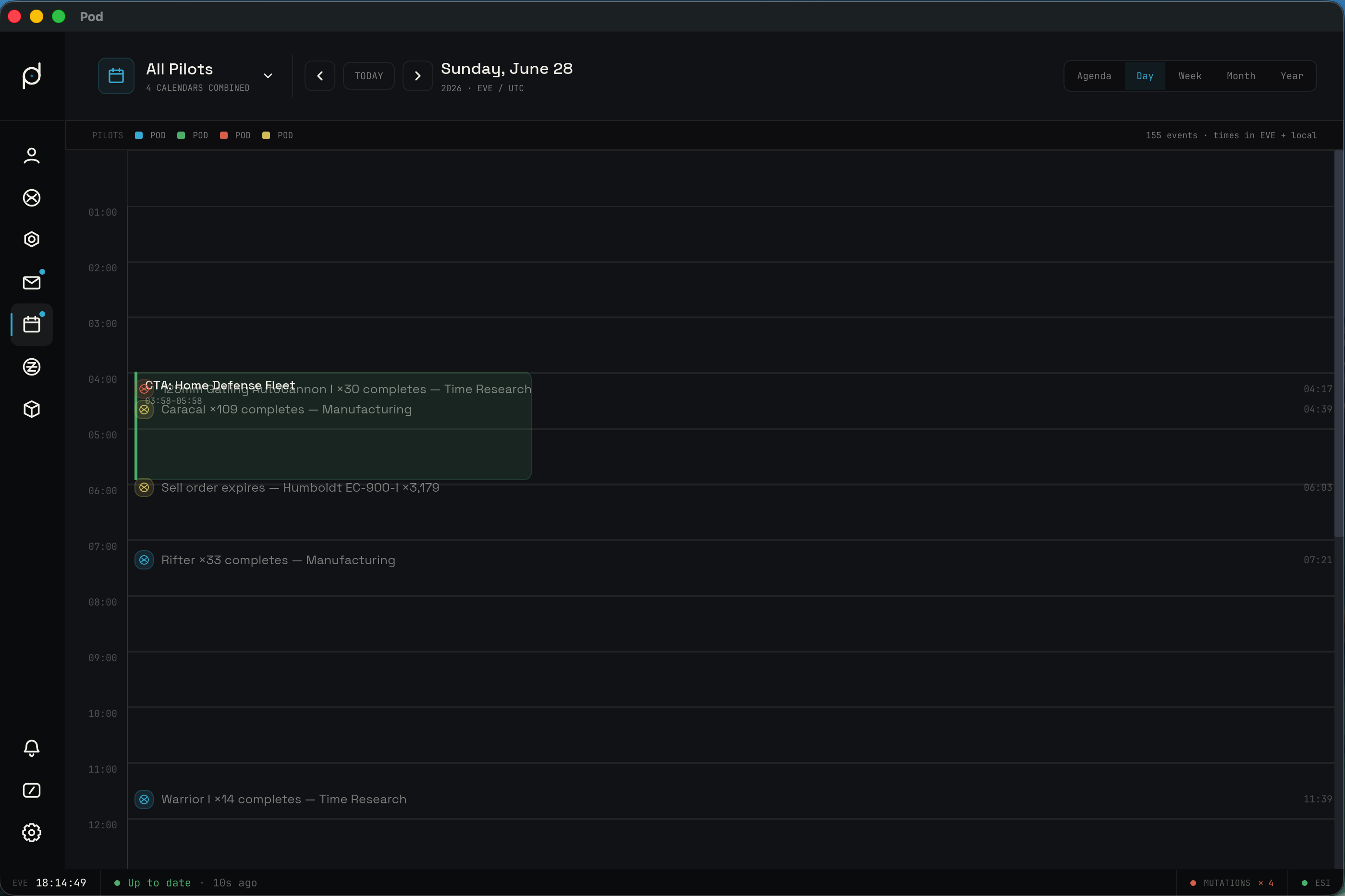
The Day view is an hour grid for a single date. Timed events render as blocks positioned at their start hour, bordered in their owner color. Events that overlap split into side-by-side lanes so none are hidden. All-day events sit in a strip above the grid. Pod's point-in-time overlays, such as a skill finishing or a timer firing, draw as a thin horizontal marker with an icon rather than a block, because they have no duration. When the date is today, a "now" line marks the current time.
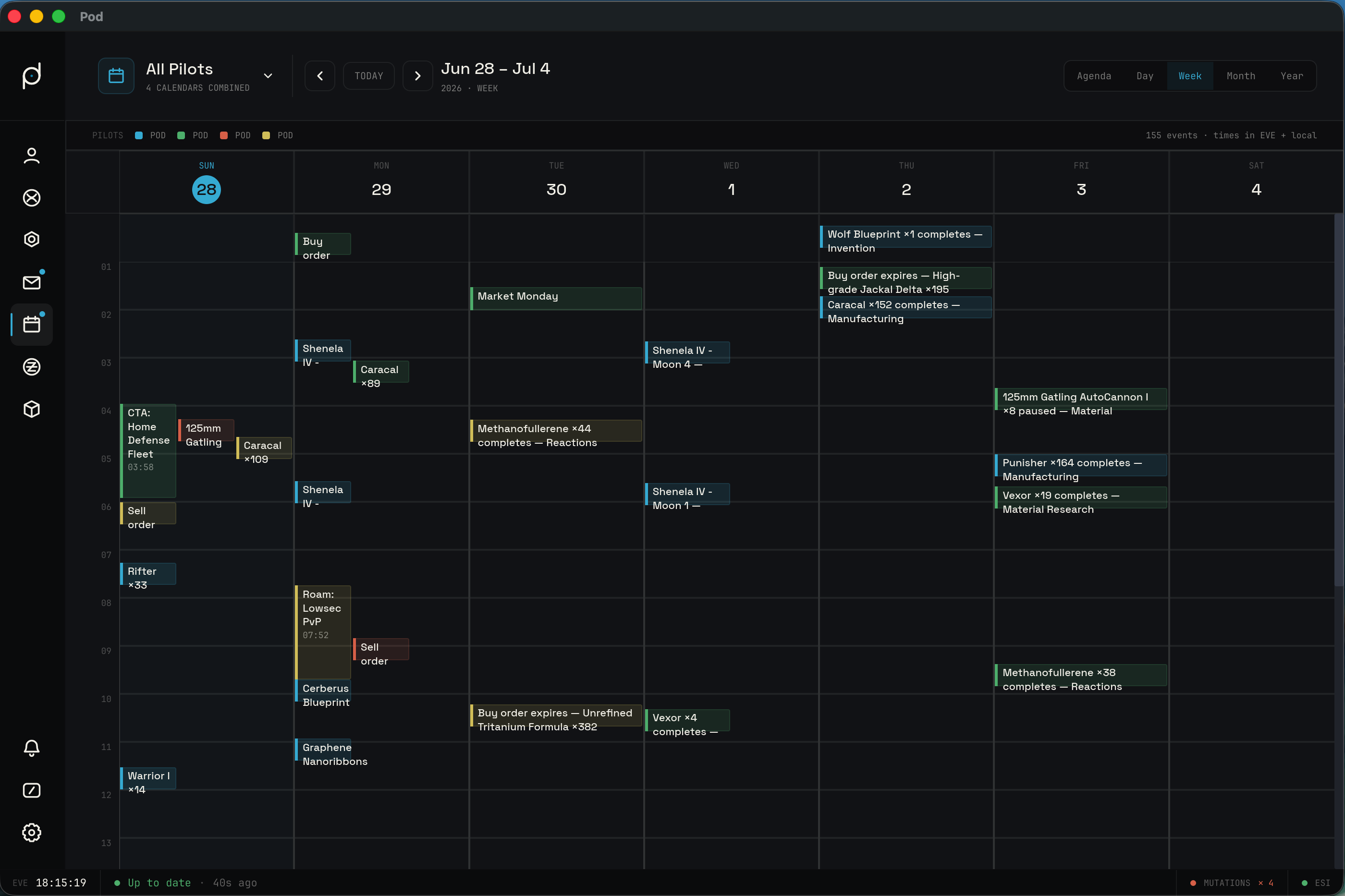
The Week view shows five to seven day columns, depending on whether weekends are shown. It has two shapes. The default is a time grid like the Day view but spread across the week, with an all-day strip and an hour grid. The alternate shape is a set of agenda-style columns, where each day stacks its events as a short list with no hour grid. Today's column is highlighted.
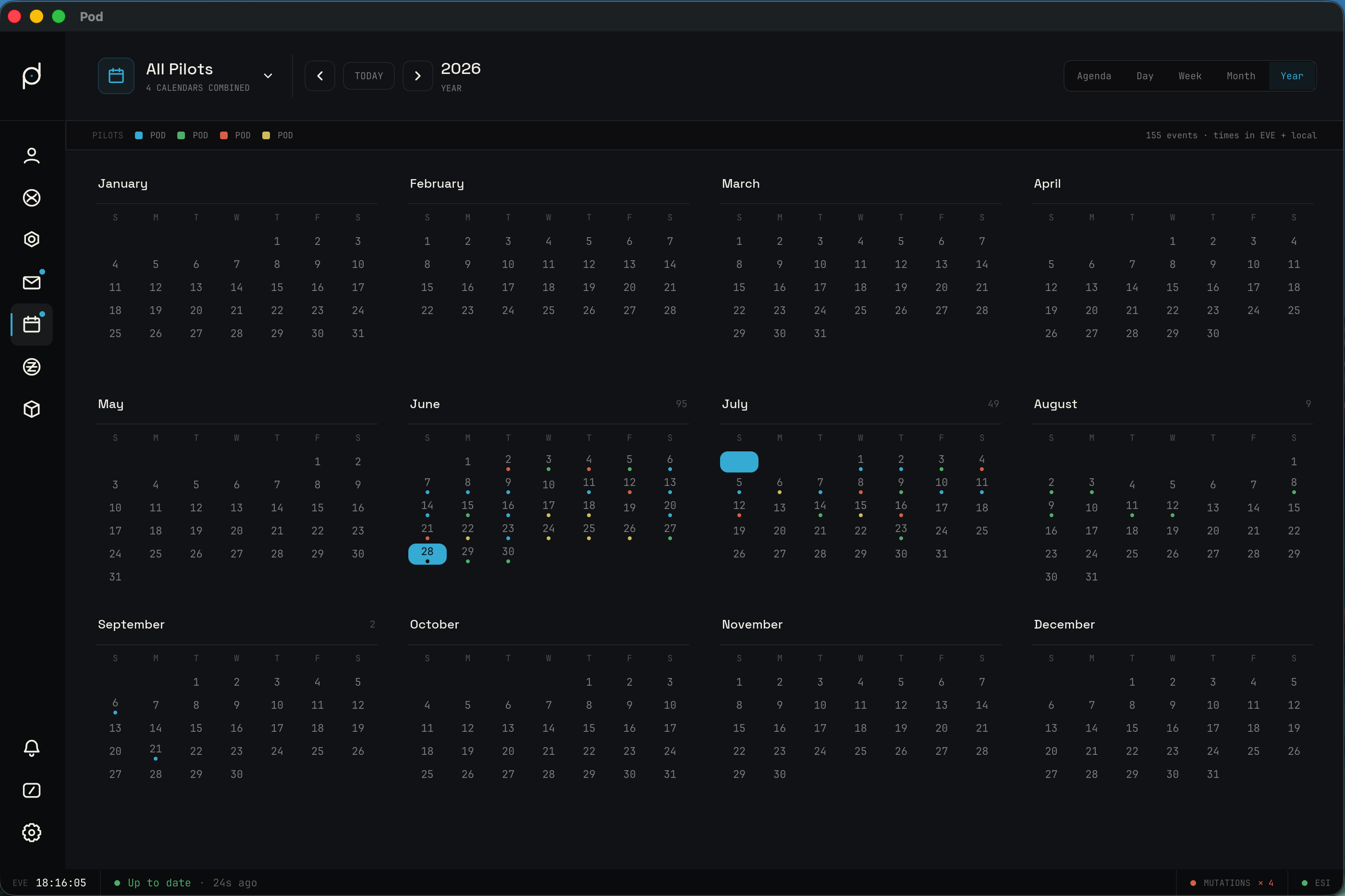
The Year view lays out twelve mini-months. Each mini-month names its month, counts its events, and draws a small weekday grid where a day with events carries a colored dot. Clicking a month name opens the Month view for that month, and clicking a day opens the Day view for that day.
Navigating dates
The header carries the date controls. A left and right chevron step the cursor backward and forward by one unit of the current view: one day in Agenda and Day, one week in Week, about a month in Month, and about a year in Year. A "Today" button returns the cursor to the current date. The header also reads out where you are, such as the month and year in Month view or the day and weekday in Day view, with times labeled in EVE time, which is UTC.
Scope: All Pilots or one character
The account switcher sits at the left of the header. It chooses whose calendar you are looking at. The default is the combined view across every pilot, labeled "All Pilots" with a count of how many calendars are folded together. Opening the switcher drops down a list: an "All Pilots" entry that combines every authorized calendar, then one row per character with a portrait, name, and corporation. Selecting a character narrows the calendar to that pilot. Selecting "All Pilots" returns to the combined view.
In the combined view, each pilot can carry a distinct color so you can tell whose event is whose. You can switch the coloring between owner type and per-pilot through the calendar settings.
The combined view only includes calendars Pod is allowed to read. Reading a character's calendar needs
the CHARACTER_CALENDAR_READ scope, and replying to events needs CHARACTER_CALENDAR_RESPOND. A
pilot who was added before the Calendar feature existed will not have granted these scopes yet.
When a pilot in the combined view is missing the scope, that pilot's events are left out and a banner under the header names who is hidden, with a button to re-authenticate them. When you select a single character who is missing the scope, the view is replaced by an authorization gate. The gate explains that Pod does not have permission to read that pilot's calendar, lists the two required scopes, and offers a button to re-authenticate the character through EVE Online SSO. Re-authenticating sends you to the EVE login, where you grant the scopes, and the calendar loads once the grant comes back.
Owner types and the color legend
A legend bar sits directly under the header. It explains the colors on the grid. When coloring is by owner type, the legend shows a swatch and label for each type: Alliance, Corporation, Faction, EVE Server, Personal, and Pod. The Pod entry only appears when Pod overlays are turned on. When coloring is by pilot, the legend shows one swatch per character instead, each in that pilot's color. The right side of the bar counts the visible events and notes whether times are shown in EVE time alone or in EVE time with your local time as well.
Owner type also decides which events take a reply. Alliance, Corporation, and Faction events are organizational and accept an RSVP. Personal events, EVE Server events, and Pod overlays do not.
Event detail and RSVP
Clicking any event opens it in its own window, separate from the main Pod window. Each window is framed by the operating system, so you move and close it with the native window controls, and its title reads "Pod" followed by the event subject. You can open several at once, including duplicates of the same event. Each window opens centered at a fixed default size, and Pod does not remember the size or position between opens, so every event starts fresh.
Inside the window, a colored bar across the top matches the event's owner type. A header shows an icon for the owner type, a badge naming the type, and the event title. An event marked important by its owner carries an "Important" badge, and a Pod overlay carries a "Pod" badge.
A meta block lays out the specifics, each row labeled: "When" reads the start and end time or "All day · EVE" for an all-day event; "Date" gives the full date; "Owner" names the owning entity and its type; and "Calendar" names which of your characters the event belongs to. If the event has a description, its text appears below the meta block.
For organizational events you can reply. A "Your response" row offers three choices: Accepted, Tentative, and Declined. The current choice is highlighted. Picking one writes your RSVP to ESI through Pod's outbox. Pod updates the event immediately and sends the change in the background. If ESI rejects the write, Pod restores your previous response. Across the app, these responses also read as short pills: "Going" for Accepted, "Maybe" for Tentative, "Can't" for Declined, and "No reply" when you have not answered.
When attendee numbers are available, the window draws an "Attendees" response bar split into accepted, tentative, and declined segments, with a count for each and a tally of how many of the invited have replied.
A line at the bottom of the window records where the event came from. An ESI event shows its calendar endpoint. A Pod overlay says it is a Pod-derived overlay for its source and is not an ESI calendar event, which is why it offers no RSVP.
Each event can also carry a short personal note of your own. You write these notes from the Captain's Log day view rather than the event window here: its day view mirrors that day's calendar events and gives each one an "Add note" control. A note stays with your Captain's Log and never posts back to EVE. See Captain's Log for how the day view works.
Pod overlays
Overlays are events Pod synthesizes from data it already syncs, so deadlines that live in other features still surface on the calendar. Each overlay is read-only, anchored at the moment it matters, colored as the Pod owner type, and tagged with the source it came from. They cannot be replied to because they are not real EVE calendar invites.
Skill overlays come from each pilot's skill queue. Every queued entry produces an event at its finish time, titled with the skill and the level it completes and noting the skill points gained. These appear when the Skill Monitoring feature is enabled.
Market overlays come from open market orders. Each open order produces an event at the time it expires, titled with the side, item, and remaining volume, reminding you to relist or reprice before it lapses. Contract overlays come from outstanding contracts and produce an event at the expiry, titled with the humanized contract type. Both market and contract overlays appear when the Wallet feature is enabled.
Industry overlays come from industry jobs and moon extractions, and appear when the Industry feature is enabled. Each character industry job, and each corporation industry job for a corporation you own, produces an event at its end date. The title carries the product or blueprint, the run count, and the activity, and reads "completes", "delivered", "cancelled", or "paused" depending on the job's status. Each moon extraction produces two events: one at chunk arrival, when the chunk is ready to fracture, and one at the natural decay time, when the chunk fractures on its own if it is not detonated first.
Turning a feature off removes its overlays from the calendar. There is also a setting to hide all Pod overlays at once, leaving only the real ESI events. Overlays are derived fresh on each load and are not written to your EVE calendar.
Calendar settings
Several display choices are read from your configuration. Coloring can be by owner type or by pilot. Density can be compact or comfortable, which changes the hour height in the Day and Week grids and how many chips a Month cell shows. Local time can be added next to EVE time on event times. The Month view can show event chips or plain dots. Pod overlays can be shown or hidden. Weekends can be shown or hidden in the Month and Week views. The week can start on Monday or Sunday.