Roster
The Roster window is where every pilot you track gets a card, and you
group those cards into squads. A toggle at the top switches between two views:
Characters for your pilots and Corporations for any corporations you
have added. A search bar with the id roster-search-input sits beside the
toggle and filters whichever view is active.
The roster grid
The roster lays out one card per character. Cards are organized into squads you name yourself, plus an Unassigned pool that holds every pilot you have not placed in a squad.
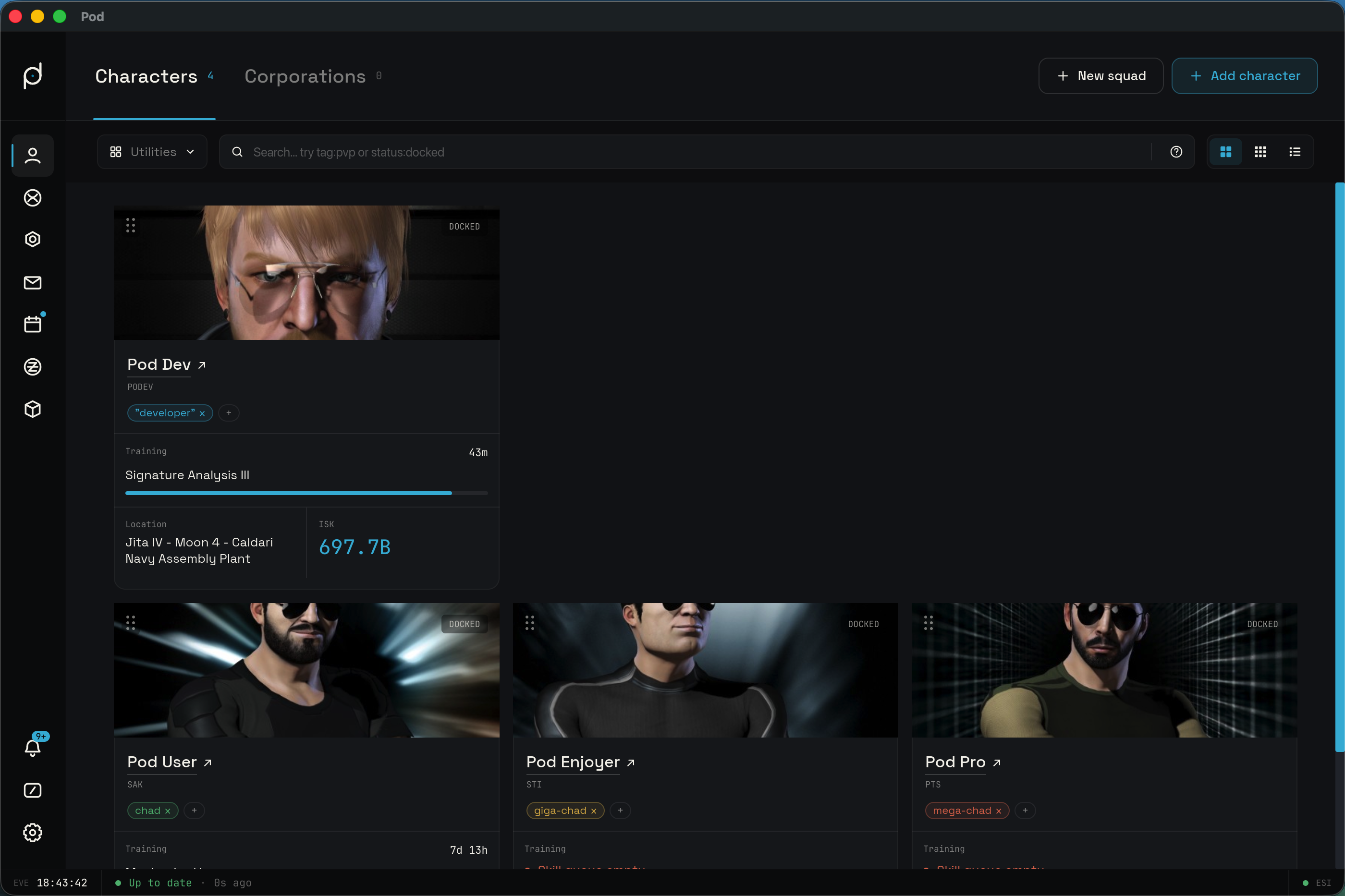
Add a pilot with the Add character button. That starts the EVE Online sign-in, and once the grant comes back the new card lands in the Unassigned pool while its first sync runs.
View modes
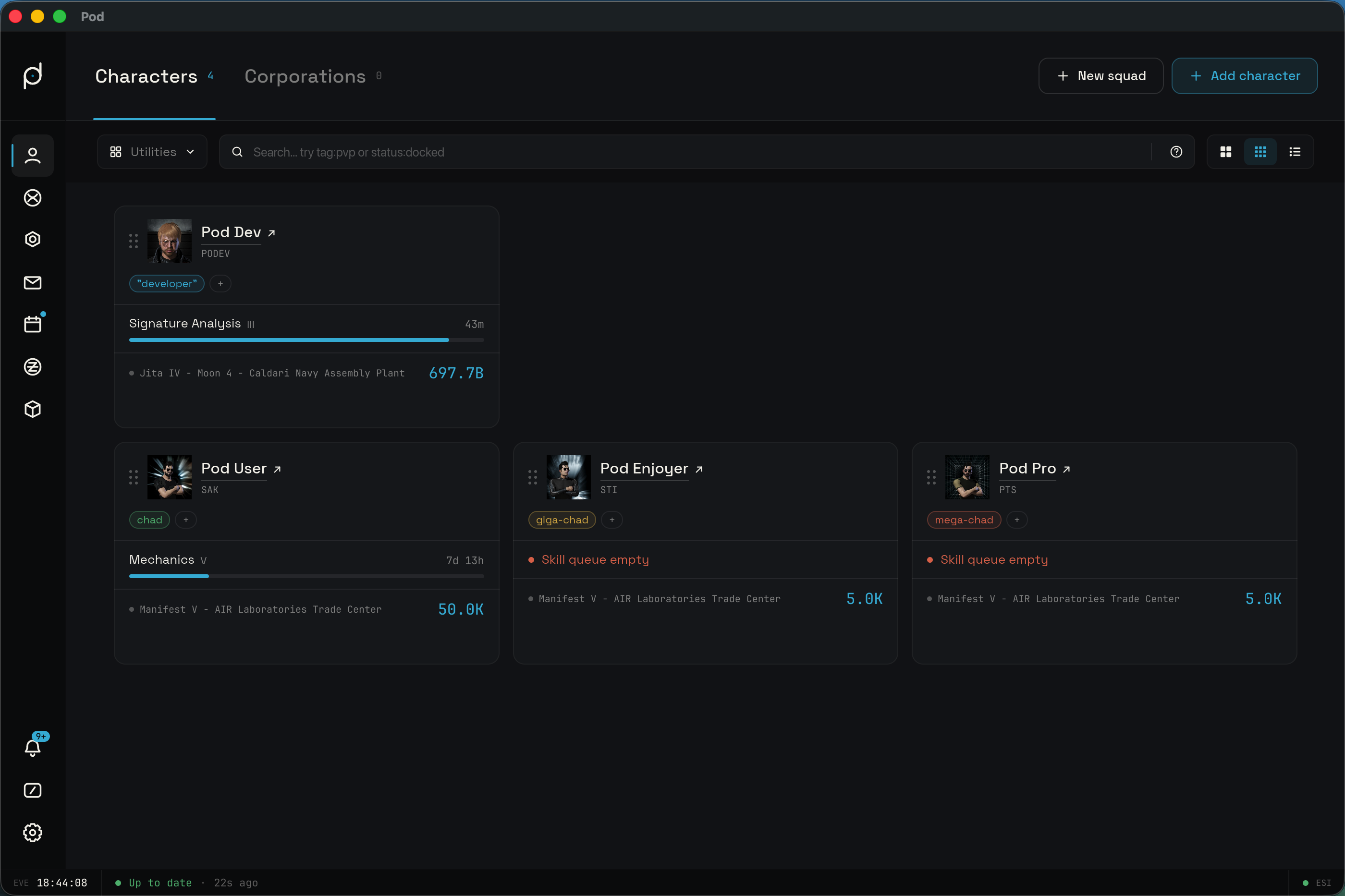
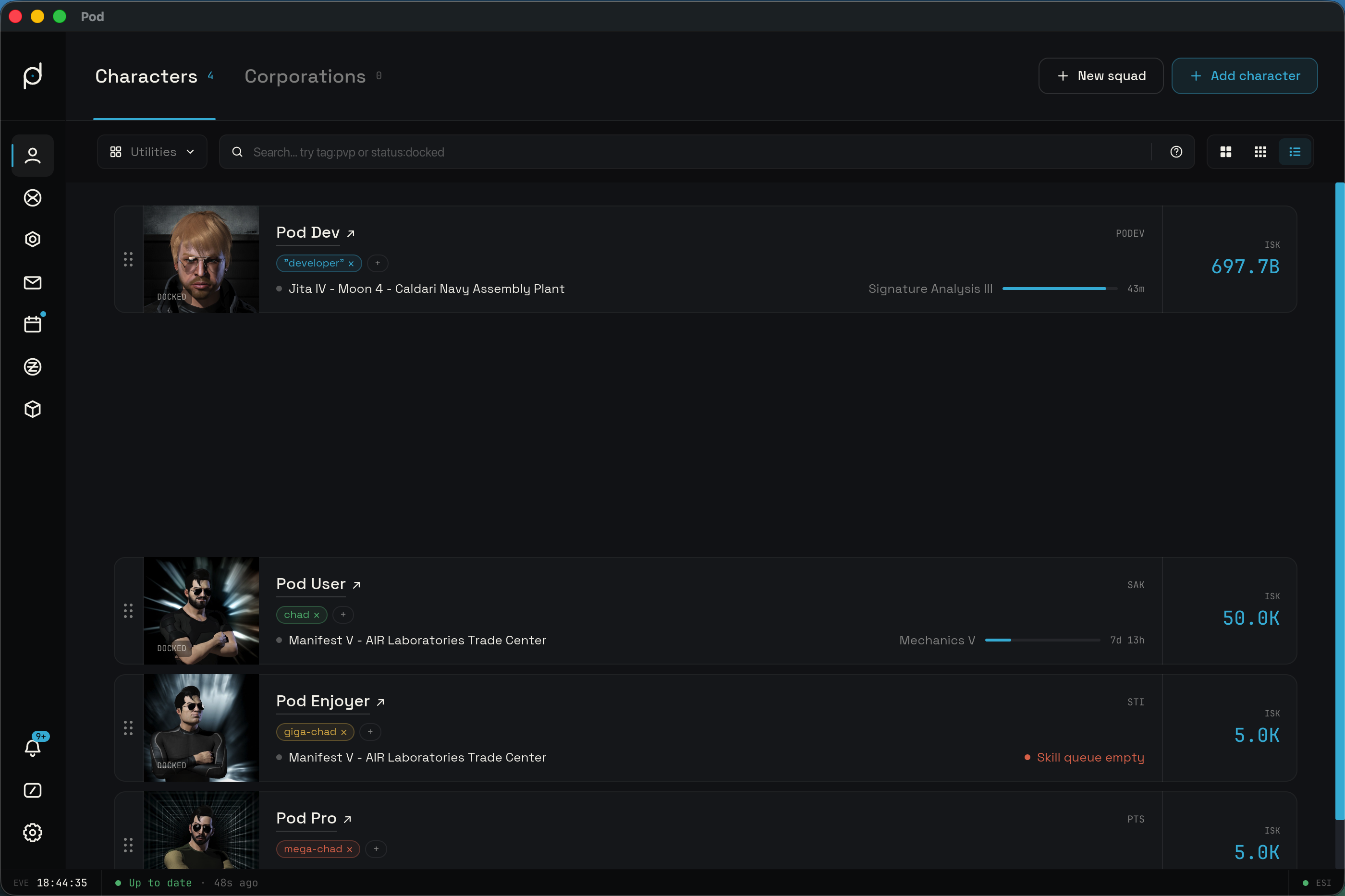
A three-icon toggle sits at the right end of the search bar and sets how the current pane draws its cards. Pod remembers the choice per pane, so the Characters and Corporations views can each sit in a different mode. The active icon carries the accent tint.
- Cards is the expanded grid: three columns, each card carrying the full portrait, training, and stats. This is the view shown above.
- Compact keeps the three-column grid but draws a denser card, so more pilots fit on screen at once.
- List drops to a single full-width row per character, trading the portrait for a tighter line you can scan top to bottom.
Squads
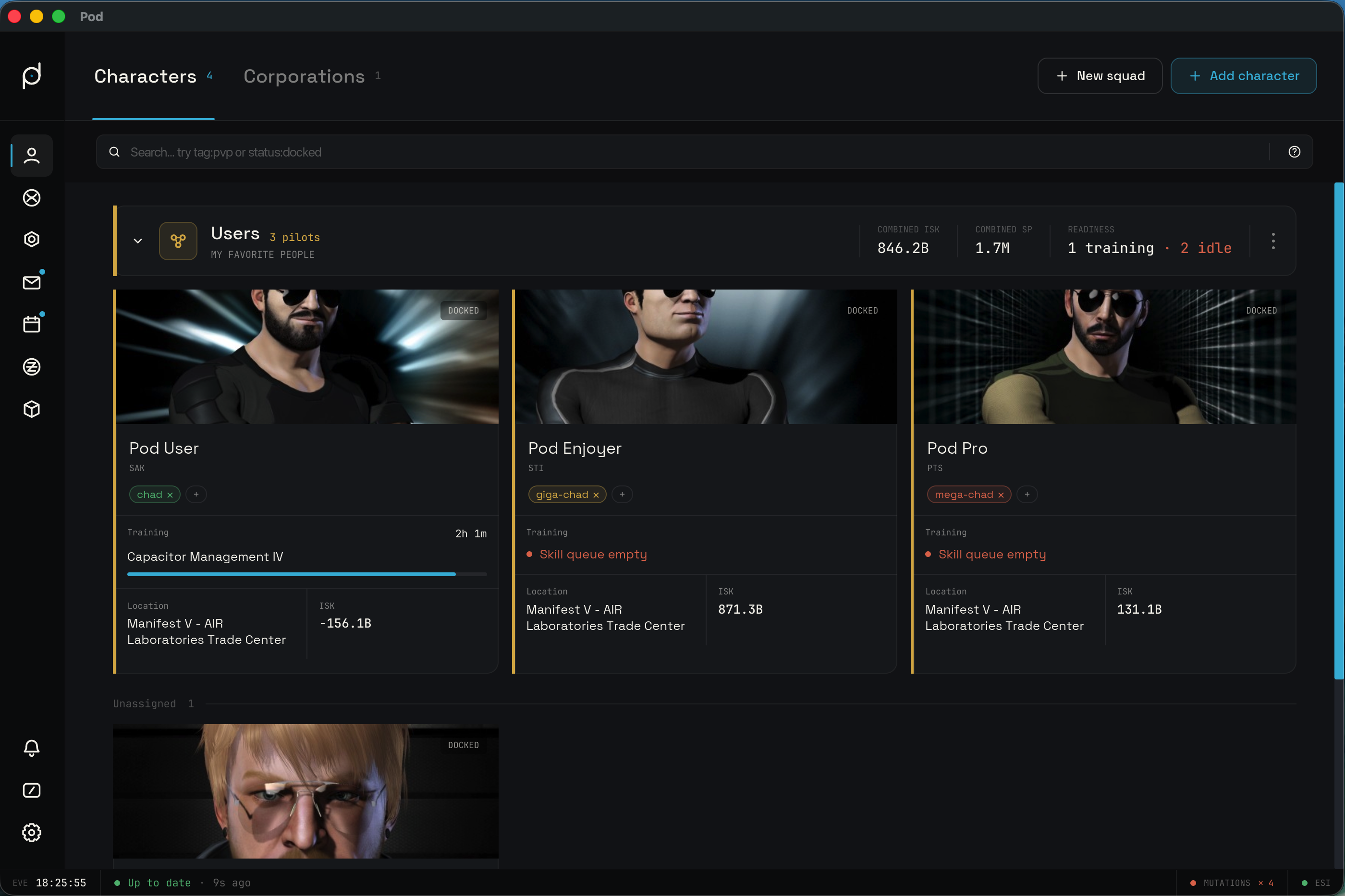
Each squad has a header bar, a name, and an optional color. The squad bar shows
aggregate stats summed across the pilots in that squad: a pilot count
(N pilots), Combined ISK, Combined SP, and a readiness split written
as X training · Y idle. Idle counts the pilots whose skill queue is empty.
Drag a card to move it. Every card carries a six-dot grab handle in its top-left corner, and that handle is the only way to pick a card up: pressing anywhere else leaves the card in place. Drop it on another slot or another squad to reassign both its position and its squad. The single-column List mode supports the same drag-to-reorder. While you drag, holding the card near the top or bottom edge of the grid auto-scrolls the roster in that direction, so you can reach a squad that is off-screen without letting go. The pull starts gently at the inner edge of the hot zone and speeds up the closer the card gets to the edge, and it stops at the top or bottom of the list. You can also drag a squad header bar to reorder squads; the target shows where the squad will drop.
Right-click a squad header to open its menu. The entries are Edit squad, Collapse (or Expand when the squad is already collapsed), Move pilots to Unassigned, and Delete squad. Moving pilots to Unassigned is disabled when the squad is already empty.
Create or edit a squad from that menu. The editor titles itself New squad or
Edit squad and has fields for Name (placeholder e.g. Home Defense Fleet), Description (placeholder What's this squad for?), and Color.
Save with Create squad or Save changes. A new squad with no name is
labeled Untitled squad until you name it.
The character card
A card carries the portrait, the docked or in-space status, the character name, the corporation ticker, any tags, and the training and ISK stats. The name reads as a link, an underlined label with a small outward arrow beside it, and it tints to the accent color on hover; clicking it opens the character detail. When no detail-backed feature is enabled the name falls back to plain text.
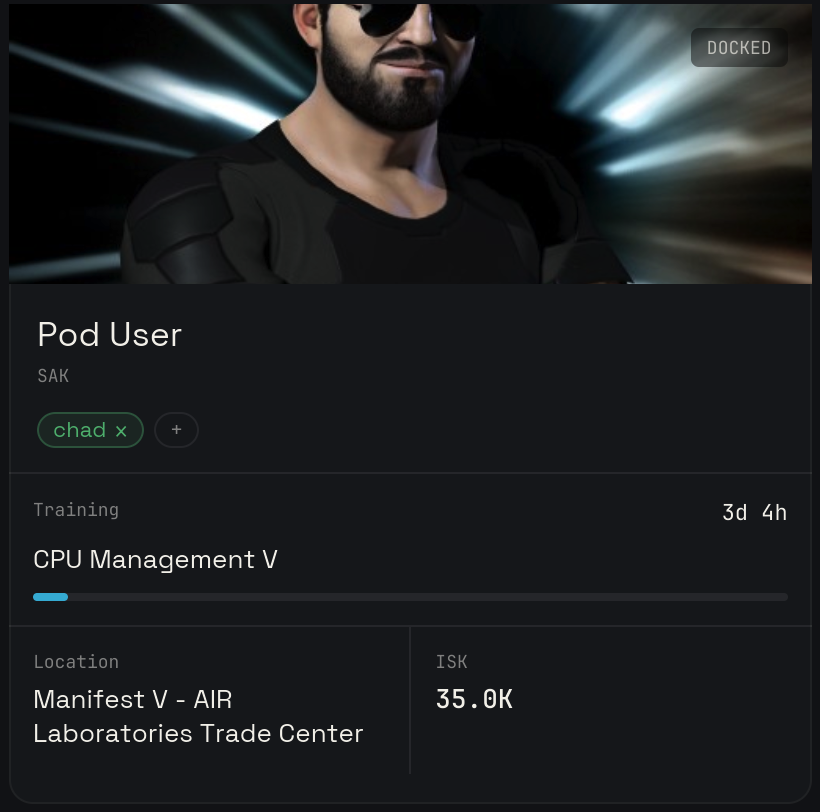
The Training section shows the active skill and its level in roman numerals with a progress bar and the remaining time. A paused queue, where skills are still lined up but EVE has stopped training, keeps the head skill, its roman level, and the progress bar, but greys the bar out and reads Paused · N skills queued in place of the remaining time. The count reads 1 skill when exactly one skill is queued. When the queue is empty the card shows Skill queue empty in danger red instead, which is distinct from both the actively training and the paused states. The bottom row is split into Location on the left and ISK on the right, with the ISK wallet balance set as an accent-colored headline figure; either shows a dash placeholder when the value is not known yet. If a sync is in trouble the card shows Sync backing off or Sync failed.
Card menu
Right-click a card to open its context menu, titled with the character name.
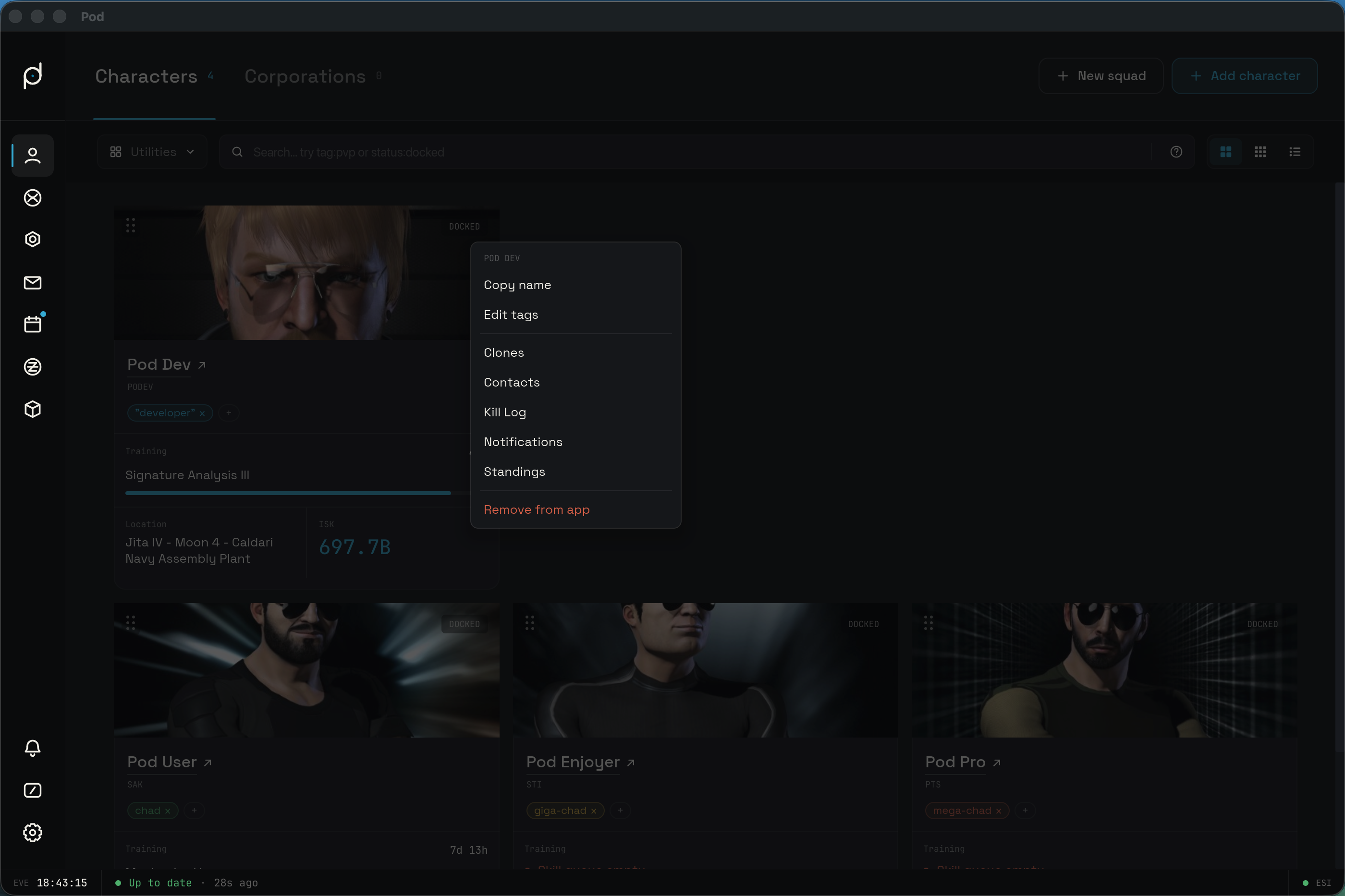
The menu opens with Copy name and Edit tags. Below them sits a jump list into the character detail, one entry per enabled section: Clones, Contacts, Kill Log, Notifications, and Standings, so a section only appears when its feature is on. Remove from app, in red, closes out the menu. When the character needs to be re-authorized, a red Fix Permissions entry appears at the top, above the others.
Tags
Tags are freeform labels you attach to characters and corporations. Open the tag editor from Edit tags in the card menu, or from the + affordance in the card's tag row.
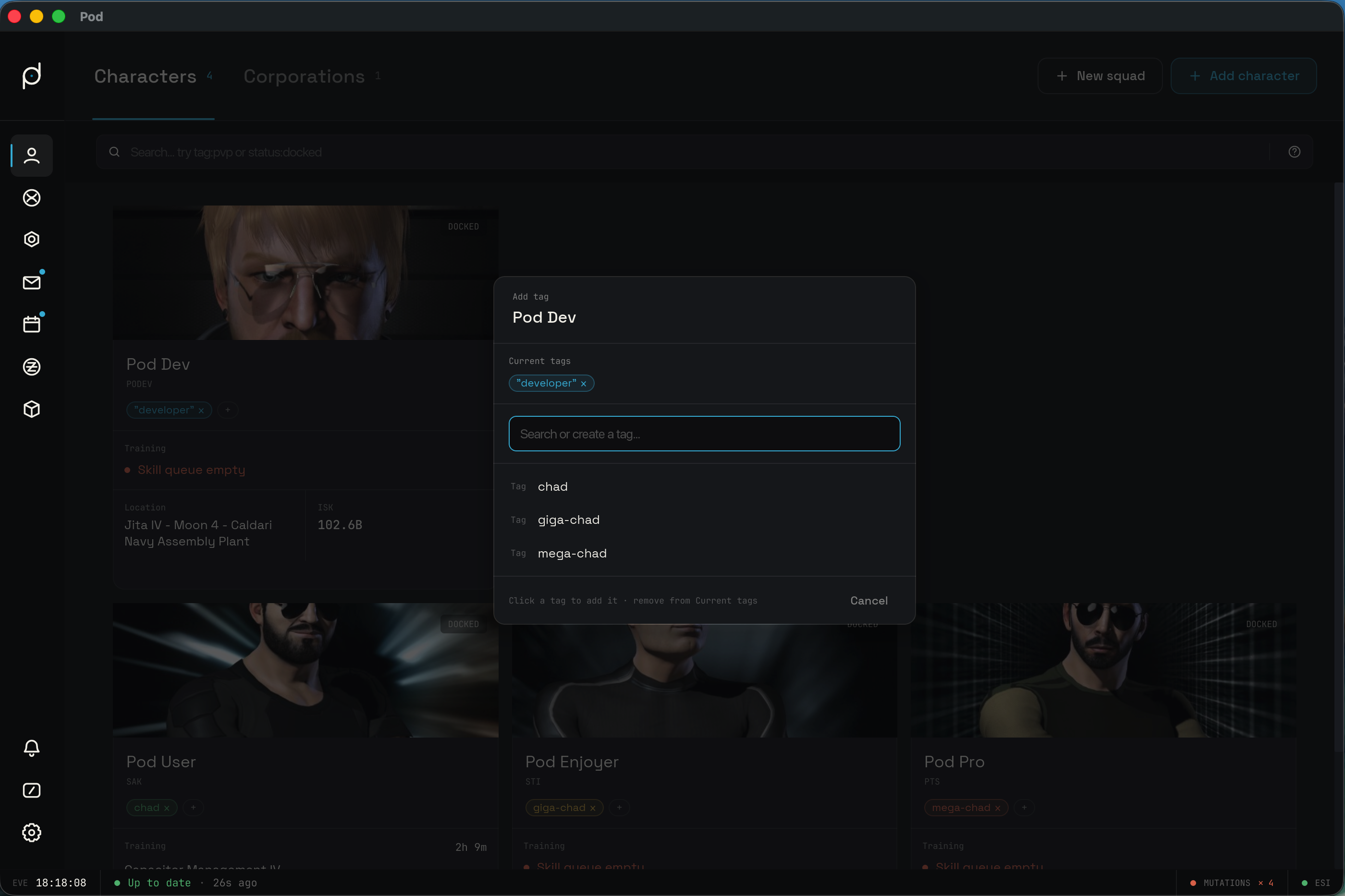
In the editor, the search field both filters existing tags and offers to create a new one. Click an existing tag to assign it; click the create row to make a new tag and assign it in one step. Tags already on the entity sit in a current tags section where you can remove them. Delete a tag entirely, and change its color, from the Tags panel in Settings.
Searching by tag and corp
The roster search bar parses key:value filters mixed with plain text. The
placeholder reads Search… try tag:pvp or status:docked. The available keys
are tag, corp, loc, status, training, and name. Comma-separate
values for OR (tag:cruiser,frigate), repeat a key to AND
(tag:pvp tag:caldari), and prefix with - to negate (-tag:alt). Quote a
phrase to match it literally ("black iris").
So tag:pvp keeps pilots carrying the PvP tag, corp:cobalt keeps pilots whose
corporation contains "cobalt", loc:jita filters by location, status:in-space
keeps undocked pilots, and training:idle keeps pilots with an empty queue. The
help popover lists every key and your current tags as clickable chips.
Utilities
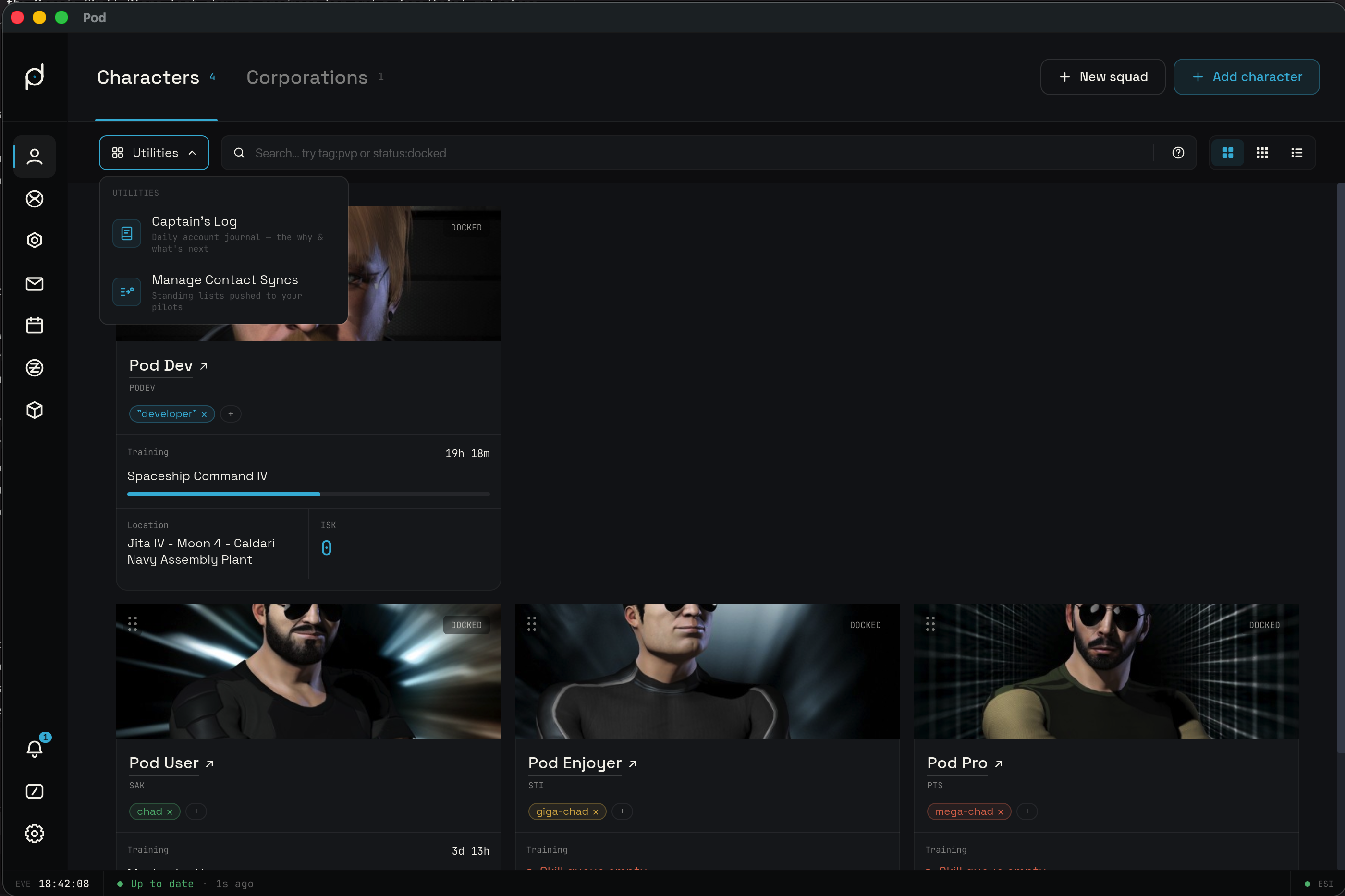
The Utilities dropdown sits at the left of the search bar and gathers the roster-wide tools. It is always available. Captain's Log leads the menu, a daily account journal for recording what happened and what comes next, and it opens the Captain's Log window. Manage Contact Syncs follows it and appears once the Contacts feature is enabled.
Contact Sync
Contact Sync keeps a reusable standing list and pushes it onto the in-game contacts of the pilots you choose. Open it from the Utilities dropdown at the left of the search bar and pick Manage Contact Syncs.
The sync list index
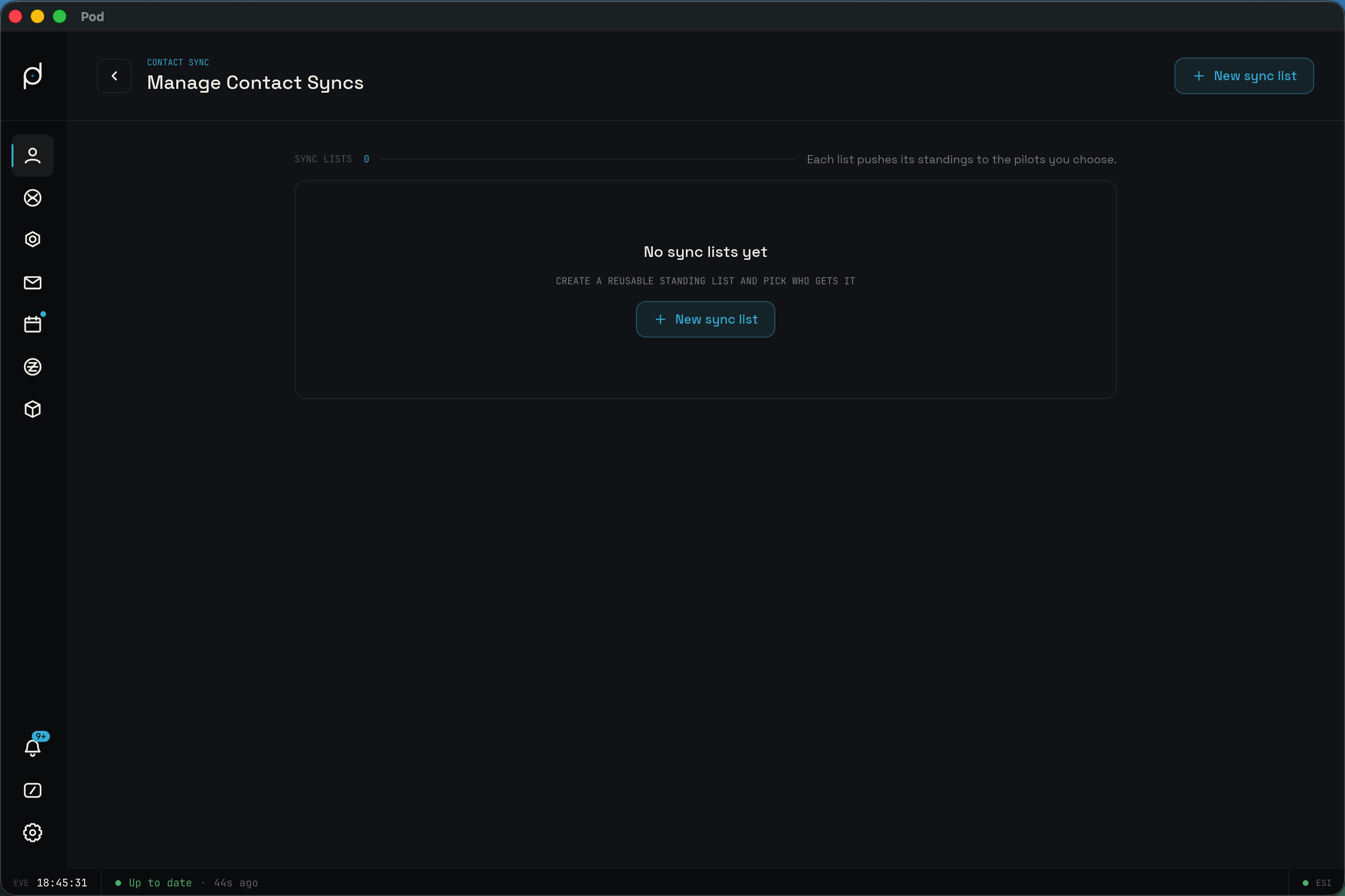
The index lists every sync list you have built. Before you make one it reads No sync lists yet with a hint to create a reusable standing list and pick who gets it, plus a New sync list button.
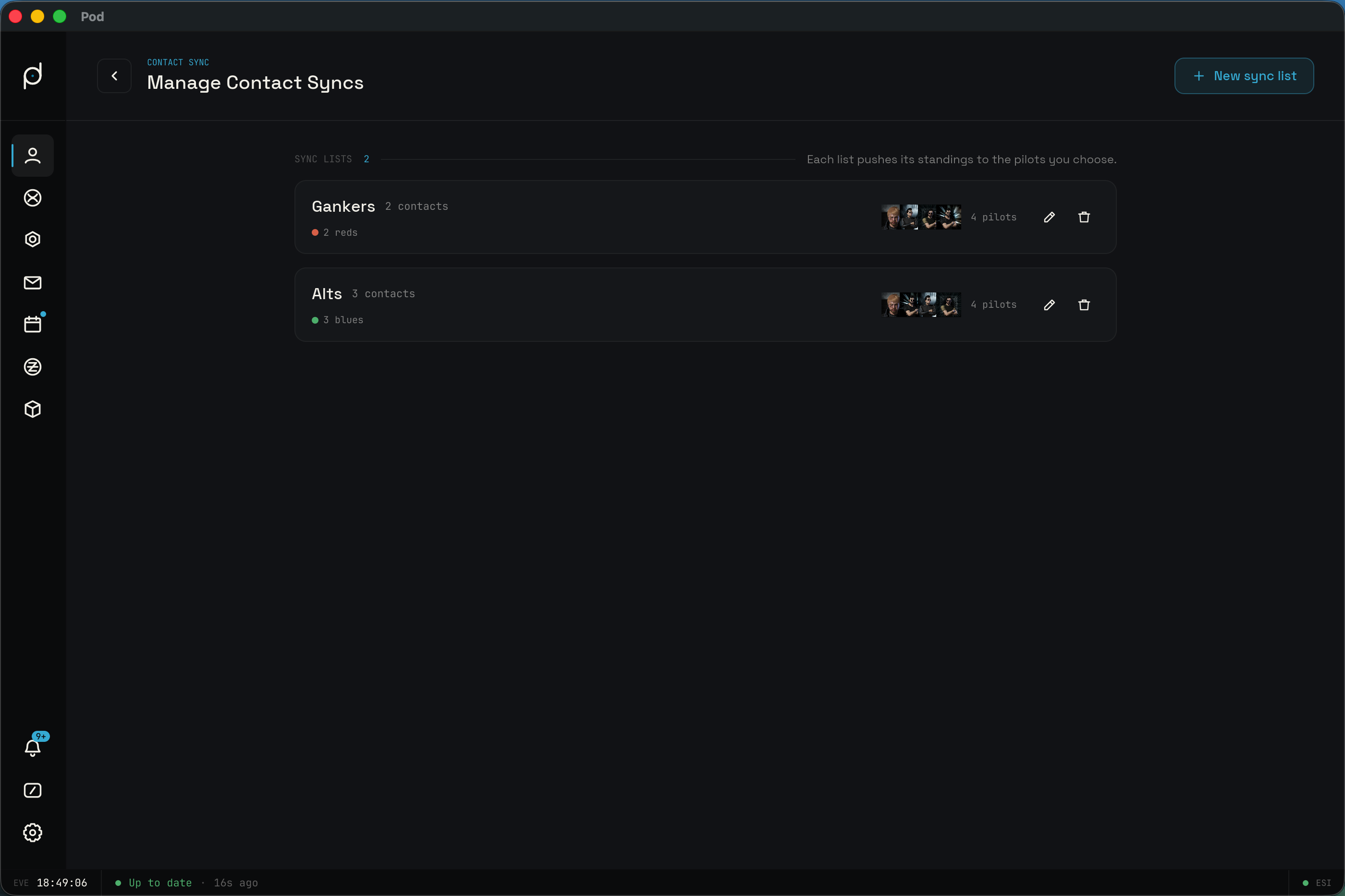
Once you have lists, each one gets a card showing its name and contact count, a standing tally that breaks the entries into reds, neutrals, and blues, and the pilots it targets as a cluster of portraits (or NO PILOTS in amber when it targets no one). The pencil opens the list and the trash deletes it. Deleting a list removes the list only; contacts it already pushed stay on the pilots' in-game contact lists.
Editing a list
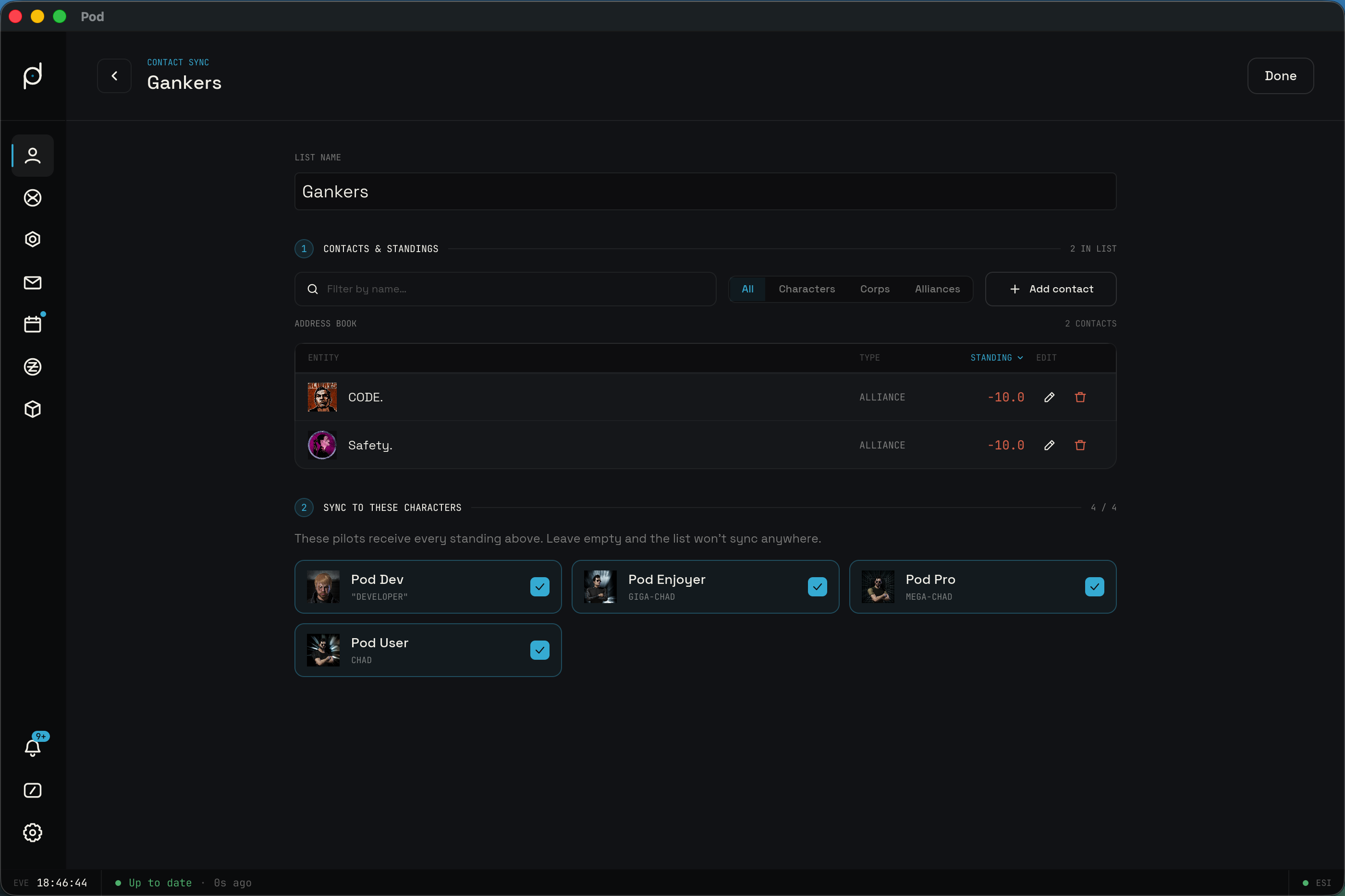
A list editor has two steps. Contacts & standings is the list's own contact table: add an entity with the same search and snapped standing presets as a character's contacts, with no watchlist here. Sync to these characters is a grid of your pilots; check the ones that should receive the list. The hint spells out that the checked pilots receive every standing above, and that a list with no targets syncs nowhere. Done returns to the index.
How a list reaches your pilots
Pushing is reconciled per target character in the background. Pod builds the standings a character should hold from every list that targets it, compares that against what it last pushed, and queues the adds, edits, and removes through the contact outbox that writes to EVE. A target character needs the write-contacts grant for the push to run, so a character missing that scope has to be re-authorized first.
Re-authorization and permissions
EVE issues an access grant scoped to the features Pod needs. When a grant goes stale, or you turn on a feature that needs a scope the grant does not include, the affected card flags itself and exposes Fix Permissions. Choosing it restarts the EVE sign-in for that character so the new grant covers the missing scopes. This is a full re-authorization, not a partial top-up.
Corporations work the same way. A corporation that needs re-authorization shows Needs re-authentication on its card, and its context menu leads with a Re-authorize entry. Pulling corporation data depends on the signing character holding the right in-corp roles, so a re-authorization runs against a director or an equivalent role.
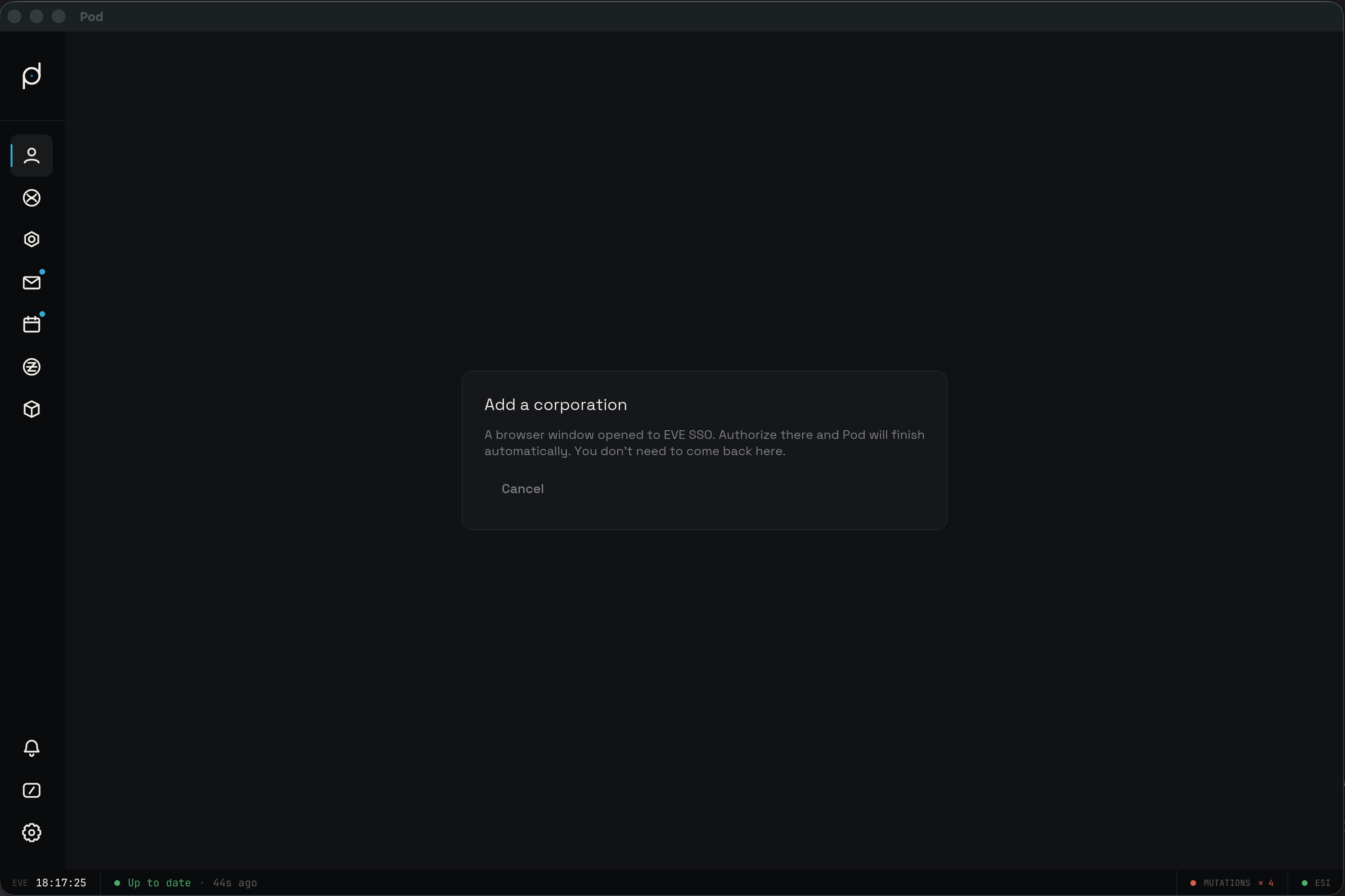
Adding a corporation
Switch to the Corporations view and use Add corporation. Type into the search bar to find a corporation; the panel shows Searching… while the lookup runs and No corporations match when nothing is found. Before you add any, the view reads No corporations yet with the hint Add a corporation to start tracking it.
A corporation card shows its name and ticker, alliance ticker (or UNAFFILIATED when it has none), Members, and Tax rate. Right-click a corporation card for Copy name, Edit tags, and Remove from app, plus the Re-authorize entry when it is needed.
Character detail
Click a character name to open its detail view. The tabs are Clones, Contacts, Kill Log, Notifications, and Standings. Each tab maps to a feature, so a tab only appears when that feature is enabled.
Clones
The Clones tab lists your active clone and your jump clones with their implants.
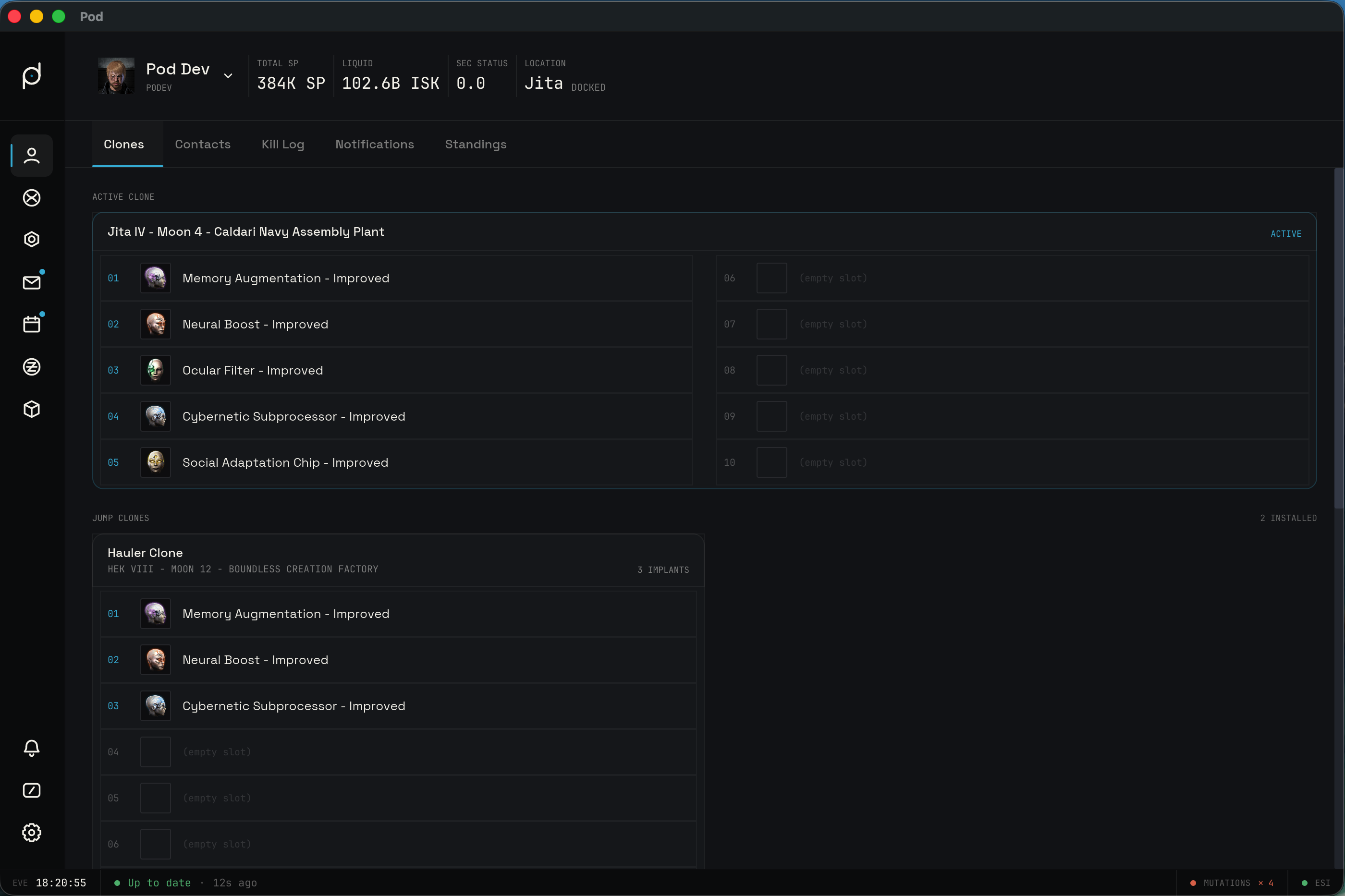
The Active clone section names the home location and marks it active.
Below it, an implant grid runs slots 01 through 10; a filled slot shows the
implant icon and name, and an empty one is labeled as an empty slot. The Jump clones
section lists each installed clone with its location and an implant count
(N implants, or empty), each with its own slot grid. Before any data syncs
the tab reads No clones synced yet.
Standings
The Standings tab is a searchable catalog of your standings toward factions, corporations, and agents.
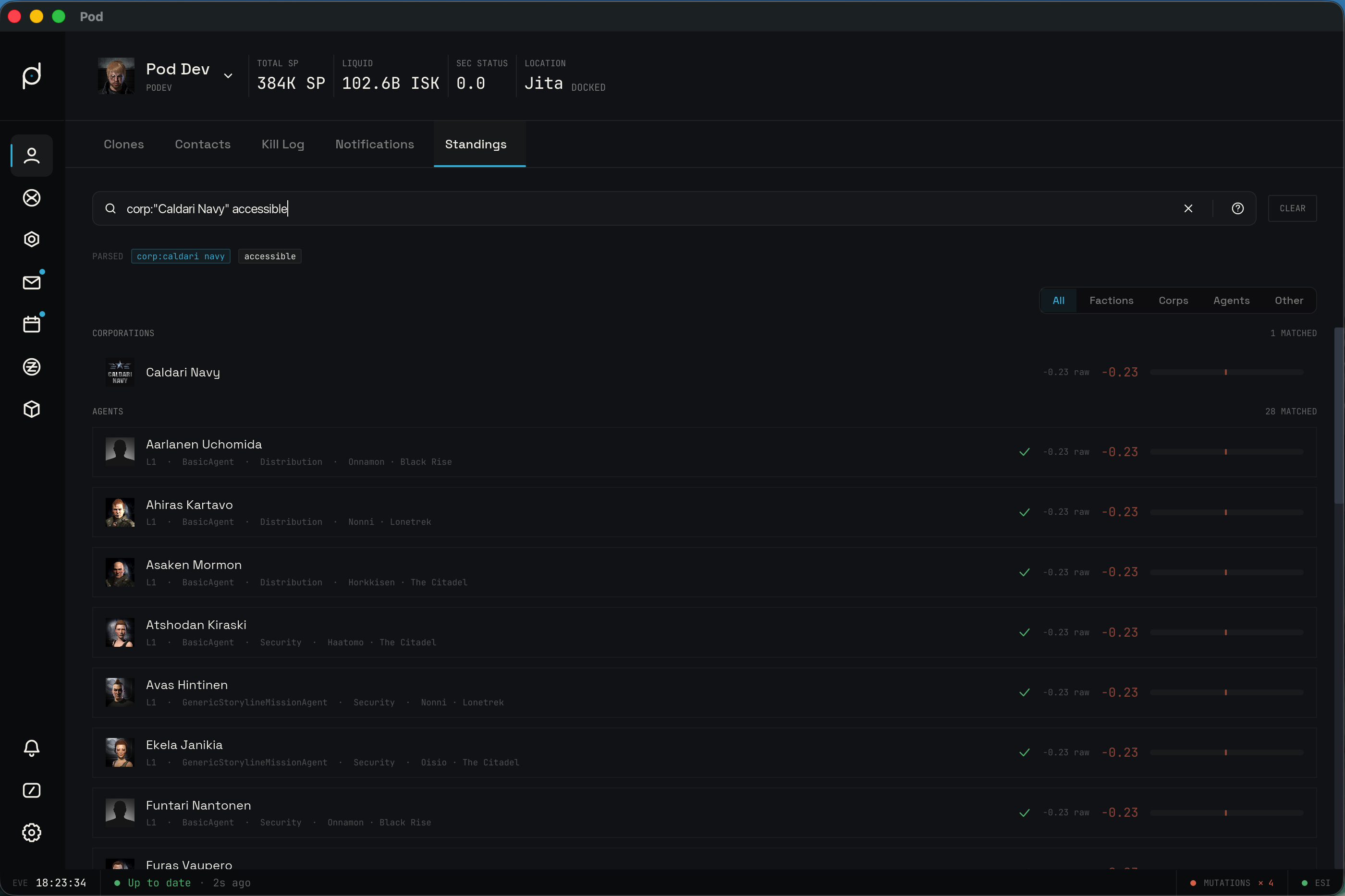
The header holds a filter bar (placeholder Filter… try faction:caldari or -corp:"sisters of eve") and a segmented control with All, Factions,
Corps, Agents, and Other. The filter syntax mirrors the roster: keys
include faction:, corp:, level:, division:, and system:, plus the bare
keyword reachable for accessible agents, with - to negate. So
level:4 division:security keeps L4 security agents, and system:jita reachable
keeps accessible agents near Jita. The body groups results under Factions,
Corporations, Agents, and Other, each row showing the entity, its
raw standing, and its effective standing.
Contacts
The Contacts tab is the character's in-game address book.
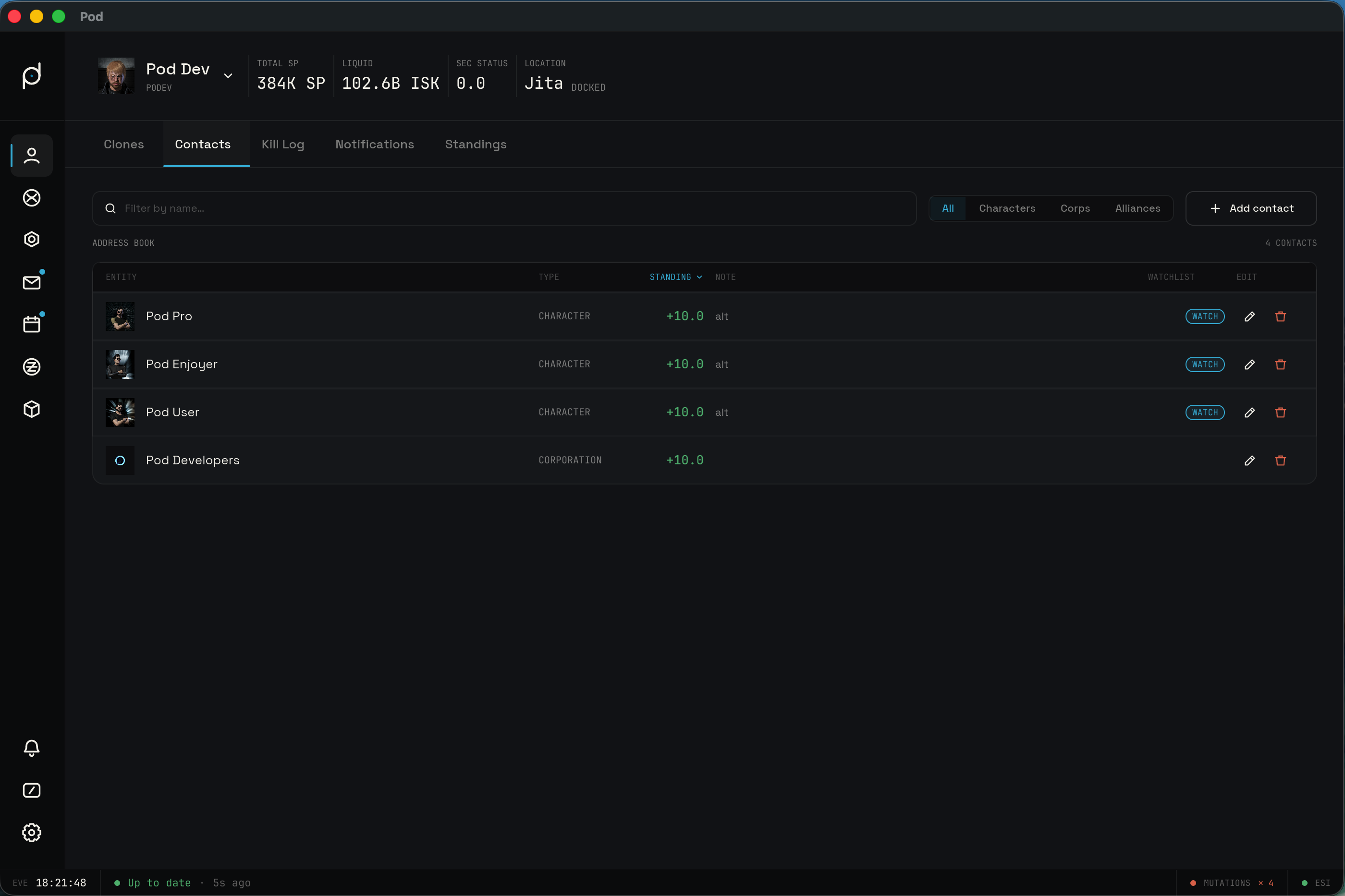
A filter bar (placeholder Filter by name…) and a segmented control with
All, Characters, Corps, and Alliances sit above the list, with a
running count of matching contacts. Columns are Entity, Type,
Standing, Note, Watchlist, and Edit. Click the Entity,
Type, or Standing headers to sort, and click again to flip the
direction; the active column shows a caret. Before data syncs the tab reads
Loading contacts…, and an over-filtered list reads No contacts match this
filter.
Adding and editing a contact
Use Add contact, or the pencil in a row, to open the contact modal. It titles itself Add contact or Edit contact.
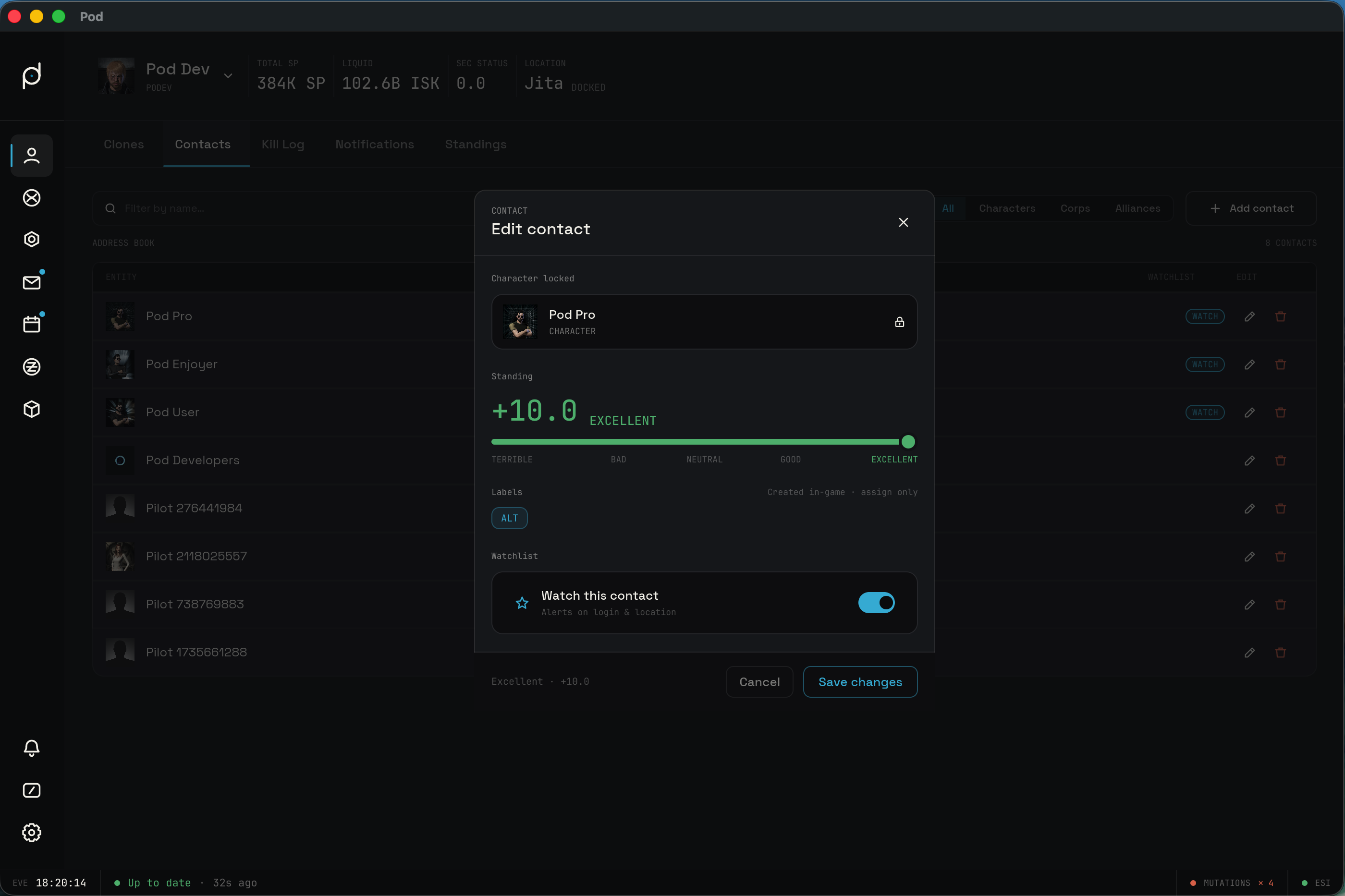
Pick the entity with an entity search (placeholder Find a character, corp or alliance) that finds characters, corporations, and alliances. The Standing
slider snaps to five presets: Terrible (-10), Bad (-5), Neutral (0),
Good (+5), and Excellent (+10). Attach in-game contact Labels, and
toggle Watch this contact for the watchlist. Only characters can be watched;
for a corporation or alliance the control reads Only characters can be
watched. Save with Save changes. Removing a contact prompts Remove
contact? with a Remove button.
Kill Log
The Kill Log tab lists kills and losses for the character.
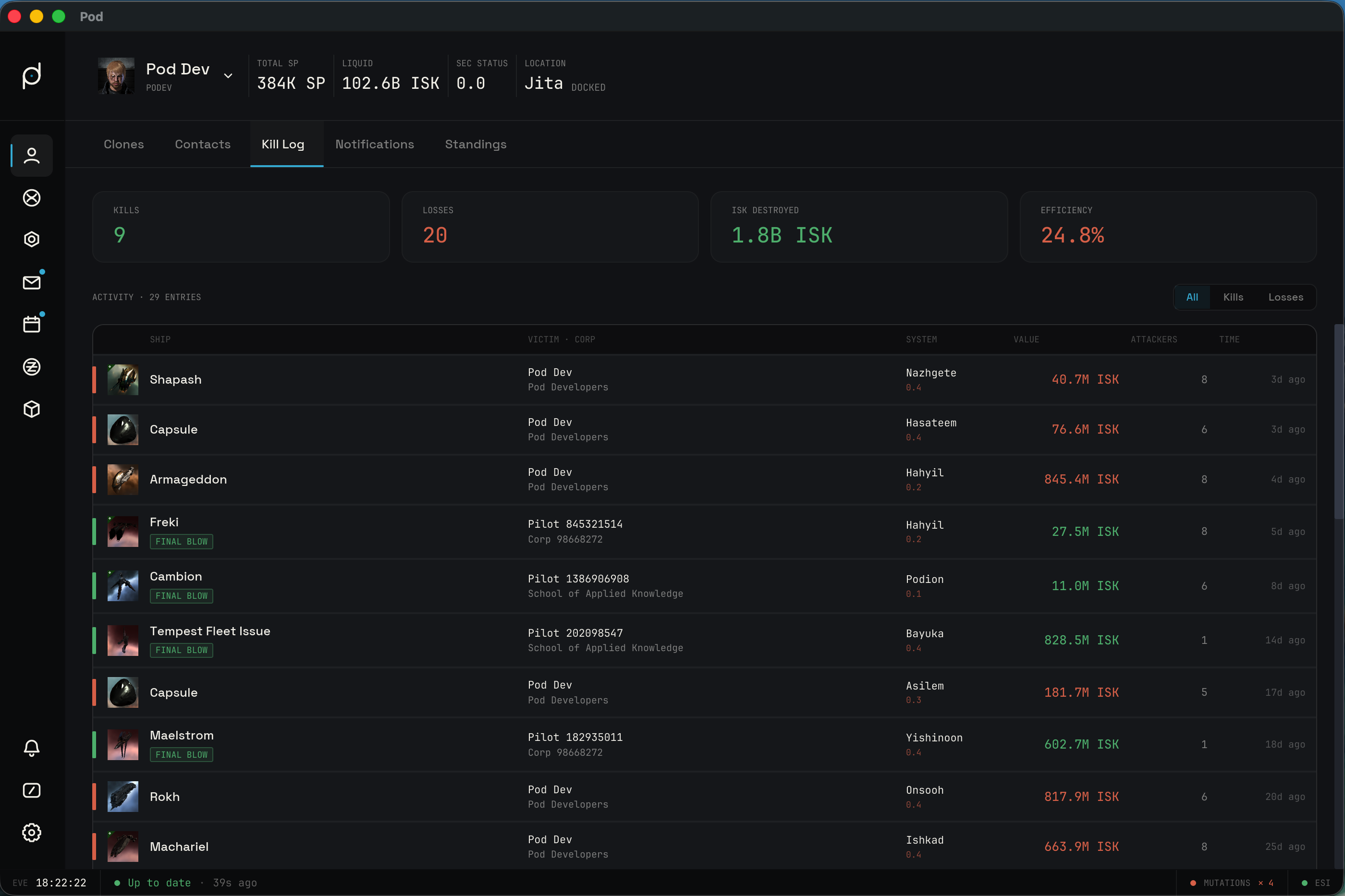
Summary tiles across the top show Kills, Losses, ISK Destroyed, and Efficiency. A segmented control filters the list to All, Kills, or Losses. Each row shows the ship, the victim and corporation, the system with its security rating, the ISK value (green for a kill, red for a loss), the attacker count, and a relative timestamp. A FINAL BLOW badge marks entries where the character struck last. An empty log reads No killmails recorded.
Killmail detail
Click a row to open the killmail detail. A colored bar and a KILL or LOSS badge sit beside the ship name, system, time, and killmail id. Two tabs, Overview and Report, sit below the header.
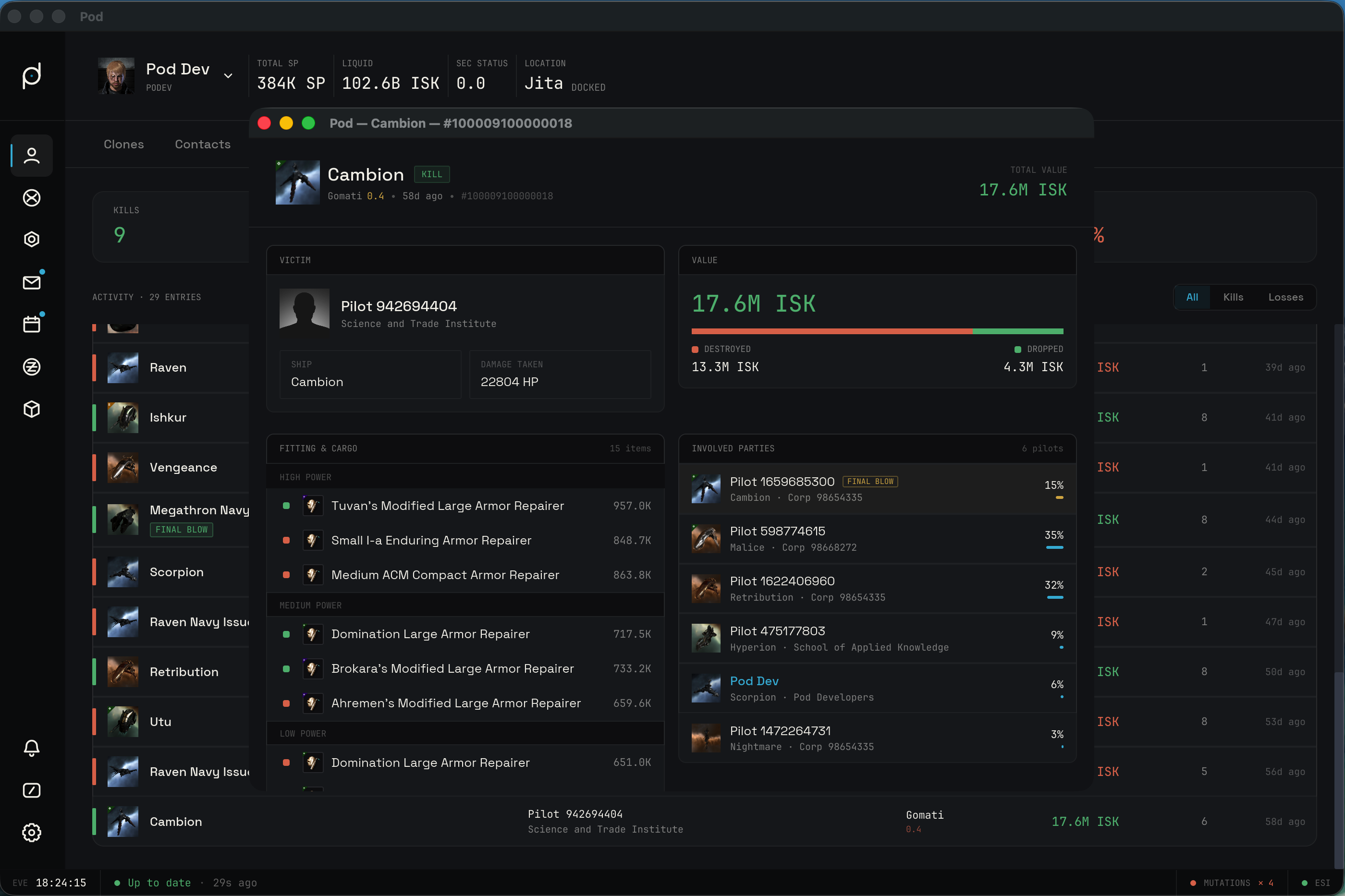
The Overview tab holds the breakdown of the fight. The top row has two cards. The Victim card (titled Pilot lost on a loss) shows the portrait, name, corporation, and alliance, plus a Ship and Damage taken stat. The Value card shows the total ISK and a stacked bar split into Destroyed and Dropped with the ISK for each.
Below, the Fitting & cargo panel lists items grouped by slot: High power, Medium power, Low power, Rigs, Subsystems, Drone bay, Cargo hold, Implants, and Other. A small dot marks each item as destroyed or dropped, with its icon, name, quantity, and ISK. The Involved parties panel lists every attacker with corporation and ship and a damage share. The pilot who landed the kill carries a FINAL BLOW chip and a highlighted row.
The Report tab
The Report tab is an after action report you fill in while the fight is fresh. It opens with a short prompt, worded for a kill or a loss, above a form. The Outcome control picks one of Went well, Went poorly, or Lesson learned. What happened? and Would you do anything differently? take free text, and Key takeaway (one line) is a single line to remember. Save report stores it and Cancel backs out. A saved report reads back under What happened, Would do differently, and Key takeaway, stamped Logged with the time, and Edit reopens the form.
You can jump straight here from a new killmail notification: its Write debrief action opens the killmail detail on the Report tab.
Notifications
The Notifications tab collects the character's in-game notifications. Pod sorts them into categories such as bounties and rewards, faction war, wars, sovereignty, structures, and moons, so you can scan recent events without logging in. Notification syncing is gated behind the same feature toggle as the tab itself, so the tab only shows when notifications are enabled.
Corporation detail
A corporation you have added gets its own detail view, reached the same way as a character: click the corporation on its card. The view mirrors the character detail layout with tabs for the corporation's contacts, kill log, and standings, each gated behind the matching feature toggle and populated by the corporation's own sync. Corporation tabs read identically to their character counterparts, so the column layouts, filters, and detail modals described above apply there too.