Settings
Open Settings from the navigation rail to configure Pod. The window has a fixed header reading "Pod · Preferences" and "Settings", with a "Reset to defaults" button in the top right. That button only resets the category you are currently viewing, so resetting Features leaves Storage untouched, and resetting Accessibility leaves your tags alone.
A left pane lists the categories: Accessibility, Features, MCP, Storage, Tags, Telemetry, and User Interface. Facilities appears in that list only when the Industry feature is turned on, between Accessibility and Features. About sits by itself at the bottom of the pane, fenced off from the working categories. Each category shows a small badge that summarizes its current state, so you can read the gist without opening the tab. The active category is marked with a plasma indicator bar.
About
The About tab states Pod's identity and carries the EVE Online Developer License notice. It shows the name "Pod" next to the current version (for example v0.6.0), a monospace build line in the form "Build" followed by the git short SHA and the build date, and the license, which is the MIT License.
A "Support Pod" section explains that Pod is free and open source, built in spare time, and asks you to consider supporting its development if it is useful to you. A heart link opens the support page at pod.aaronmallen.dev/#support. A second link shows pod.aaronmallen.dev and opens the project website. Both links open in your external browser.
Below the support section is the full EVE Online Developer License trademark notice. It credits EVE Online and the EVE logo as registered trademarks of Fenris Creations (formerly CCP hf.), states that Fenris Creations has granted permission to Pod to use those marks for promotional and information purposes but does not endorse and is not affiliated with Pod, and that Fenris Creations is not responsible for the content or functioning of this program. A copyright line reading "© Fenris Creations. All rights reserved." closes the tab. None of this is configurable; the tab exists to display the notice.
Features
The Features tab lists every Pod capability you can turn on or off. Pod groups its capabilities into two levels: twelve top-level Features that together hold twenty-three sub-features. The Features tab works at the sub-feature level, so you can keep a Feature on while switching off just the parts of it you do not use. The panel blurb states that changes apply live across every window and your linked characters, with no restart needed. The category badge reads enabled sub-features over the total, so it shows "23/23" when every sub-feature is on and drops as you switch sub-features off.
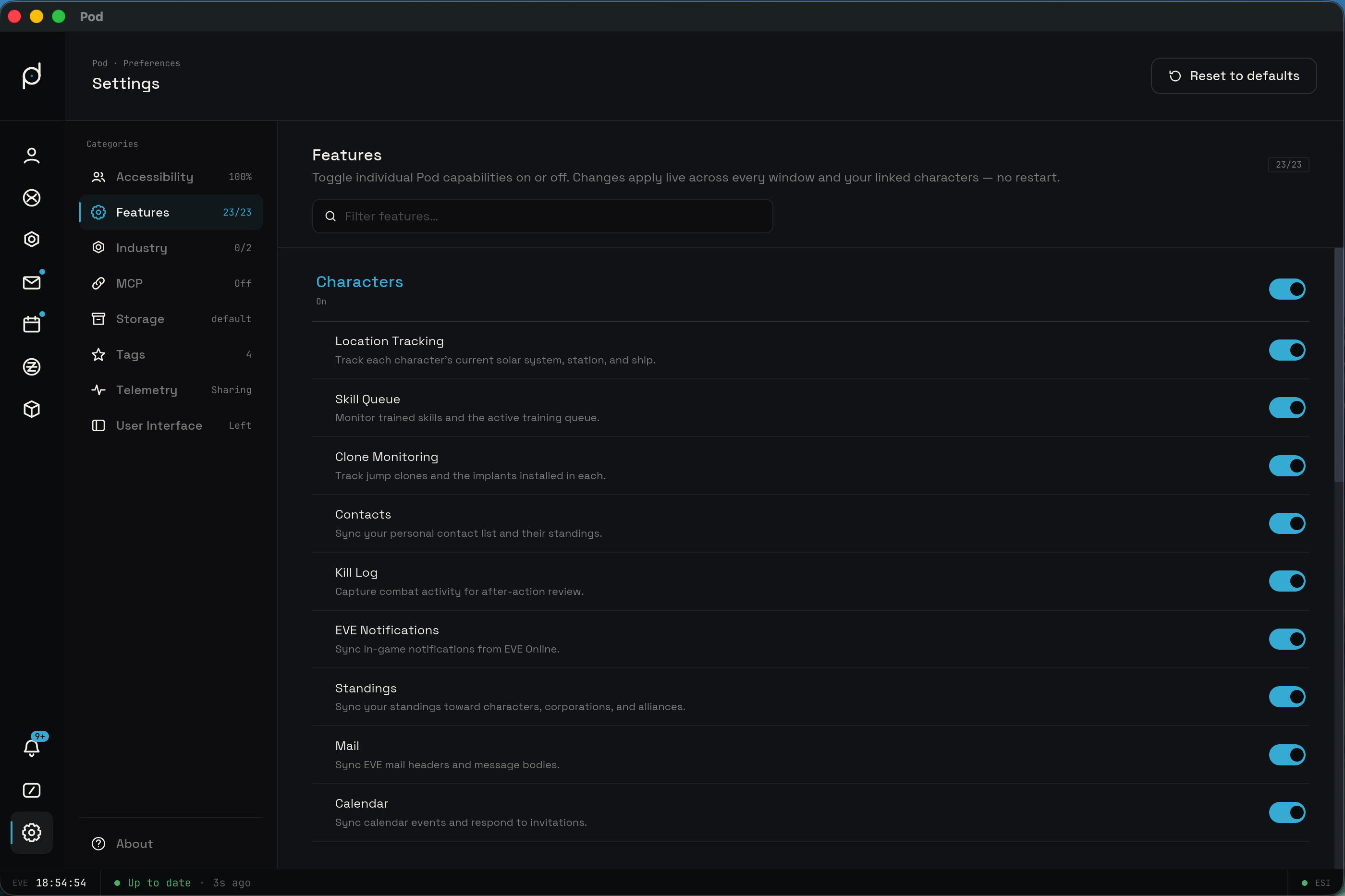
A "Filter features…" field at the top narrows the list. It matches case-insensitively against both the sub-feature title and its description, so typing "wallet" or "budget" surfaces the matching rows. With the field empty, every sub-feature shows. If nothing matches, the panel shows "No features match this search." with your query underneath.
Groups and master toggles
The list is organized into four display groups, each with a master toggle header: Characters, Industry, Wallet, and Assets. The header carries a master toggle that cascades over every sub-feature in the group, switching them all on or off at once. Below each header sits a roll-up status that reads "On" when every sub-feature in the group is enabled, "Off" when none are, and "Some on" when only some are.
The Characters group covers Location Tracking (each character's current solar system, station, and ship), Skill Queue (trained skills and the active training queue), Clone Monitoring (jump clones and the implants installed in each), Contacts (your personal contact list and their standings), Kill Log (combat activity for after-action review), EVE Notifications (in-game notifications from EVE Online), Standings (your standings toward characters, corporations, and alliances), Mail (EVE mail headers and message bodies), and Calendar (calendar events and invitation responses).
The Industry group covers Job Monitoring (running manufacturing, research, and reaction jobs), Blueprints (owned blueprints with their material and time efficiency), Build Planner (recursive build orders with materials, costs, and facilities), and Moon Extractions (corporation moon-extraction timers).
The Wallet group covers Wallets (character and corporation wallet balances), Market Transactions (market orders and traded items), Contracts (outstanding and historical contracts), Journal (the wallet transaction journal), and Budget (a zero-based budget over your wallet activity).
The Assets group covers Inventory (assets across stations, structures, and hangars), Abyssals (abyssal modules appraised against MutaMarket pricing), Stockpiles (curated stockpiles watched against target quantities), Values (owned assets valued at market pricing), and Net Worth Tracker (net worth charted over time across every owner).
Sub-tab gating and the Budget coupling
Each sub-feature has its own toggle and the short description quoted above. Toggles take effect immediately across every open window. Turning a sub-feature off hides its sub-tab within its view rather than the whole rail icon, so the view stays reachable and only the part you switched off disappears. The rail icon goes away only when every sub-feature in a group is off.
Budget is the one sub-feature with an enforced dependency. It has no data of its own and derives entirely from your wallet activity, so it cannot be enabled while both Journal and Market Transactions are off. When both are off, the Budget toggle is locked and its row reads "Enable Journal or Market Transactions to use Budget." Enabling either one unlocks it. Turning a whole group on with its master toggle leaves Budget on, because Journal is enabled before it.
Accessibility
The Accessibility tab controls interface scale, high contrast, and language.
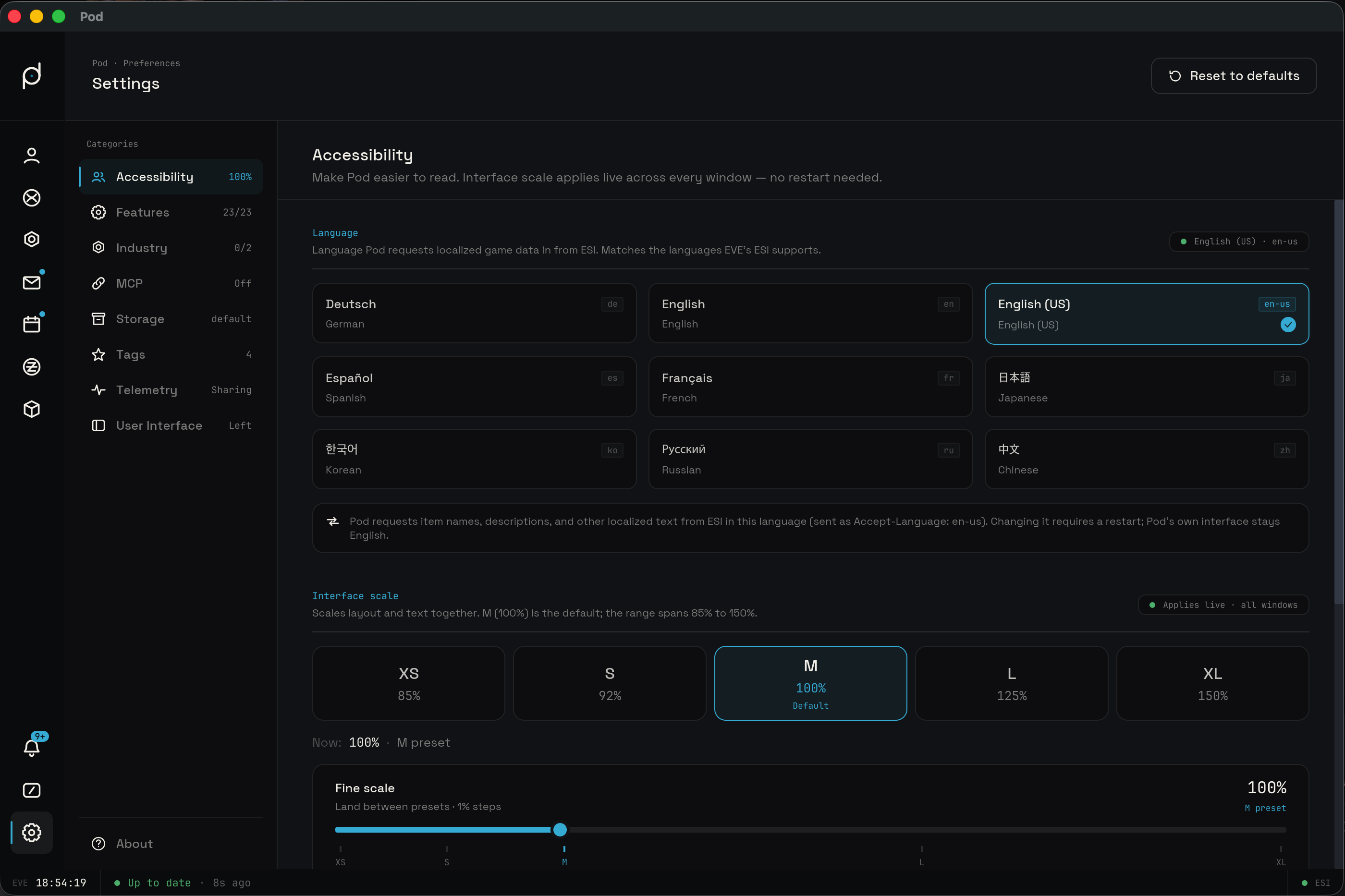
Interface scale runs from 85% to 150%, with a default of 100%. Five preset buttons set common values: XS is 85%, S is 92%, M is 100% (marked "Default"), L is 125%, and XL is 150%. A "Fine scale" slider lands you between presets in 1% steps. A readout shows the current value, for example "Now: 112% · custom (between steps)" for an off-preset value or "Now: 100% · M preset" when you are on a preset. Scale applies live to every open window, so you do not restart to see the new size.
The "High contrast" toggle firms up text and surface edges. It swaps the secondary, tertiary, and dim text tiers from reduced-opacity overlays to solid tuned values and strengthens surface borders, while leaving primary text and the dark theme as they are. A preview table on the tab shows each tier (its usage and target contrast) with the current and high-contrast colors side by side, plus the surface-edge alpha values before and after. High contrast also applies live.
The Language selector sets which language Pod requests localized game data in from ESI. A grid of cards covers the nine languages EVE's ESI supports, and each card shows the native name, the ESI code such as "en" or "de", and the English name, with the current language checked. This drives the item names, descriptions, and other text Pod pulls from ESI, sent as an Accept-Language header; Pod's own interface stays in English.
Language is restart gated, so picking a different card does not switch right away. Pod parks your choice as pending and the section shows a "Restart required" marker. A confirmation row appears headed "Restart required to apply" the language you picked, with a "Restart Pod" button to go through with the change and a "Keep current" button to back out. Choosing "Restart Pod" relaunches Pod so it re-requests game data in the new language. Until you confirm, a resting note shows the language Pod is currently running in.
The category badge summarizes the current state. It shows the scale percentage, appends " · custom" when the scale sits off a preset, and appends " · HC" when high contrast is on. So "100%", "112% · custom", "125% · HC", and "112% · custom · HC" are all valid readings.
Facilities
The Facilities tab appears only when the Industry feature is enabled, and it sits between Accessibility and Features in the category list. It holds two parts: the default install structures the planner pre-selects, and a personal registry of the structures you build and react in.
Default install structures
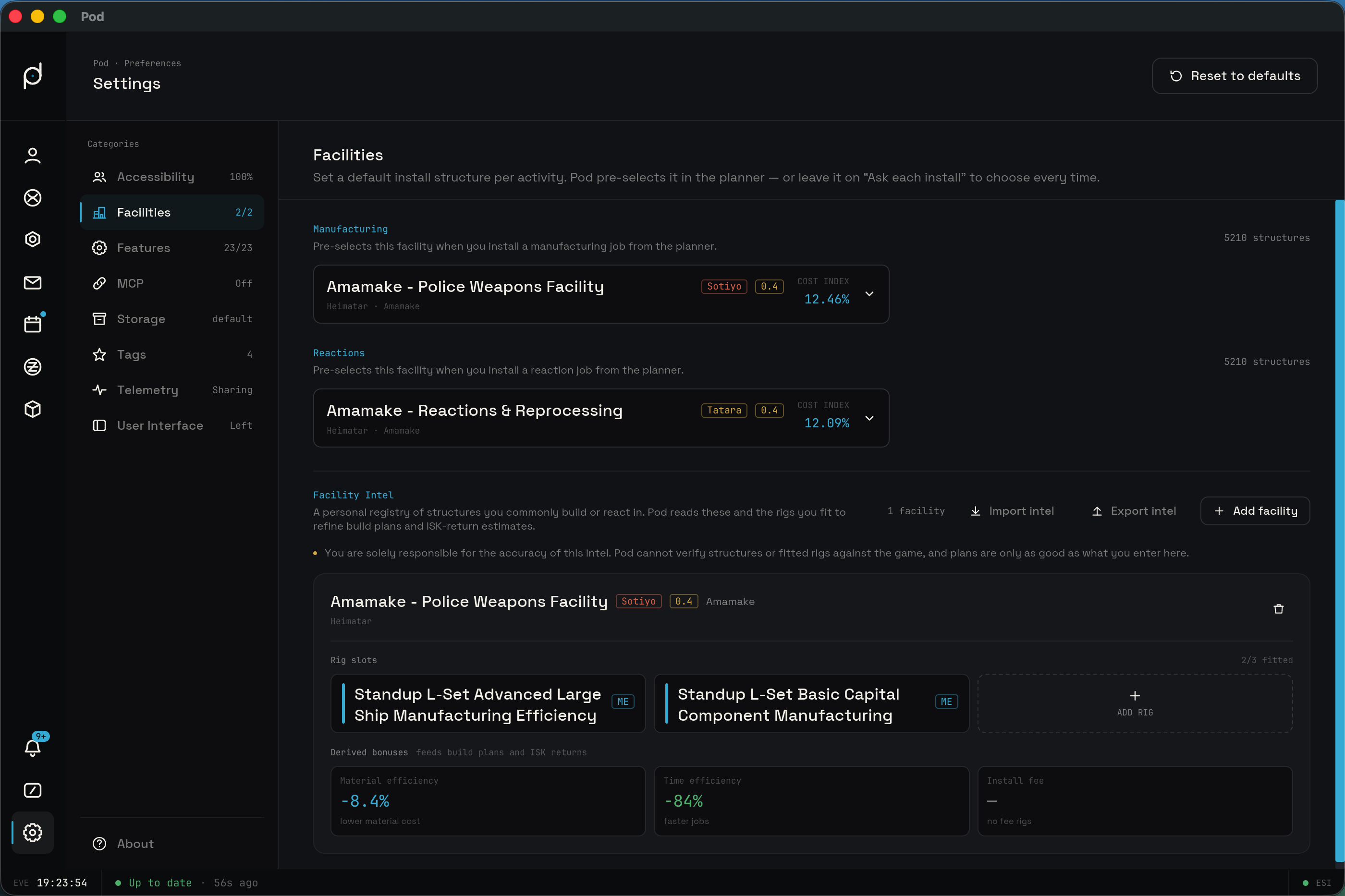
Two separate defaults sit at the top: one for Manufacturing and one for Reactions. When a default is set, the planner pre-selects that structure for jobs of that activity. When none is set, the picker reads "Ask each install" and the planner prompts you each time. Each picker searches by name across the stations and structures your characters can reach, and results show the facility name with its solar system, region, and security status. The category badge counts how many of the two activities have a default chosen, so "0/2", "1/2", and "2/2" are the possible readings.
Facility Intel
Below the defaults is Facility Intel, a personal registry of the structures you commonly build or react in. Add a structure with "Add facility" and search for it by name; each one lands as a card. Pod reads these cards and the rigs you fit to refine build plans and ISK-return estimates, so your numbers reflect where you actually build.
Each card shows the structure name, its type and tier, security status, solar system, and region, along with the resolved owner when Pod can identify it. Every card carries three rig slots. Open a slot to search the rigs that fit that structure and pick one, up to three per card. A "Derived bonuses" row sums the fitted rigs into three figures, scaled by the structure's security band: Material efficiency, Time efficiency, and Install fee. A figure with no contributing rigs reads as a dash rather than a zero.
You are solely responsible for the accuracy of this intel. Pod cannot verify structures or fitted rigs against the game, so a plan is only as good as what you record here.
Sharing facility intel
"Export intel" saves the facilities you pick, together with their fitted rigs,
to a single .pfi file. Choose which facilities to include, then save the file
and share it with corp or alliance mates. "Import intel" reads a .pfi file
back in. The import is an overwrite merge: facilities you already track are
overwritten with the file's rigs, and facilities new to you are added.
Structures Pod cannot verify with ESI are left out, and you can add them by hand
once you have docking access. A file made by a newer version of Pod is refused
until you update.
MCP
The MCP tab controls the embedded Model Context Protocol server, which lets AI agents read and automate Pod over localhost. It is off by default. The tab holds the master switch, the port, the bearer token, and the per-tool permissions. The category badge reads "Off" while the server is disabled and shows the port, such as ":7373", once you turn it on. See MCP Server for the full feature.
Storage
The Storage tab controls where Pod keeps its files, how it syncs across machines, and how you export logs for diagnostics. The category badge shows a green "All defaults" reading when no paths are customized, or a count of custom directories when you have overridden one or more of the three.
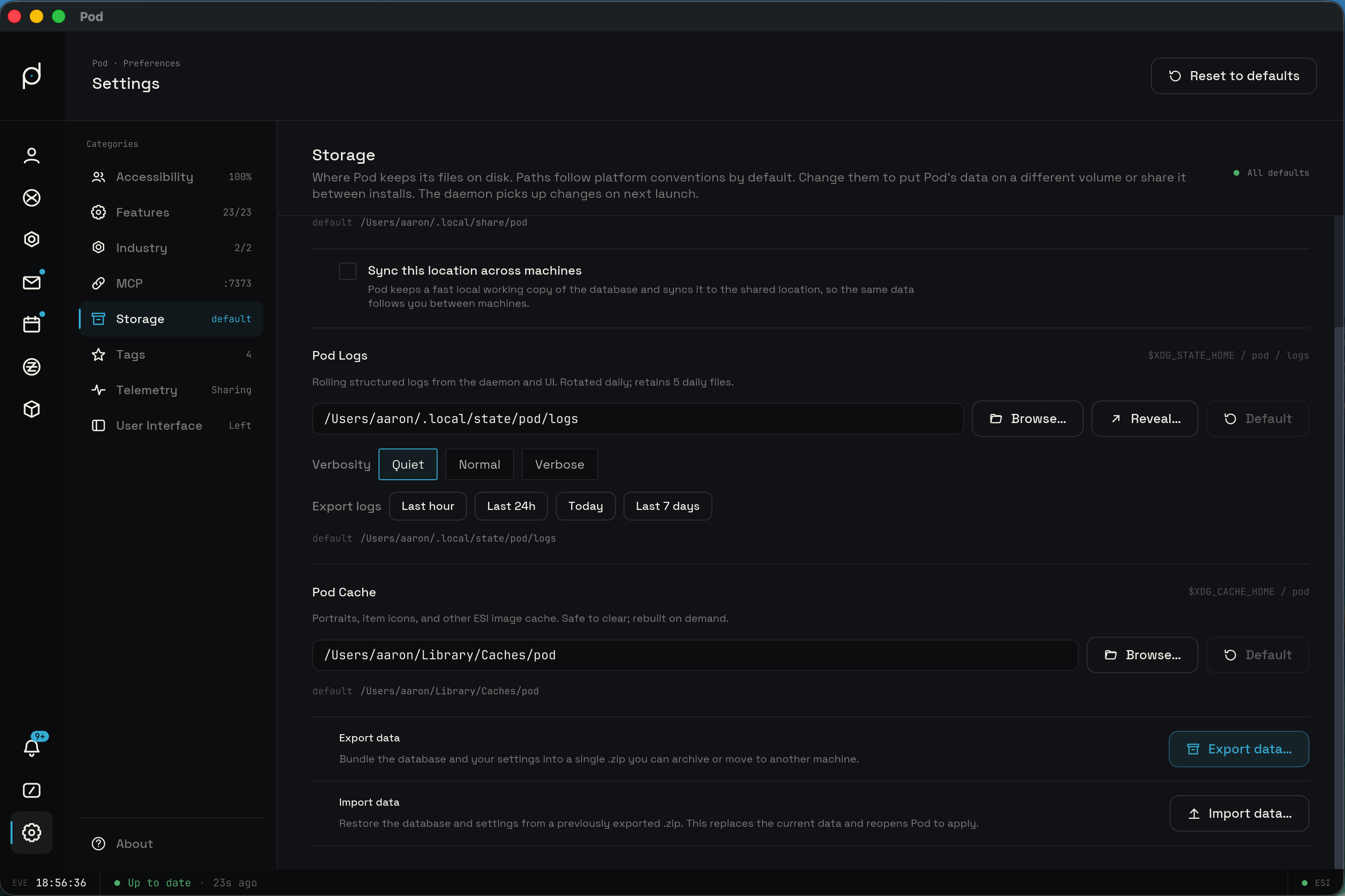
The tab lists three locations. "Shared data location" is the SQLite database that holds the character cache, mail bodies, market snapshots, and skill plans; by default it lives under your platform data directory. "Pod Cache" holds portraits, item icons, and other ESI image cache, is safe to clear, and is rebuilt on demand. "Pod Logs" holds rolling structured logs from the daemon and the UI, rotated daily, keeping the five most recent daily files. Each location shows its current path. You can Browse to a new folder, reset a location back to its Default, and Reveal the logs folder in your file manager.
When you point a location at a new folder that you have used before, Pod asks what to do with the existing files. A "Relocate store" prompt asks whether to move that location to the new folder. It offers three choices: "Cancel" to back out, a "Skip" choice that repoints only, which changes the path but leaves the old files where they are, and "Move files" to relocate everything to the new folder. The change applies on the next launch.
Networked database and take-over
Point the shared data location at a shared volume to use the same data on more than one machine. The toggle "Sync this location across machines" turns this on. With it enabled, Pod keeps a fast local working copy of the database and syncs it to the shared location, so the same data follows you between machines.
Only one Pod instance writes to the shared database at a time, and it holds a lock while it does. The Storage tab shows the sync status: a green dot with "Last synced" and a relative time when sync is healthy, a grey "Not synced yet" before the first sync, and a red dot with "Currently open on" and the machine name when another instance holds the lock. A "Sync now" button triggers a manual sync. When another machine holds the lock and you need to work here, "Release lock" requests control from that machine, and the tab shows the request while it is in progress. Because taking over can overwrite unsaved changes the other instance still has open, Pod gates the take-over behind a confirmation before it breaks the lock.
Exporting and importing your data
The Storage tab also moves your whole Pod between machines. "Export data"
bundles the database and your settings into a single .zip you can archive or
copy elsewhere. The archive holds a WAL-checkpointed pod.db snapshot, your
config.toml, a machine-readable manifest.json, and a human-readable
MANIFEST.txt. Pod suggests a name with a pod-data- prefix and the build
timestamp, such as pod-data-20260625T143000Z.zip. The button reads
"Preparing archive…" while the snapshot is taken and zipped.
"Import data" restores a database and settings from a .zip you exported
before. Pod reads and checks the archive first, so a corrupt one or one made by
a newer major version of Pod is refused before anything is touched. A valid
archive opens a "Replace this machine's data?" confirm modal. The modal shows
where the archive came from and its Pod version, warns that the import replaces
the current database, and notes that Pod backs up the current database first,
then closes so you can reopen to apply. An archive from an older Pod is allowed
and its data migrates forward on the next launch. On import Pod merges the
archived config.toml into your settings rather than copying it over, so your
local identity and storage paths stay as they are on this machine. This is
separate from the log export below.
Exporting logs
Use the log export when you need to send diagnostics. The "Verbosity" control sets how much the logs record, with three levels: Quiet (the default), Normal, and Verbose. The export packs the log files for a chosen window into a single ZIP, named with a pod-logs prefix and the start and end timestamps, together with a diagnostics manifest. Four range buttons pick the window: "Last hour", "Last 24h", "Last 7 days", and "Today". The button shows "Exporting…" while the ZIP is being written.
Tags
The Tags tab manages the custom labels you attach to things, with each tag's color and order. It holds two separate registries, switched by a tab strip at the top: "Tags" for the labels you put on characters, and "Asset tags" for the labels you put on assets. The two registries never mix; a name or color in one has nothing to do with the other. The asset registry ships empty, so any keep-or-sell labels you see are examples you would create yourself. The category badge counts how many tags have a color assigned, summed across both registries.
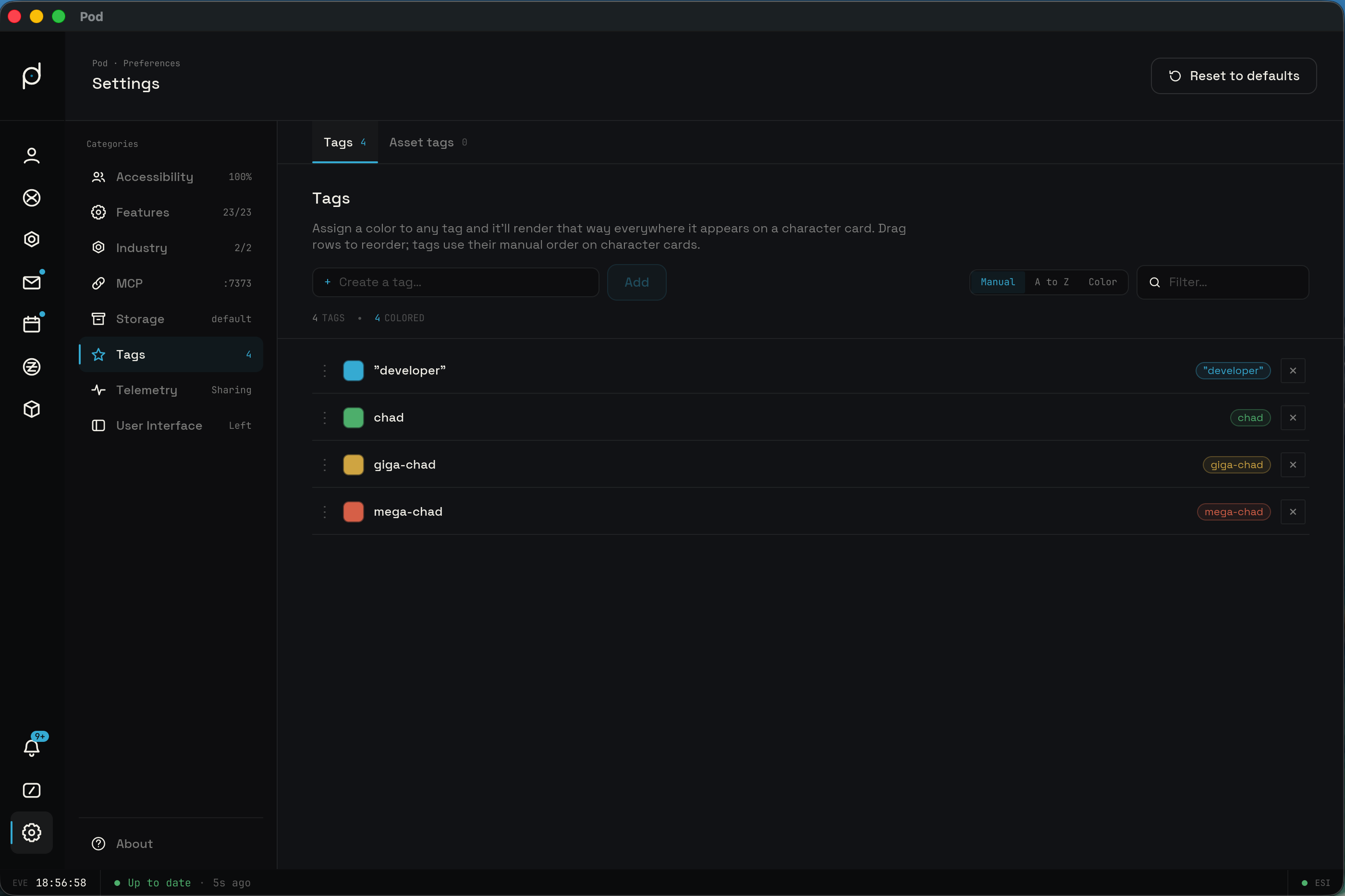
The controls below work the same in either registry. Create a tag by typing its name into the "Create a tag…" field and clicking "Add"; the Add button is active only when the field has text, and the field clears after you add the tag. Rename a tag by clicking its name in the list, which opens an inline editor; type the new name and press Enter or click away to save. A name that duplicates an existing tag (ignoring case) is rejected and the rename is cancelled. Delete a tag with the × button at the end of its row.
To set a color, click the swatch next to a tag's name. A small color picker opens at the cursor with a hex input, so you enter a value such as #FF8040. The field validates the hex and flags an invalid value rather than applying it. A "Clear" button in the picker removes the color. Any valid hex is accepted, so the colors are yours to choose rather than a fixed palette.
Sort the list with the header buttons: "Manual" keeps your own drag order and is the default, "A-Z" sorts alphabetically, and "Color" groups by color with uncolored tags last. A filter field narrows the list by name. You can drag a tag row to reorder it, but only in Manual sort with no filter active; otherwise the tab shows "Reorder disabled in sorted view" or "Reorder disabled while filtering".
Telemetry
The Telemetry tab controls the anonymous, opt-out usage data Pod can send so the project knows what to build next and can catch crashes in the wild. The data is anonymous and never tied to you. The category badge reads "Sharing" when the master switch is on and "Off" when it is off; there is no middle reading, even when you have turned some streams off.
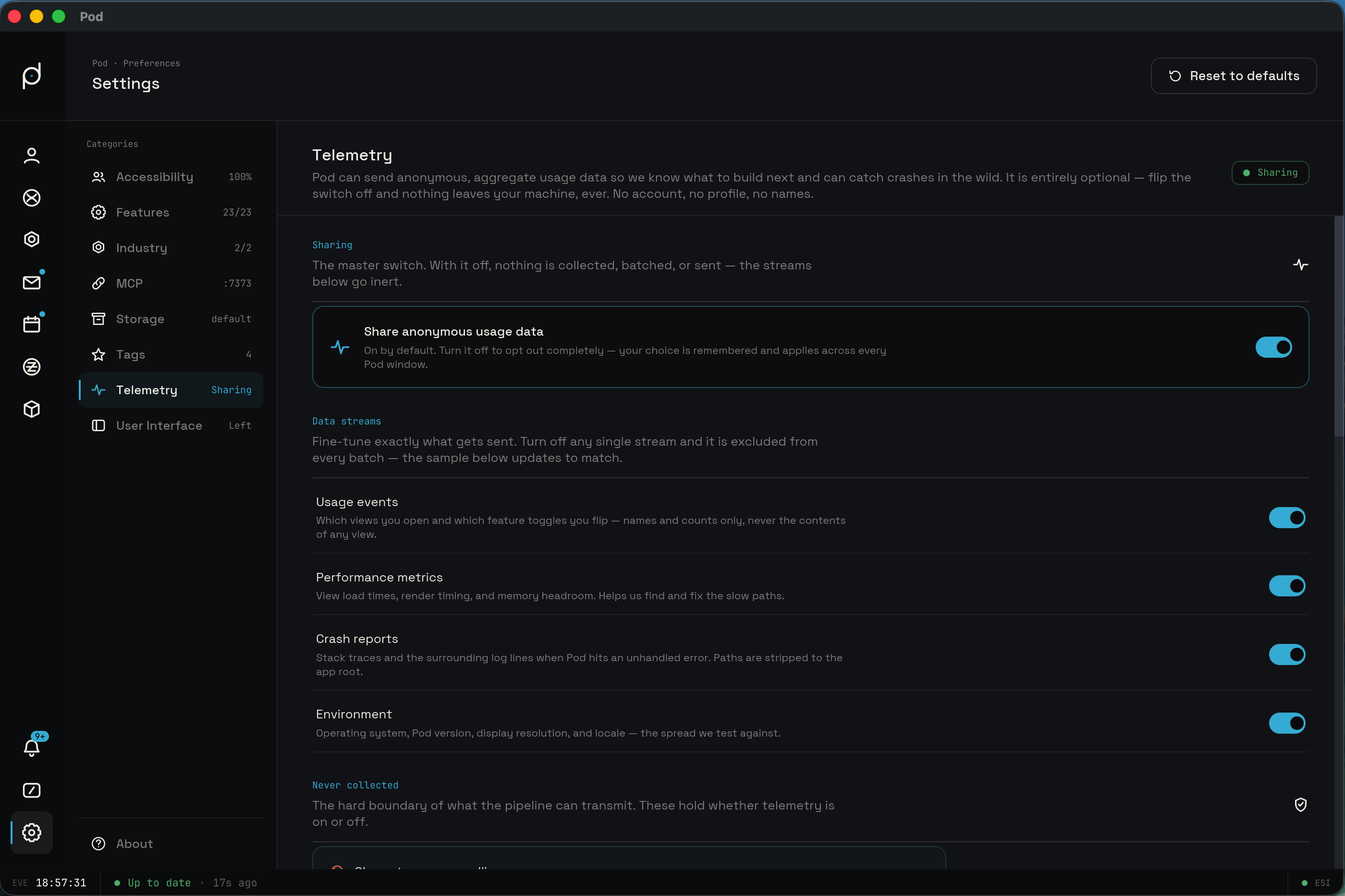
The "Share anonymous usage data" master switch is on by default. Your choice is remembered and applies across every Pod window. Turn it off to opt out: nothing is collected, batched, or sent, and the four stream toggles below freeze. They keep their stored values while frozen, so flipping the master back on returns them to where you left them.
Four data streams sit under the master switch, all on by default, and each one can be left out of every batch on its own. "Usage events" records which views you open and which feature toggles you flip, as names and counts only, never the contents of a view; the names are fixed route and feature tokens, never free text. "Performance metrics" records view load times, render and frame timing, and memory headroom. "Crash reports" records the stack trace and the surrounding log lines when Pod hits an unhandled error, with file paths stripped back to the app root. "Environment" records the operating system, its major version, the architecture, the display resolution, and your language locale.
A "Never collected" list marks the hard boundary of what the pipeline can send. It holds whether telemetry is on or off, and it covers your character, corp, or alliance names; ESI tokens, API keys, or the MCP bearer token; wallet balances, transactions, or any ISK figure; mail subjects, bodies, or recipients; asset contents, fittings, or locations; and your IP address, which is dropped at ingest and never stored.
A "What gets sent" panel shows the exact JSON batch Pod would post right now, and it updates as you flip the stream toggles. A disabled stream is left out of the object entirely rather than sent as an empty value. Toggling "Crash reports" does not change this preview: crash reports are buffered to disk and delivered on the next launch, never inside a live session batch, so they never appear in a session payload. With every stream on, the batch looks like this:
{
  "schema": 1,
  "kind": "session",
  "id": "9f86d081884c7d659a2feaa0c55ad015a3bf4f1b2b0b822cd15d6c15b0f00a08",
  "session": "s_1a2b3c4d",
  "app": {
    "version": "0.6.6",
    "git_sha": "2364bc8c",
    "build_date": "2026-06-20"
  },
  "sent_at": "2026-06-25T14:32:08Z",
  "streams": {
    "usage": {
      "events": [
        { "t": "2026-06-25T14:30:01Z", "kind": "view_open", "name": "wallet" },
        {
          "t": "2026-06-25T14:31:02Z",
          "kind": "feature_toggle",
          "name": "skills.plan_optimizer",
          "on": true
        }
      ]
    },
    "performance": {
      "views": [
        { "name": "wallet", "load_ms": 142, "frame_p95_ms": 11 }
      ],
      "heap_mb": 84
    },
    "environment": {
      "os": "macos",
      "os_version": "15",
      "arch": "aarch64",
      "display": "2560x1440",
      "locale": "en"
    }
  }
}
The Pod version rides in the app block, so the "Environment" stream does not
repeat it. The id is an anonymous sha256 install handle so repeat sessions
group together; it names nothing about you. The tab shows it read-only on an
"Install id" card. It is derived from this install rather than stored, so it
cannot be reset and never lands on disk.
"Reset to defaults" on this category restores all five toggles, the master and the four streams, back to on.
User Interface
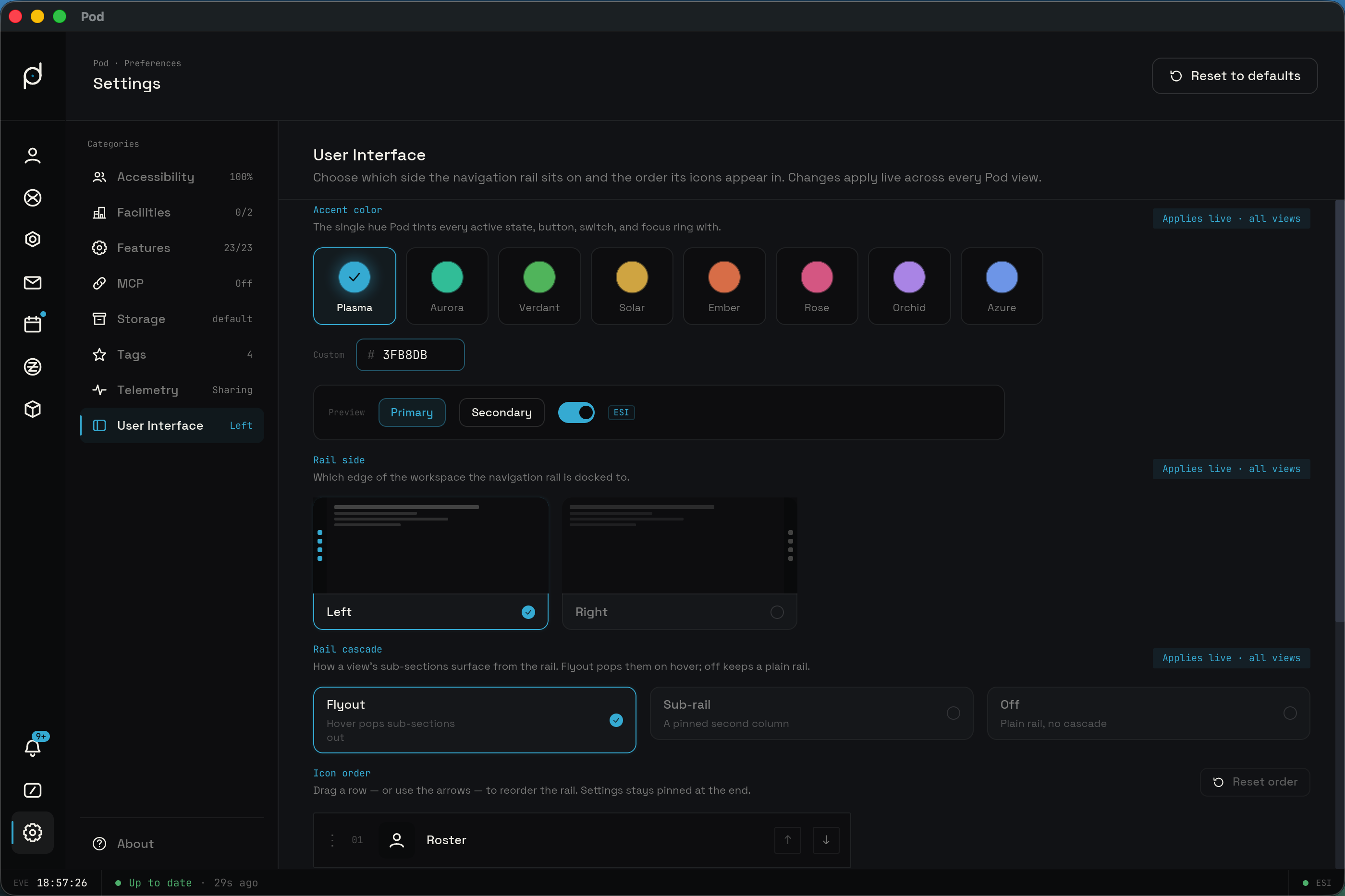
The User Interface tab controls Pod's accent color, where the navigation rail sits, how its sub-sections surface, and the order of its icons. Every setting here applies live across every Pod view.
Accent color
The "Accent color" control sets the single hue Pod tints every active state, button, switch, and focus ring with. A row of eight preset swatches covers Plasma (the default), Aurora, Verdant, Solar, Ember, Rose, Orchid, and Azure, with the current hue marked. A "Custom" hex field beside them takes any color you type, so the accent is yours to choose rather than a fixed set; an invalid hex reverts rather than applying. A "Reset" control returns the accent to Plasma, and a live preview strip shows the hue in context. The choice applies live across every view, and Pod also reads it at startup so your accent is in place before the first paint.
Rail and icons
The "Rail side" control docks the rail to the "Left" or the "Right" edge of the workspace. The default is Left. The current side is marked on the chosen card, and the category badge reads "Left" or "Right" to match.
The "Rail cascade" control sets how a view's sub-sections surface from the rail. It offers three modes shown as cards: "Flyout", the default, pops the sub-sections out when you hover the rail icon; "Sub-rail" pins them as a second column beside the rail; and "Off" keeps a plain rail with no cascade. The chosen card is outlined in plasma, and the change applies live across every view.
The "Icon order" control reorders the rail. Each row shows a two-digit position and a drag handle. Drag a row by its handle to a new spot, or use the up and down arrows on the row to move it one place at a time; the top row cannot move up and the bottom row cannot move down. While you drag, the row you are moving is tinted and a plasma line marks where it will drop. Settings is always pinned to the end of the rail and cannot be moved. A "Reset order" button restores the default order and is disabled when the order is already the default.