Notifications
Pod watches the data it syncs and tells you when something worth your attention happens, without you having to open each feature to check. A bell on the navigation rail collects these notifications, a center panel lists them, and new ones pop as toasts in the bottom-right corner. Everything is in-app, so Pod does not raise system notifications outside its own window.
The bell
The bell sits near the bottom of the navigation rail, above the command-palette and Settings buttons. When you have unread notifications, a plasma count pill shows in the top-right corner of the icon. The pill counts the unread items and reads "9+" once you pass nine. With nothing unread, the bell shows as a plain icon with no pill.
Click the bell to open the notification center.
The notification center
The center is a card that flies out beside the rail, bottom-aligned to the bell.
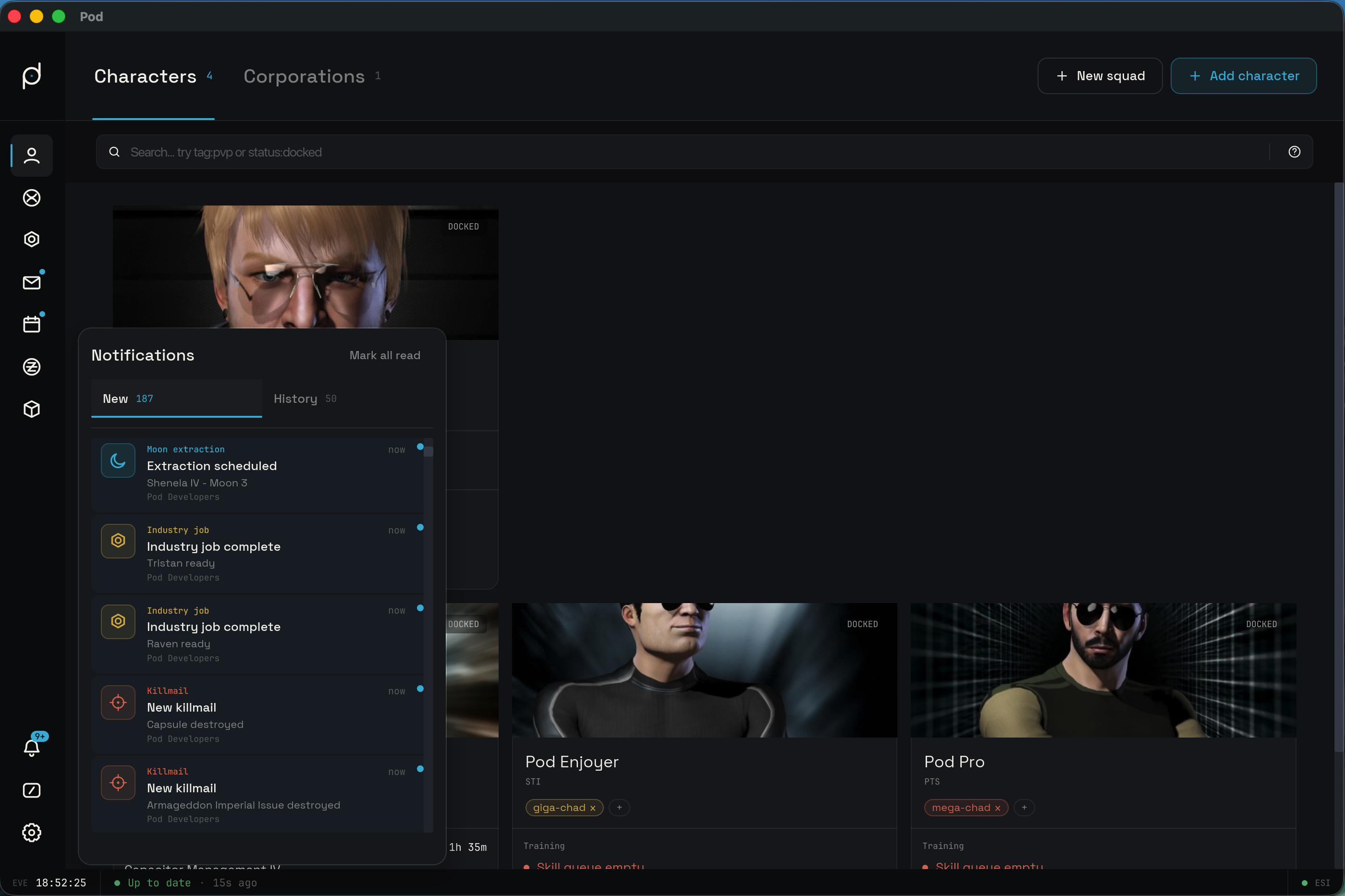
The header reads "Notifications" with a "Mark all read" button. The button marks every item read at once and is disabled when nothing is unread.
Below the header sit two tabs, "New" and "History", each with its own count badge. "New" is the default and lists only your unread notifications, newest first. Marking an item read removes it from "New". "History" lists every notification Pod is holding, read or not, also newest first. Each row carries the event title, a short body line, the owner it belongs to, and a relative time such as "2m ago". Click a row to open the feature the notification points at: a skill notification jumps to Skills, an industry job to Industry, a mail to that mailbox, and so on. Clicking a row also marks that one item read.
A footer reports a single count for the active tab, "N unread" on "New" and "N total" on "History". It hides when the active tab has nothing to show. There is no clear-all control; items leave on their own as they age out (see below). Opening the panel does not mark anything read on its own. Only a per-row click and the "Mark all read" button change the read state.
Each tab carries its own empty state. With nothing unread, "New" reads "You're all caught up". With no history to show, "History" reads "Nothing here yet".
The "History" tab pages in older notifications as you scroll, loading the next batch a little before you reach the bottom. It resets to the newest items whenever you open the panel or a new event arrives, so the top always reflects the latest activity. Pod holds history for about 90 days and prunes older items on a time window rather than capping a fixed number of rows.
What generates a notification
Pod raises notifications off the same background sync that keeps the rest of the app current, plus an idle sweep on a timer so reminders still land when no sync has run recently. Each event fires once: Pod tracks what it has already told you about and does not repeat it.
These events generate a notification:
- A skill finishes training.
- An industry job completes.
- A calendar event reminder comes due.
- New mail arrives.
- A killmail lands for one of your characters or corporations. Opening it goes straight to that killmail's Report tab, ready for you to write the debrief.
- A corporation moon extraction is scheduled.
- A moon chunk fractures and is ready to mine.
- A wallet balance gap is detected.
- A once-a-day reminder lands while your Captain's Log entry for the day is still unfinished.
A notification only fires for a feature you have enabled. If you turn off Mail, for example, Pod stops raising mail notifications. The first time Pod sees a source it records what is already there as a baseline rather than flooding the center with a backlog, so you only get notified about events from then on.
Toasts
When a new notification surfaces, Pod also pops it as a toast in the bottom-right corner. Up to three toasts stack at once; a fourth pushes the oldest out, though that item still lands in the center. Each toast leads with a colored icon tile keyed to its kind, then the same title and body as its center row, with an "x" to dismiss it.
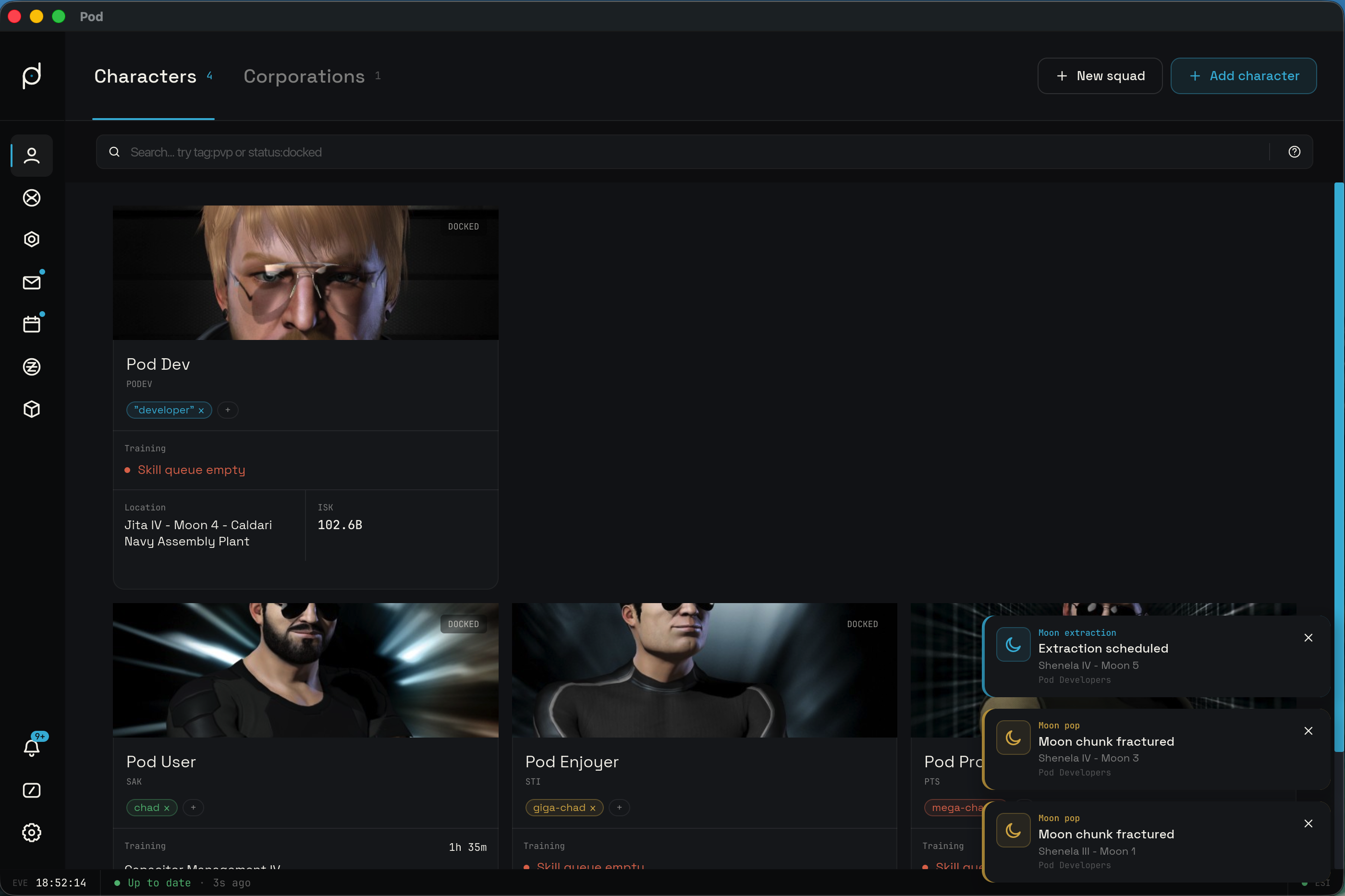
A toast clears itself after 15 seconds. Hover it and the countdown pauses, so a toast you are reading does not vanish under the pointer. Click the body of a toast to open the feature it points at, the same deep-link the center row uses. Dismissing a toast with its "x" marks that item read: it moves to your read history and never toasts again.
Each event toasts once. An item you dismiss or one that has aged out of history never re-notifies, since Pod records that it has already told you about it.
How this differs from the in-game Notifications tab
Pod's notification center is about activity across the app: training that finished, mail that arrived, a job that completed. It is separate from the in-game Notifications you read on a character.
A character's detail view has its own Notifications tab that shows the notifications EVE Online itself sends to that pilot, such as structure alerts, war declarations, and corporation messages, synced straight from the game. Those are EVE's notifications surfaced read-only. The notification center described on this page is Pod's own, built from the events above, and it is the one the rail bell opens.