MCP Server
Pod can run an embedded Model Context Protocol (MCP) server so AI agents, such as Claude Desktop or Claude Code, can read your data and automate Pod on your behalf. The server stays off until you turn it on, binds to localhost only, and exposes nothing without your token.
Configure it under Settings, in the MCP Server tab.
Turning it on
The Server section holds the master switch. Everything below it is inert until the server is running, and the tab badge reads "Off" while it is disabled. Flip the switch on and the badge shows the port the server is listening on, such as ":7373".
The server binds to 127.0.0.1, localhost only, and that address is fixed. It is never reachable from another machine on your network. Only the port is configurable, with a default of 7373. Type a new port and Pod keeps it in range.
The bearer token
Agents authenticate with a bearer token. Every request must present it, so treat it like a password. Pod generates a token automatically the first time you enable the server.
The Authentication section shows the token masked. Use "Show" to reveal it and "Copy token" to put it on your clipboard for pasting into an agent's config. "Reset token" generates a new token and immediately invalidates the old one. Any agent that was connected stops working until you re-paste the new token into its config.
Tool permissions
The Permissions section sets what a connected agent is allowed to do. A disabled tool returns a permission-denied error to the agent. The permissions split into local tools and tools that reach EVE.
Two local tools are on by default:
- Read tools let agents see your characters, wallet, ledger, market, contracts, skills, industry and planner, assets, blueprints, market orders, corporations, mail, prices, and captain's log. They can also look up live Jita buy and sell prices and daily traded volume straight from ESI, and turn EVE ids into names. The captain's log reads list your logged days with a completeness summary and pull a single day's recomputed activity rollup alongside its narrative, prompt answers, and kill reports. Most reads accept a corporation target as well as a character, and results carry readable names alongside their ids. Read-only: nothing you own is written or changed.
- Local write tools let agents assign budgets, build skill plans, configure the industry planner, and keep your captain's log by writing a day's narrative, answering its guided prompts, and filing after-action reports on your kills and losses. These write only to Pod's local database, so there is no EVE-side effect. Every one offers a "dry run" preview that validates the request and returns the intended result while leaving your data untouched, and retrying a request no longer creates a duplicate.
Three tools reach EVE and are off by default, so the actions that touch the game are an explicit opt-in:
- Send mail lets agents compose and send EVE mail from your characters.
- Delete mail lets agents permanently delete messages from your EVE mail.
- Manage labels lets agents create, rename, delete, and reassign your mail labels.
These queue through Pod's outbox, so a retried request does not send, delete, or relabel twice.
The permission badge reads "Local only" when no EVE-reaching tool is on, and counts the EVE effects you have enabled otherwise.
Tool arguments
Every tool now advertises a typed JSON input schema, so a connected agent sees
each tool's named arguments, their types, and which are required versus
optional. A tool that takes no arguments advertises an empty schema; the rest
declare exactly what they accept. For example, get_skills requires an integer
character_id. Paginated reads take an owner_type of "character" or
"corporation" and the matching owner_id, plus an optional zero-based page
(default 0) and an optional limit (default 50, range 1 to 500). Point
one at a corporation you do not have a director grant for and it returns an empty
result set rather than an error. get_budget_view takes an optional string
month in YYYY-MM. get_market_prices takes an optional type_ids, an array
of integers, and get_live_market takes type_ids plus an optional
location_id and region_id that default to Jita and The Forge. resolve_names
takes an ids array and returns each id's name and kind. The write tools accept
an optional dry_run: pass true (or 1) and Pod validates the request and
returns the result it would produce without changing anything. Pod accepts
numeric ids sent as strings, so an id serialized as "123" is read the same as
123.
Connecting an agent
Pod's server is a plain Streamable-HTTP endpoint on localhost: a single
POST http://127.0.0.1:7373/mcp carrying JSON-RPC, speaking MCP protocol
2025-06-18, behind your bearer token. That detail matters, because not every AI
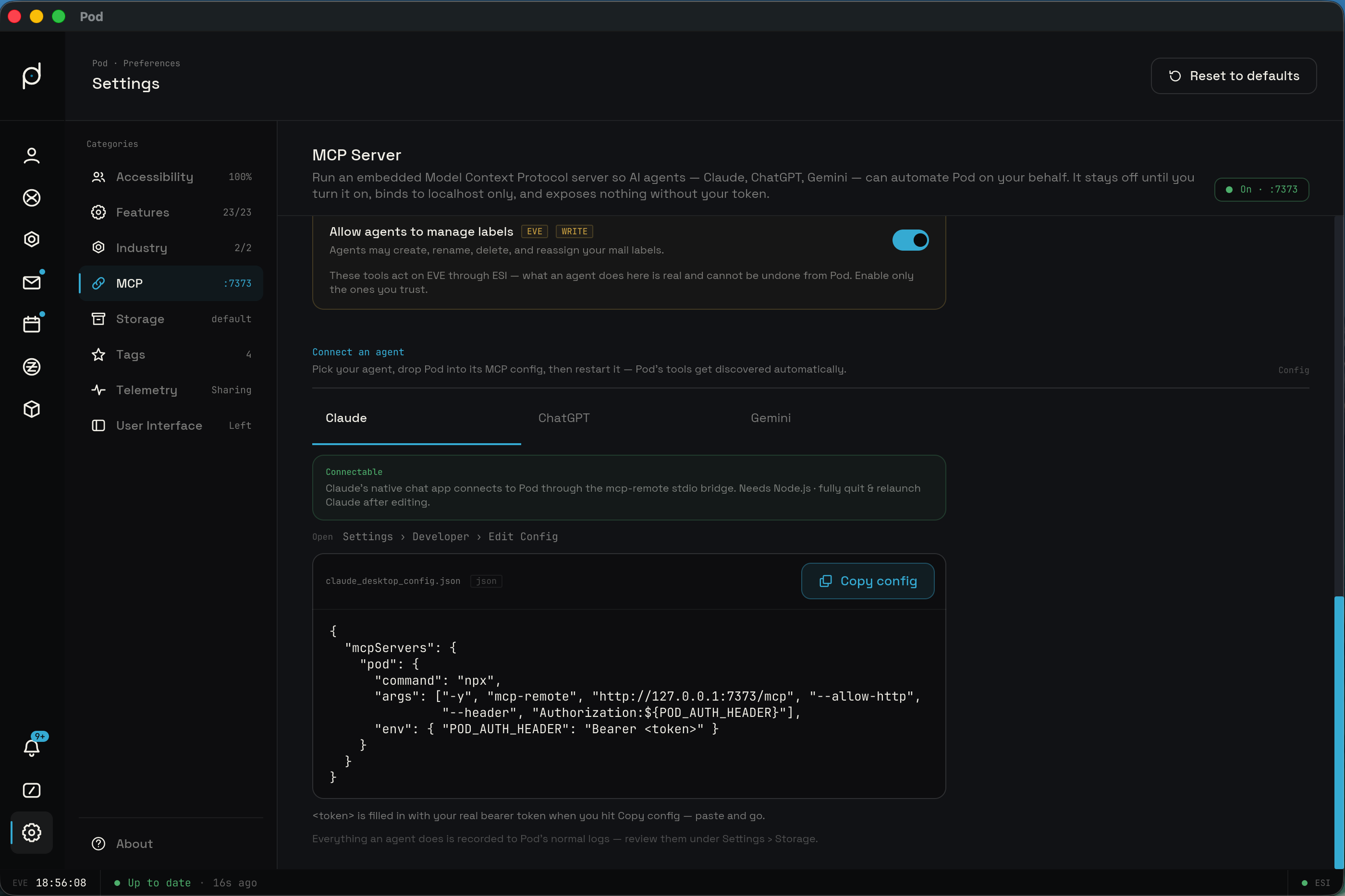
app can reach a local HTTP server the same way. The Connect an agent section
gives you honest, per-app guidance with three tabs, Claude, ChatGPT, and Gemini,
and a support-state band on each that says plainly whether the native chat app
connects or names the supported tool to use instead. "Copy config" copies the
active tab's snippet with your real bearer token filled in; in the card the
token is shown as the literal <token> placeholder until you copy.
Claude
Connectable. Claude's native chat app does connect, but through the mcp-remote
stdio bridge: the desktop config file is stdio-only and the in-app Connectors UI
can't reach a plain-HTTP localhost server, so Claude shells out to npx mcp-remote, which proxies stdio to Pod's HTTP endpoint. You need Node.js
installed, and you must fully quit and relaunch Claude after editing the config.
Edit claude_desktop_config.json via Settings, Developer, Edit Config. The
snippet uses an npx mcp-remote command and passes the bearer through an
environment variable so a space in the header value isn't mangled:
{
  "mcpServers": {
    "pod": {
      "command": "npx",
      "args": ["-y", "mcp-remote", "http://127.0.0.1:7373/mcp", "--allow-http",
               "--header", "Authorization:${POD_AUTH_HEADER}"],
      "env": { "POD_AUTH_HEADER": "Bearer <token>" }
    }
  }
}
ChatGPT
The ChatGPT desktop app cannot connect to a local server, so this tab routes you
to the OpenAI Codex CLI instead. Add Pod to ~/.codex/config.toml:
[mcp_servers.pod]
url = "http://127.0.0.1:7373/mcp"
http_headers = { Authorization = "Bearer <token>" }
Gemini
The consumer Gemini app has no custom-MCP support, so this tab routes you to
Antigravity, which connects to Pod's Streamable-HTTP endpoint natively, with no
bridge. Add Pod to ~/.gemini/antigravity/mcp_config.json, or use the GUI under
MCP Servers, Manage:
{
  "mcpServers": {
    "pod": {
      "serverUrl": "http://127.0.0.1:7373/mcp",
      "headers": { "Authorization": "Bearer <token>" }
    }
  }
}
After you add Pod to the tool's MCP config, restart it and it discovers Pod's tools automatically. Everything an agent does is recorded to Pod's normal logs. Review them under Settings, in the Storage tab.