Read, organize, and compose EVE mail across every character on your roster, without leaving Pod.
Layout
Mail uses three panes side by side. The folder pane on the left lists your mailboxes and labels. The message list in the middle shows the messages in the selected folder. The reading pane on the right shows the open message.
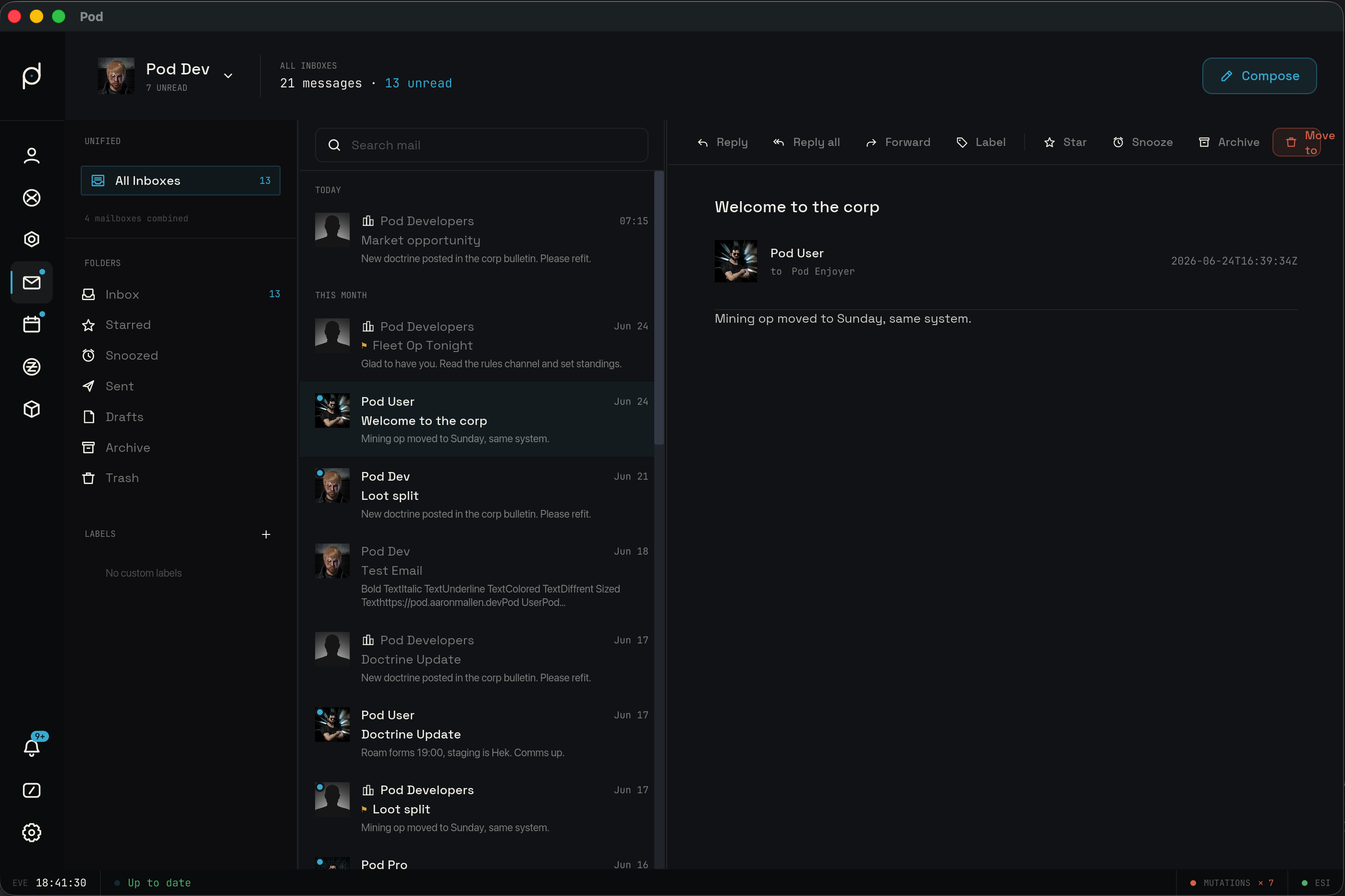
You can resize the folder pane and the message list by dragging the handles between panes. The folder pane opens at 240 pixels and the message list at 380 pixels. Both have a minimum width so they never collapse. Pod saves the widths you set and restores them the next time you open the window.
Message list
Pod groups the message list under date-separator headers, newest first. The relative buckets come first: "Today", then "Yesterday", then "This Month" for the rest of the current calendar month. Older mail falls under per-month headers like "June 2026" and "December 2025".
The relative buckets win over the calendar buckets. A message from yesterday that fell in the previous calendar month still shows under "Yesterday" rather than its month header, and the headers stay correct across year boundaries.
Each row carries a time label that matches its bucket. Mail from today or yesterday shows a clock time
like 09:07. Older mail in the current year shows a short date like Jun 18, and mail from a prior
year shows the year too, like Dec 2 2025.
Search results use the same headers, so a search reads the same way as a folder.
Folders
The folder pane is split into two sections. At the top, All Inboxes combines the inboxes of every character on your roster into one list, with a line below it showing how many mailboxes are merged. Use it when you want to read across all your characters at once.
Below that, the Folders section holds the seven standard boxes in this order:
- Inbox holds new mail.
- Starred holds the messages you have starred.
- Snoozed holds messages you have snoozed out of the Inbox until a chosen time.
- Sent holds mail you have sent.
- Drafts holds compose drafts you have not sent yet.
- Archive holds mail you have filed out of the Inbox.
- Trash holds mail you have trashed.
Each folder shows an unread count when it has unread mail. When you switch characters, the folder pane reflects that character's boxes.
Labels
Below the standard folders, the pane lists your custom labels. These are real EVE mail labels, so the ones you create here show up in the game client too. When you have none, the pane shows "No custom labels".
To make a label, open the create dialog, type a name (up to 40 characters), and pick a color from the EVE label palette. To remove a label, right-click its row and confirm the deletion.
You can drag a message row from the list onto a label to apply it. You can also drag a message onto the Inbox, Archive, or Trash boxes to move it there. While you drag, the valid drop target highlights so you can see where the message will land.
Open a message and use the Label button in the reading pane toolbar to apply or remove labels from that one message. The picker shows each label as a chip with its color swatch and name, and the message's current labels are marked.
Reading mail
Select a message to open it in the reading pane. Pod parses the stored EVE markup and renders it as formatted text, so bold, italic, and underline styling come through. The parser is forgiving: it skips markup it does not recognize rather than showing raw tags.
Links in the body, such as character, corporation, or station references, render as styled underlined text. They are shown for context and are not clickable inside the reading pane.
The reading pane toolbar holds the actions for the open message, from left to right: Reply, Reply All, Forward, and Label, then, past a divider, Star (which reads Starred once set), Snooze, Archive, and either Move to Trash or, for a message already in Trash, Delete. The message timestamp sits at the right end of the bar.
Reply, Reply All, and Forward each open a compose window seeded from the open message, so you can answer or pass it on without leaving the reading pane.
When no message is selected, the reading pane shows a "Select a message" prompt. When a search returns nothing, the message list reports that no messages match the query.
Star and unstar
Use the Star button to flag a message. Starred messages turn up in the Starred folder, and the toolbar button reads Starred while the flag is set. Press it again to unstar.
Snooze
Snooze moves a message out of the Inbox until a time you choose, then brings it back. The snooze menu offers four presets: Later today, Tomorrow, This weekend, and Next week. You can also pick an exact date and time from the calendar picker.
Snoozing removes the message's Inbox label and adds a Snoozed label, creating that label in EVE if it does not already exist. When the snooze time arrives, Pod removes the Snoozed label and restores the Inbox label. Because the Snoozed state is an EVE label, it stays in sync with the game: the Snoozed folder in Pod and the Snoozed label in the EVE client show the same messages.
Trash and permanent delete
Move to Trash files a message into the Trash folder. Mail that sits in Trash for 30 days is purged automatically. You can also purge a message yourself: open it from the Trash folder and press Delete. That removes the message from both Pod and your EVE mailbox. If the deletion fails permanently on EVE's side, Pod restores the message from a snapshot it took before purging.
Composing
Start a new message and compose opens in its own detached window, separate from the main Pod window. You can move and resize it, and you can have more than one compose window open at once, so you can draft several messages in parallel. The window uses the OS-native title bar, which shows the subject once you type one and reads "New message" until then, so you can tell open composes apart.
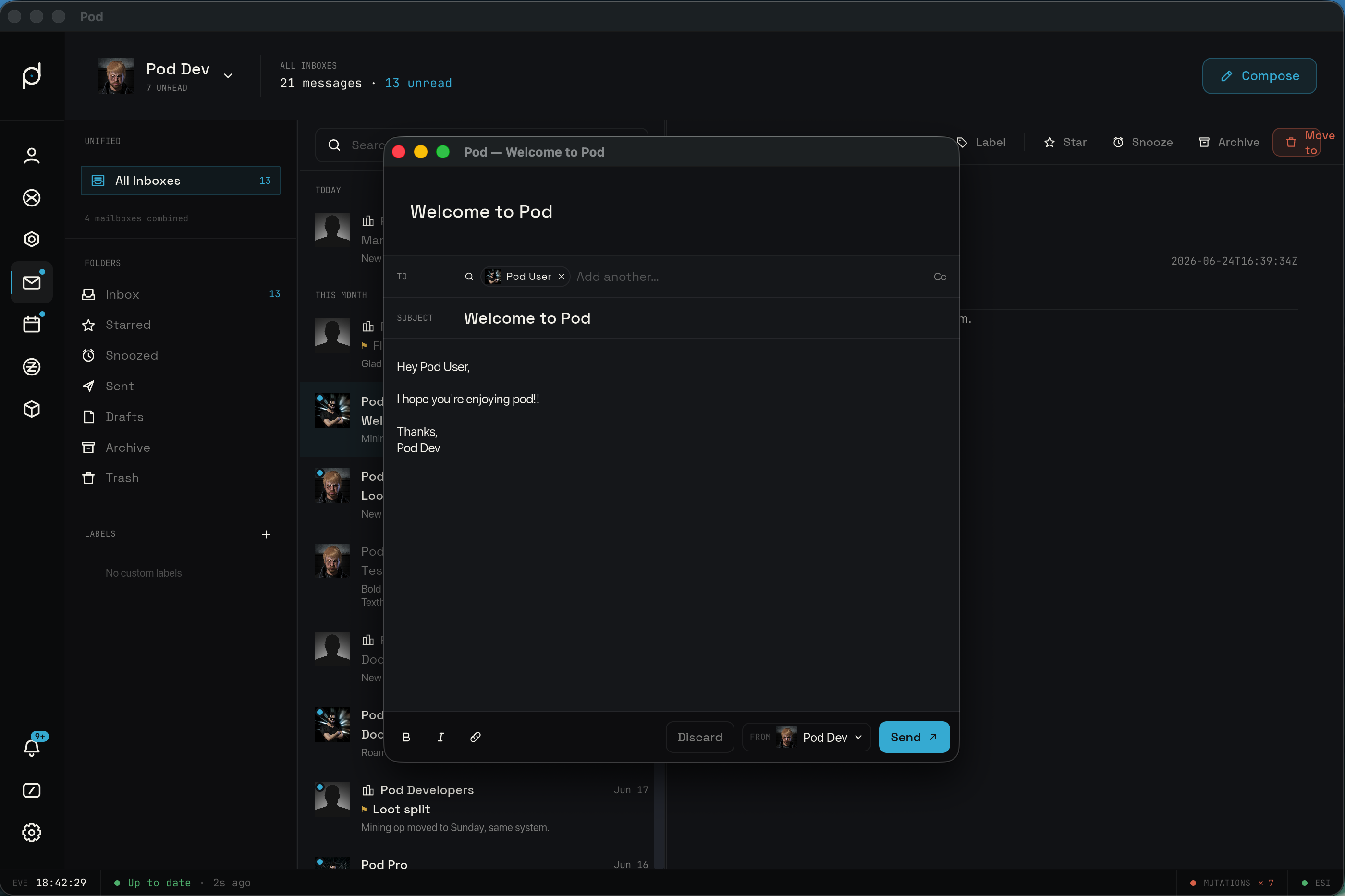
The From field is a character picker. It defaults to your active character, and you can switch the sender to any character on your roster. The To and Cc fields use entity search: start typing a name and Pod searches for matching recipients once you reach three characters, then shows results you can add as chips. You can add more than one recipient to each field.
The formatting toolbar wraps the selected text in EVE markup. Bold wraps it in bold, Italic wraps it in italics, and Link opens the link picker.
The link picker builds one of five link kinds:
- Web URL, where you type the address yourself.
- Character, searched by name.
- Corporation, searched by name.
- Solar system, searched by name.
- Station, searched by name.
For the searchable kinds, the picker runs the same debounced search as the recipient fields and inserts the chosen entity as a proper in-game link. For a web URL you type the address directly.
When you send, Pod writes the message into your Sent folder right away so you see it without waiting for the next sync. The real message replaces this optimistic copy on the next mail sync. If the send fails permanently on EVE's side, Pod removes the optimistic copy.
Outbox
While Pod is delivering mail, an outbox indicator tracks its progress. A sending pill counts the messages still on their way out, and a failed pill, marked in red, counts the ones that did not go through. The indicator stays hidden while nothing is pending or failed.
When a send fails, the indicator shows the error along with two actions for the first failure. Retry queues that message to send again, and Dismiss clears it from the outbox.
Drafts
Pod saves compose drafts locally so an unfinished message is not lost. A draft is saved whenever it has a subject, a body, or a recipient in the To or Cc field. Empty compose windows are not saved.
Pod saves the current draft when you close the compose window, switch folders, switch characters, or quit the app. Each draft keeps its kind (new, reply, reply-all, or forward), subject, body, quoted text, and recipients, so reopening it restores the message as you left it. Saved drafts appear in the Drafts folder. When you send a draft, Pod deletes its saved copy.