Skills
The Skills view shows what each character is training, how long it will take, and how to plan training ahead of time. The live training queue is read-only because it mirrors what EVE reports. You change training by building and applying skill plans, not by editing the queue in Pod.
Layout
The view splits into a left column and a right panel, with a draggable handle between them. Pick the active character from the dropdown in the header band at the top. To its right runs a stat cluster: total skill points, the queue, and, once something is training, a "Queue completes" block with the EVE finish time. The queue stat reads "Empty" when nothing is training, whether the queue is empty or paused, and shows the time remaining otherwise. It turns red when the queue is empty or running low.
The right side of the header carries a "Plan" dropdown and a "Compare" button. The Plan dropdown folds the plan actions together: "New Template" opens a characterless template editor, and "Manage Plans" opens the Manage Skill Plans window. Compare opens the character comparison window.
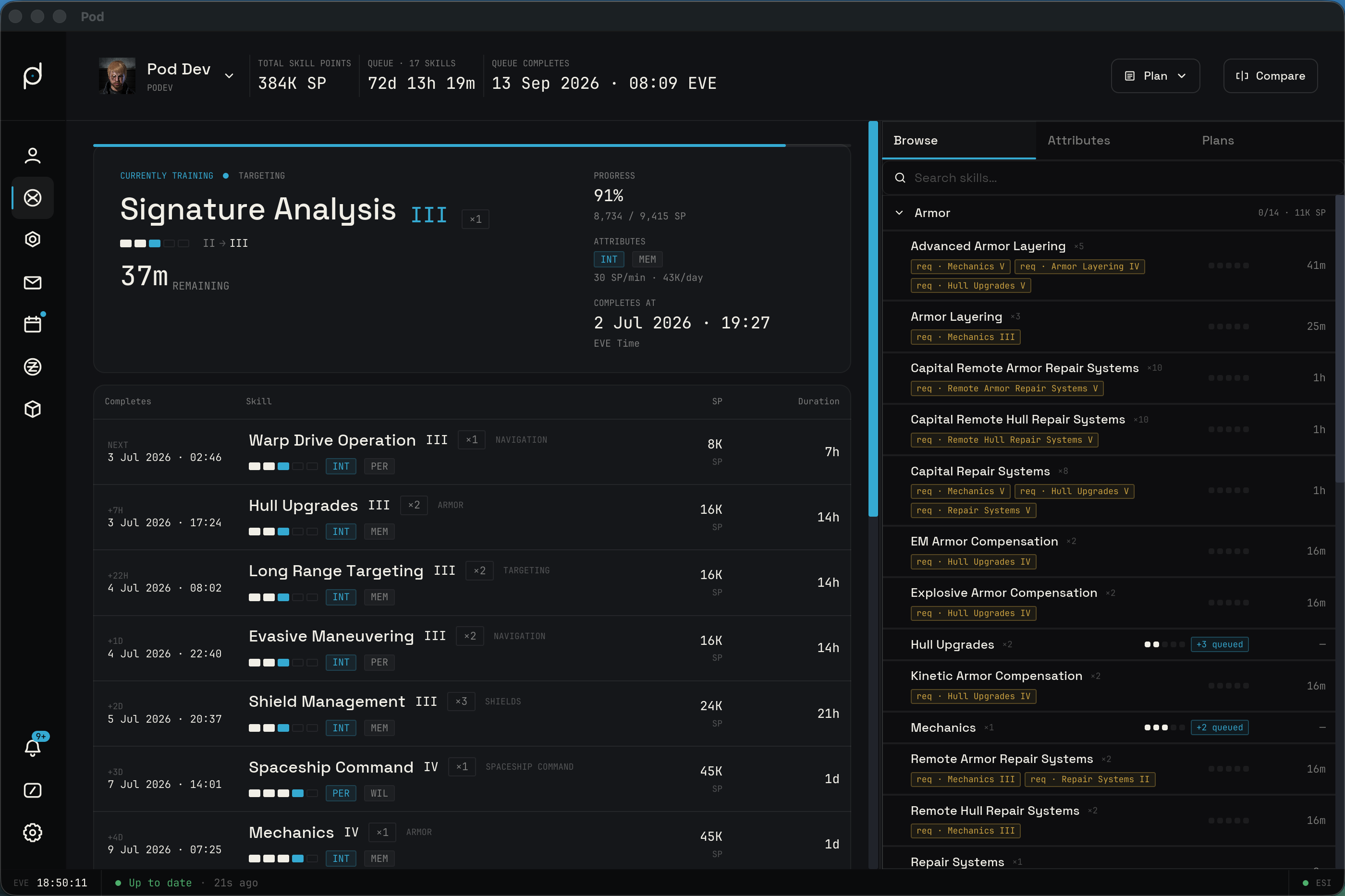
The left column stacks up to three cards:
- The training hero shows the skill in training right now. It carries a "Currently training" eyebrow, the skill name and Roman level, a rank badge, a pip ladder for the level transition, and a large remaining-time figure labeled REMAINING. A second column shows percent complete, SP now and SP to go, the attribute pair driving the skill, and the SP rate. A thin progress bar runs across the top of the card.
- A warning strip appears only when there is something to flag. It covers three variants. An empty queue reads "Training inactive · skill queue is empty." A paused queue reads "Training paused · {N} skills queued," counting the skills still waiting. A live queue with less than 24 hours left reads "Low queue · less than 24h of training remains."
- The queue section lists the upcoming skills.
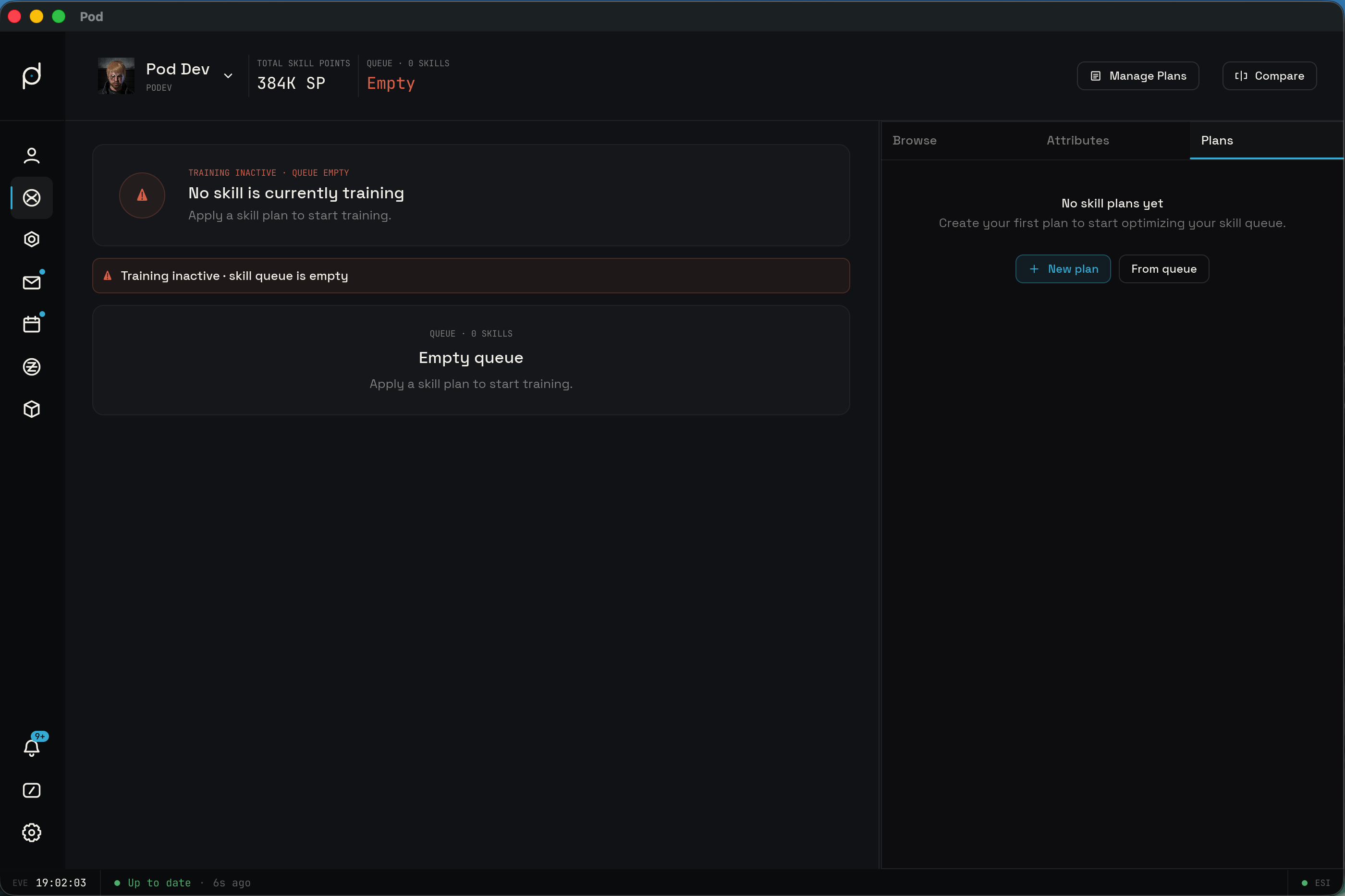
When nothing is training, the hero switches to an idle card, and it distinguishes an empty queue from a paused one. An empty queue reads "Training inactive · queue empty" and "No skill is currently training," with the prompt "Apply a skill plan to start training." A paused queue, where skills are still lined up but EVE has stopped training, reads "Training paused · {N} skills queued" and "Training is paused," with the prompt "Resume training in EVE to continue the queue." The count reads "1 skill" when exactly one skill is queued.
If you have not added any characters yet, the whole view reads "Add a character to view skills."
The training queue
The queue lists every skill scheduled after the one currently training. The columns are Completes, Skill, SP, and Duration.
- Completes shows when each skill finishes. The first row carries a "Next"
label; later rows show the offset from the prior finish, such as
+3d. Below that sits the absolute EVE finish time, formatted like1 Jun 2026 · 14:30. The finish times are cumulative down the queue. - Skill shows the skill name, the Roman level it trains to, a rank badge, and the group it belongs to. Below the name are a pip ladder and chips for the primary and secondary attributes that drive its training speed.
- SP shows the skill points needed for that level.
- Duration shows how long that level takes, in the largest unit only, such as
3dor6h.
The footer below the list totals the queue. It reads "Total · {N} skills," followed by the combined training time and the EVE time the last skill finishes. A hint reminds you that Shift-click and Cmd-click select rows.
The queue itself has no reorder, remove, or add controls. It reflects the training order EVE already holds. The only thing you do directly on the queue is select rows so you can turn them into a plan.
The empty queue
When a character has nothing queued, the queue section shows a card instead of a list. It carries a "Queue · 0 skills" eyebrow, the heading "Empty queue," and the prompt "Apply a skill plan to start training." The header stat block turns red to flag the idle queue, and reads "Empty."
Selecting rows to build a plan
Click a queue row to select it. A plain click selects a single row, and clicking the lone selection again clears it. Cmd-click toggles a row while keeping the rest. Shift-click selects a contiguous range from the last anchor. Shift plus Cmd-click merges a range into the existing selection. Press Escape to clear the selection.
Once one or more rows are selected, the footer switches to a selection bar. It shows a count reading "{count} selected," a Clear button, and a "Create plan {count}" button. That button opens the plan editor seeded with the skills you picked. The selection is read in queue order, so the new plan keeps the queue's sequence. The Plans tab carries a matching count badge while rows are selected, and its own "From selected {count}" button does the same thing.
Right panel
The right panel switches between four tabs, in order: Queue, Attributes, Skills, and Plans. Queue is the default.
Queue
The Queue tab breaks the live training queue down into totals and charts and lets you export it. When nothing is queued it shows a card with a "Queue · empty" eyebrow and the line "Add skills to the queue to see the training breakdown here."
With a queue in place, the tab stacks:
- Plan totals: the total training time, the remaining SP, a "{N} steps" count, and the EVE time the queue completes.
- Skill injectors, under a "SKILL INJECTORS" heading, estimates how many injectors would cover the remaining SP. It shows a LARGE and a SMALL pill, each with the SP one injector yields at your current total SP band, and a line noting how much SP is left to inject.
- "TIME BY SKILL GROUP" and "TIME BY ATTRIBUTE PAIR" break the queue's training time down as bar charts, one bar per skill group and one per attribute pair.
Two buttons at the bottom export the breakdown. "Export Skill Plan" writes a plain text file, one skill and level per line. "Export CSV" writes the queue as a spreadsheet, one row per step.
Attributes
The Attributes tab shows the character's neural attributes and how they affect training speed. Until the character has synced, it reads "Neural attributes will appear once synced."
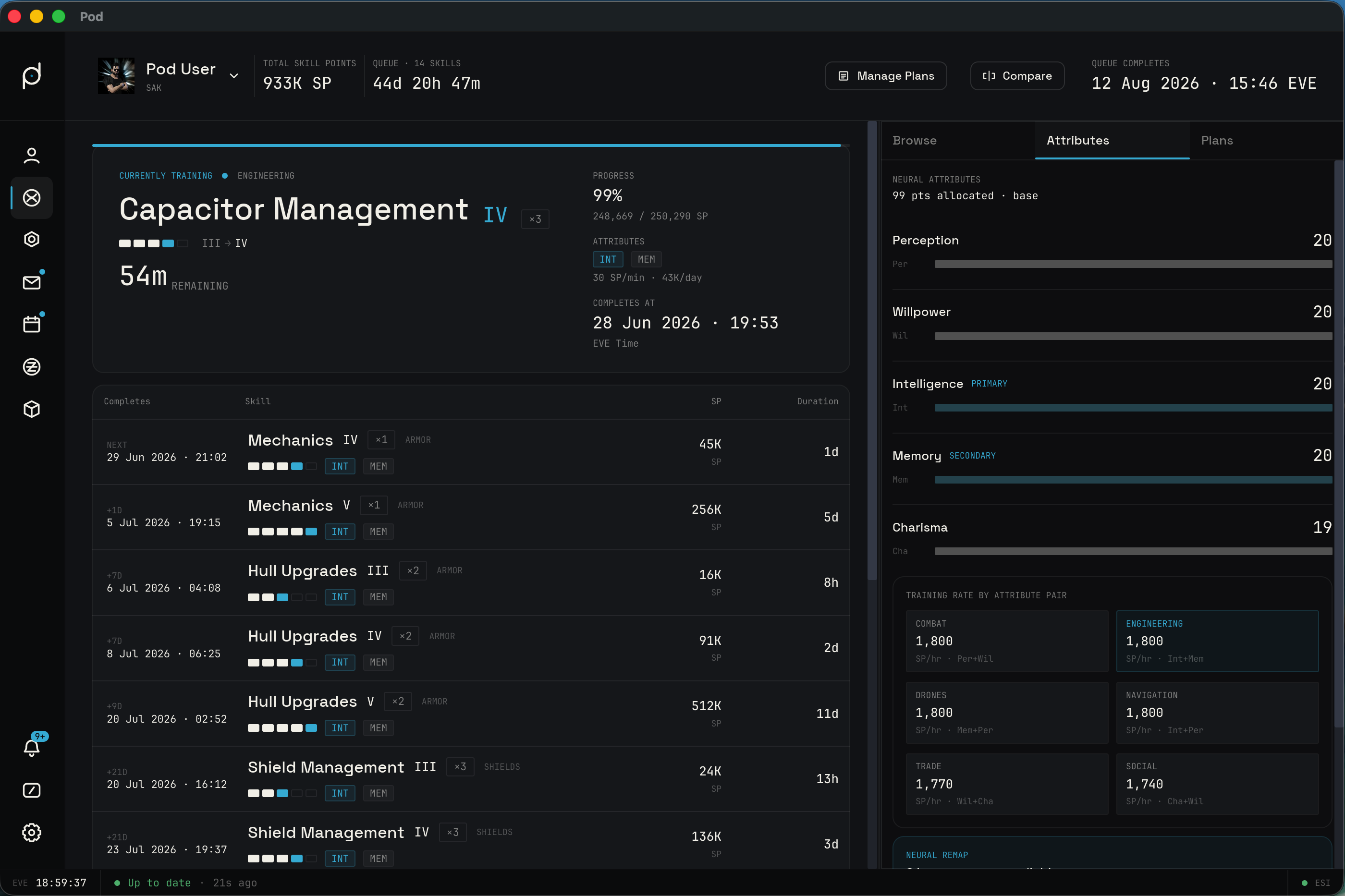
The five attributes are Perception, Willpower, Intelligence, Memory, and
Charisma. Each row shows the base value, a green +N addend when an implant
boosts that attribute, and a second +N addend when a cerebral accelerator or
other booster is active. The effective value is base plus implant plus booster.
The segmented bar behind the row splits into a base portion, an implant portion,
and a booster portion, with the rest of the bar as the remainder, so an active
accelerator shows at a glance. The five base attributes always sum to 99.
Training speed comes from two attributes per skill, a primary and a secondary. The rate is:
SP per second = (primary + secondary / 2) / 60
SP per hour   = (primary + secondary / 2) × 60
A skill trained on Perception 27 and Willpower 24 trains at
(27 + 12) × 60 = 2,340 SP per hour. With a +5 implant in each, the same skill
runs on 32 and 29, or (32 + 14.5) × 60 = 2,790 SP per hour. An active
accelerator raises the effective attributes the same way, so the rates and the
queue's finish time reflect it while it lasts. Higher attributes finish skills
faster, which is why the math matters when you plan.
The SP-per-hour matrix lists the six attribute pairs that EVE uses, labeled Combat, Engineering, Drones, Navigation, Trade, and Social. The pairs are Perception/Willpower, Intelligence/Memory, Memory/Perception, Intelligence/ Perception, Willpower/Charisma, and Charisma/Willpower. Each cell shows the SP per hour at the character's current attributes, and the pair driving the skill in training is highlighted.
The neural remap card sits below the matrix. It reads "Neural remap" and shows how many bonus remaps are available, when the last remap happened, and when the annual remap accrues again. EVE grants one remap on an annual cooldown plus any bonus remaps the character has banked. When no remap is available, the card shows the reason, telling you no neural remaps are available and how many days until the next one accrues.
The card also shows a recommended remap for the current queue, under the heading "Fastest remap for your current queue." Pod weighs every attribute pair by the SP your queue demands, then searches all legal attribute spreads between 17 and 27 that sum to 99. It shows the spread that finishes the queue fastest, the time it would take, and how much it saves against your current attributes. If your current spread is already best, the card says it is already optimal and that no remap improves your current queue. The recommendation never suggests a slower spread. It weighs your permanent attributes and implants, not a temporary accelerator, since the booster expires while a remap does not.
Skills
The Skills tab is a searchable catalog of the skill tree. The search box reads "Search skills…." Skills are grouped by category and sorted by group name. The first group opens on load and the rest start collapsed. Searching opens every group that contains a match.
Each group header shows the group name and a summary of {trained}/{total} skills
and total SP, where "trained" counts skills you have at level 5.
Each skill row shows the skill name and its rank multiplier, such as ×3. For an
untrained skill with prerequisites, the row lists those prerequisites as chips
reading req · {Skill} {level}. On the right are five small pips showing the
levels you own, an optional +N queued badge when a plan or the queue would push
the skill above its trained level, and an estimate of how long the next level
takes. A skill already at 5 shows a dash instead of an estimate.
The Skills tab is read-only. You cannot add a skill to the live queue from here, because the queue mirrors EVE. To schedule training, build a plan in the plan editor.
Plans
The Plans tab lists the saved skill plans for the active character. A plan is a local list of skills and target levels that you author and edit. It differs from the live queue: the queue is read-only and reflects EVE, while a plan is yours to reorder, edit, and reuse. Building a plan is how you decide what to train next.
The plan actions sit above the list. "New plan" and "From queue" share a row, where "From queue" builds a plan from the whole current queue. When you have queue rows selected, a "From selected {count}" button appears on its own row below them.
Each plan card shows a rounded-square badge, the plan name, and a subtitle of
{N} skills · {date}. The badge is the number of steps still left to train for
the active character, so the same plan shows a different number on a pilot who
has already trained part of it. The subtitle counts the distinct skills in the
plan, not its total steps, followed by the date it was last updated. The Open
button opens the plan in the editor. The delete button arms an inline confirm
row reading "Delete?" with Confirm and Cancel.
When the character has no plans, the tab reads "No skill plans yet" with the prompt "Create your first plan to start optimizing your skill queue." The Manage Skill Plans window opens from "Manage Plans" in the header's Plan dropdown, not from this tab.
Manage Skill Plans
The Plans tab works one character at a time. To see and move plans across your whole roster at once, open the Manage Skill Plans window from "Manage Plans" in the header's Plan dropdown. It opens as its own detached window, separate from the main Pod window, so you can move and resize it.
The window has two tabs, Templates and Characters, and opens on Templates.
Templates
A template is a reusable skill plan with no owning character. It is costed from a fresh pilot, so you can build one doctrine or fit once and apply it to anyone. The Templates tab reads "Reusable templates" with the line "Character-independent plans, costed from a fresh pilot. Import one onto a character to use it."
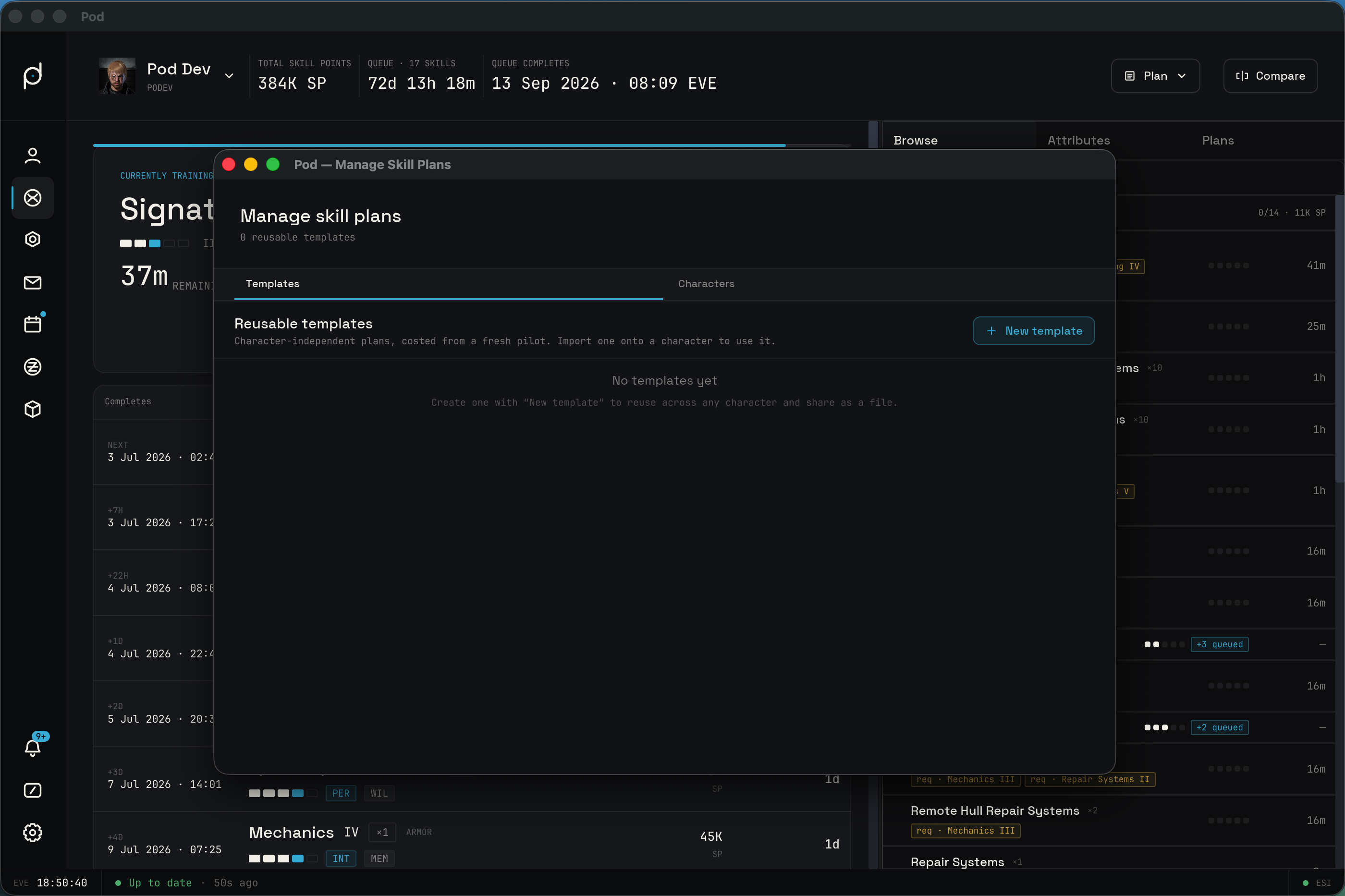
"New template" opens the plan editor with no character attached. It is the same editor you use for a character plan, but every skill is costed from a fresh unmapped pilot, all attributes at 17, because there is no character to read trained levels or attributes from. Its summary shows the total training time and an attribute optimization panel where the current column is labeled UNMAPPED, so the training times in the list and in the editor always agree. You can also open the editor straight from "New Template" in the skills header's Plan dropdown.
Each template card shows a step-count badge, the template name, and a "{n} steps · {SP} SP · {training time} · edited {date}" line, where the training time is the total for a fresh pilot. Open reopens the template in the editor. "Import to" lists every character on your roster under an "Import onto character" heading; pick one and Pod writes the template onto that pilot as a new plan, costed against what they have already trained. Delete removes the template after an inline "Delete?" confirm. When you have no templates yet, the tab reads "No templates yet" with the prompt "Create one with 'New template' to reuse across any character and share as a file."
Characters
The Characters tab is a master/detail layout. A character rail runs down the left, one row per pilot with a portrait, name, corp, and a count of how many plans they hold. The header sums the totals, for example "12 plans across 4 characters". Pick a character on the left and the detail pane on the right lists that pilot's plans.
Each plan card shows its name, a step-count badge of the steps still left to train, and a "{n} skills · edited {date}" line, with three actions: Open opens the plan in the plan editor, Copy to copies the plan to another character, and Delete removes it after an inline "Delete?" confirm. New plan, in the detail header, starts a fresh plan for the selected character.
When a plan has milestones, the card also carries a progress bar and a "{done}/{total} milestones" count. Both turn green once every milestone in the plan is complete.
Copying a plan across characters
Copy to is how you reuse a plan on another pilot. Press it on a plan card and a "Copy to character" menu lists every other character on your roster, each with a portrait, name, and corp. Pick one and Pod copies the plan onto that character. The copy is independent: editing it later does not touch the original. A character with no plans yet shows the prompt to create one or copy a plan in from another character.
The plan editor
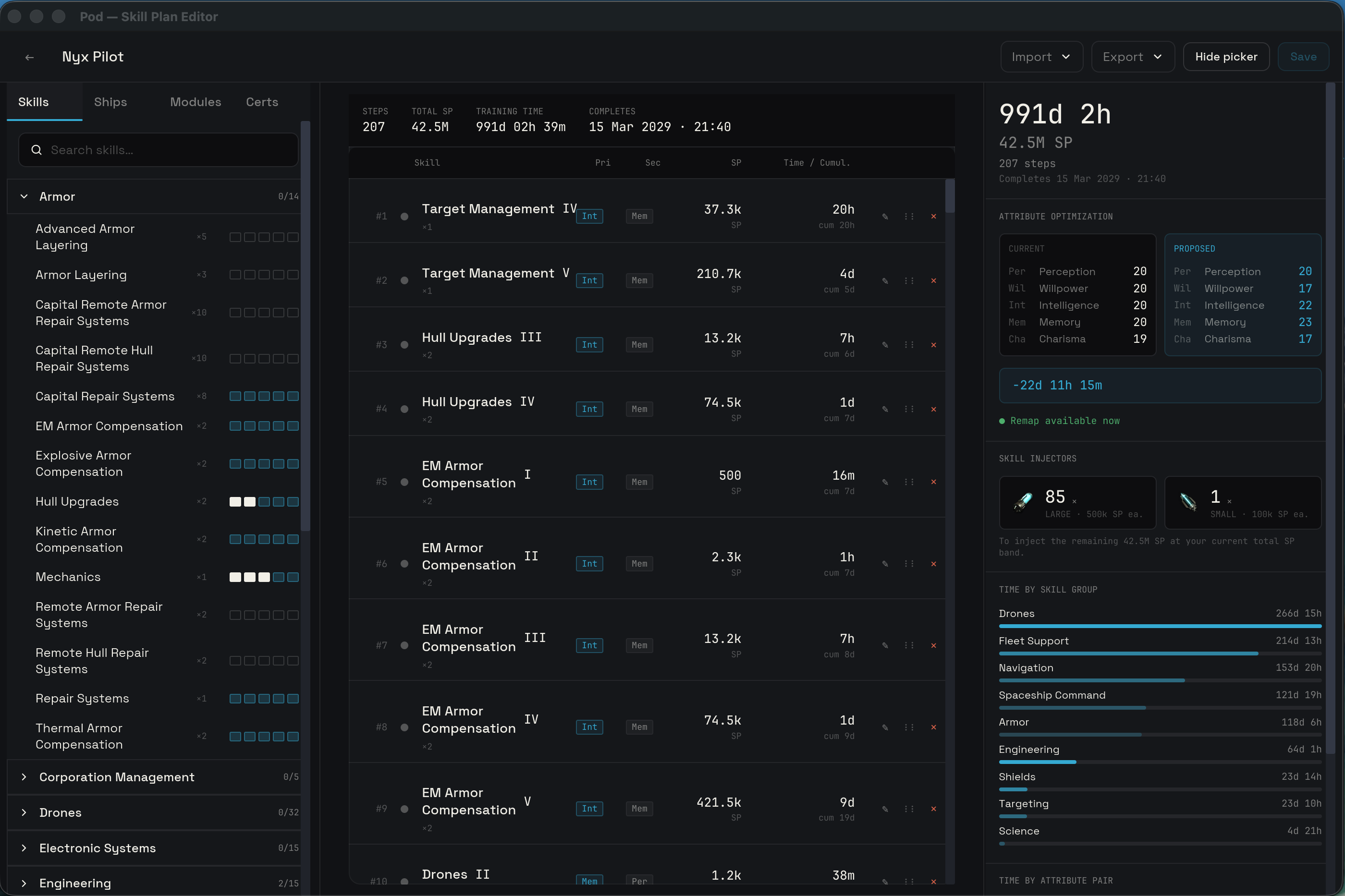
The plan editor opens as its own detached window, alongside Manage Skill Plans and Compare, so you can move and resize it next to the main Pod window. You can open several plan editors at once and set them side by side. Manage Skill Plans stays open behind them, and reopening a plan that is already open focuses its existing window instead of opening a second copy. The editor lays out in three columns: a skill picker, the ordered entry list, and a summary panel. The header carries a back arrow, an inline name field that defaults to "Untitled plan," a dot that lights up when there are unsaved changes, Import and Export menus, a button to show or hide the picker, and Save.
The picker
The picker has tabs for Skills, Ships, Modules, and Certs, each with its own search. The Skills tab lists skills grouped and collapsible. A result row shows the skill name, its rank multiplier, and a five-pip strip. Trained levels show as solid pips and planned levels show tinted. Click the pip for a level to add the skill to the plan at that level. The Ships, Modules, and Certs tabs add the requirements for a hull, a module, or a certificate tier, expanding every prerequisite into the plan.
The entry list
The entry list is an ordered card of skill-and-level steps, grouped into milestone sections and topped by a stats strip. The column header shows an index, a priority dot, the skill, the primary and secondary attributes, SP, and time with a running cumulative total. You can sort by priority, SP, or time, and the sort keeps each skill inside its own milestone.
Each row shows its index, a priority dot you click to cycle Low, Normal, and High, the skill name and Roman level, attribute chips, the SP and time for that step, and a remove button. A green "prereq" badge marks a step that was added automatically to satisfy a requirement. A grey "already trained" badge marks a step the character has already finished, which costs zero time. Prerequisite and auto-added steps show a lock instead of a remove button so the plan stays valid. You can drag rows by their handle to reorder them when the sort is set to manual, and a marker shows where the row will drop.
The plan editor expands prerequisites for you. Adding a skill that needs other skills first pulls those in as auto entries ahead of it, broken into one-level steps. It never schedules a level twice, and it only schedules levels above what the character already has.
Milestones and remaps
The priority dot on each row sets how urgent the step is. Click it to cycle Low, Normal, and High, which are color-coded so you can scan the plan.
A plan is organized into named milestone sections. Hovering between rows, and at the start of the plan, reveals a "+ ADD MILESTONE HERE" pill; an empty plan offers "+ Add milestone" instead. Each milestone carries an eyebrow reading "Milestone {N}" and a "Milestone name" field you can fill in. Sorting the entry list keeps each skill inside its own milestone, so the sections stay intact when you reorder by SP or time.
Each milestone can hold an optional neural remap. Pod can suggest one for you: "Suggest remap" fits the milestone's attributes to the skills under it, and the readout then reads "Neural remap · Auto." "Re-suggest" recomputes it and "Clear" removes it, leaving the milestone with no remap. A milestone with a set remap shows a "NEURAL REMAP" readout and the spread it applies. The editor recomputes the steps that follow as if you remapped at that point, so a remap early in a long plan can shorten everything after it.
Plans made before milestones existed still open. Any remap points they carried convert to named milestones automatically, so nothing is lost.
The summary
The summary panel totals the plan and adds detail:
- Plan totals shows the training time, total SP, the step count, and the EVE finish time.
- Attribute optimization compares your current attributes against the spread that would train the plan fastest, with the time it saves or a note that the plan is already optimal. In a template, which has no character, the current column is labeled UNMAPPED and costs every skill from a fresh pilot with all attributes at 17.
- Skill injectors estimates how many large and small injectors would cover the remaining SP. The yield per injector drops as total SP rises: 500K per large below 5M SP, 400K below 50M, 300K below 80M, and 150K above that. Larges fill the bulk and smalls cover the remainder.
- Implant effect, shown only when the character has implants, compares training time with and without them and lists the per-attribute bonuses.
- Time by skill group and Time by attribute pair break the plan down as bar charts.
An empty plan reads "No skills in this plan yet" with the prompt "Add your first skill using the skill picker."
Import and export
The Export menu writes the plan out three ways. "To clipboard" copies it as plain
text, one skill and level per line. "To psp" writes a portable .psp pack named
after the plan, such as Combat Core.psp, a compact format that carries each
entry along with its priority and the plan's milestones, so you can share a plan
or template as a single file. "To csv" writes the plan as a spreadsheet.
The Import menu reads a plan back three ways. "From clipboard" and "From file…"
auto-detect the format. "From file…" accepts .psp packs, CSV, and EVE-style
plain text where each line is a skill name and a level, like Gunnery V or
Small Hybrid Turret 4, with the level as a number or Roman numeral. On import,
a prompt asks "Replace the current plan, or append the imported skills to the
end?" with Cancel, Append, and Replace. You can also send an import into a
specific milestone.
"From clipboard (EFT)" reads an EFT fit from the clipboard instead of a skill list. Copy a fit out of EVE or a fitting tool, and Pod reads the hull, every module and its loaded charge, and any drones or cargo, then resolves the skills those items require and stages them as plan entries at the levels the fit needs. The same replace-or-append prompt applies. This is how you turn a doctrine fit into the training plan to fly it.
Comparing characters
The "Compare" button in the header opens its own detached window, a matrix that compares two or more characters side by side. The header reads "Compare" with a pilot count, a row of pilot chips showing each portrait, name, and total SP, and an "+ ADD PILOT" button with a "Search pilots…" dropdown. You need at least two pilots, so the remove control is disabled when only two remain.
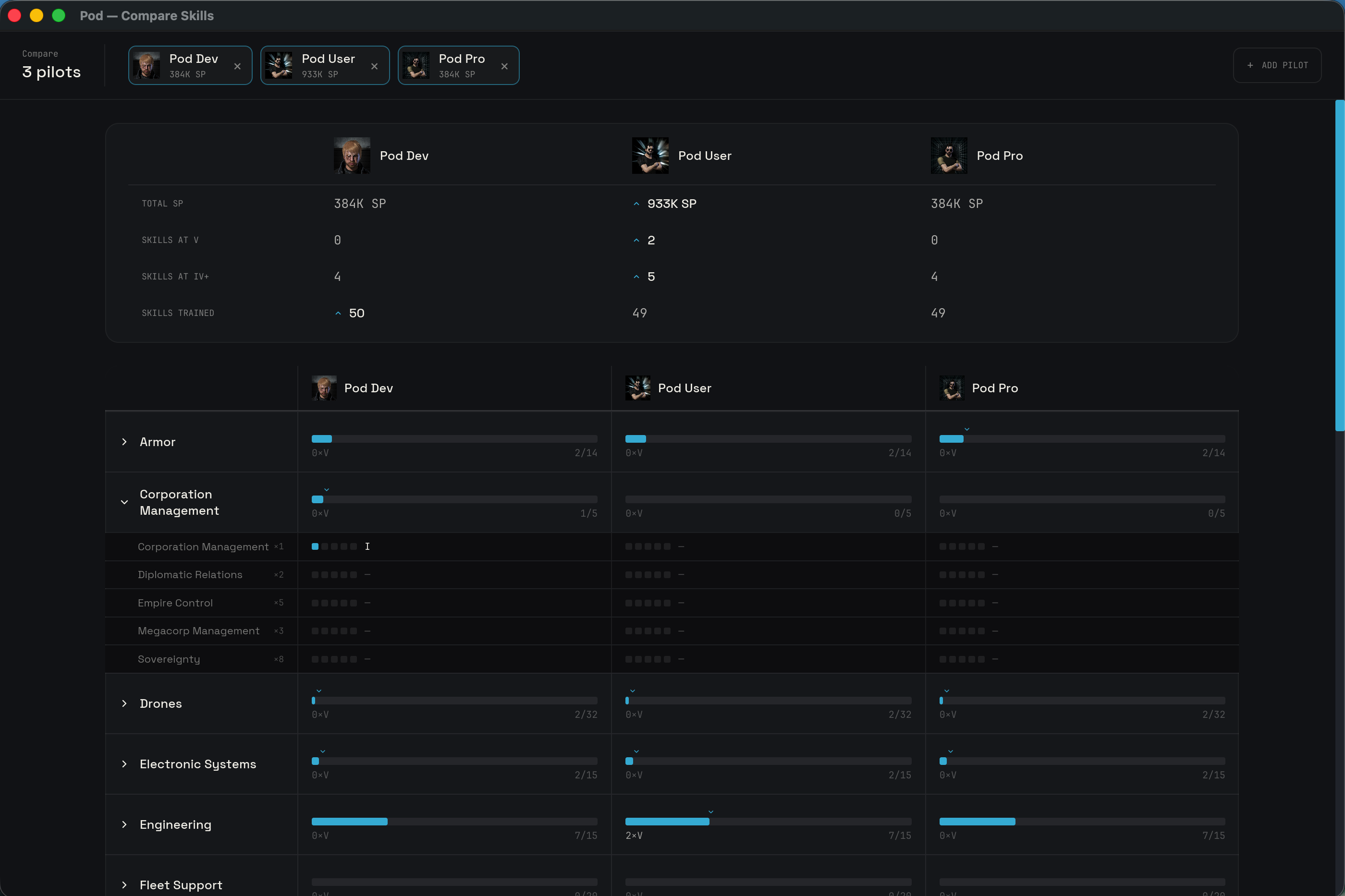
A summary block across the top shows each pilot's total SP, skills at level 5, skills at level 4 or higher, and skills trained. The leading pilot in each stat gets a marker in their color, and ties mark every leader.
Below the summary is the matrix. Skill groups run down the side as collapsible rows, columns are the pilots, and each cell shows the level that pilot has. A group cell shows a mastery bar, the count of skills at level 5, and the trained total. Expand a group to see each skill, where the cell shows five pips and the Roman level, or a dash when untrained. The leading column for each group and each skill is marked in the pilot's color, and rows where no one has the skill have no leader.